Viva Bigcommerce Theme Manual
The Viva theme series is a modern, user-focused design solution tailored for multiple industries. While each theme is customized for a specific niche, they all share powerful features like responsive design, mega menus, quick view, and quick add-to-cart for enhanced user experience. In addition, all themes are built with SEO, speed optimization, and mobile-friendliness in mind, making them powerful platforms for online shopping.
Viva Grocery, Viva Automotive, and Viva Gifts — each theme is uniquely crafted for its respective industry, yet they all include common features such as promotional homepage sliders, newsletter popups, wishlist functionality, blog integration, and elegant typography with soft color schemes. These shared elements bring all three themes to a universal standard, offering customers a smooth and seamless shopping experience across all devices
Theme Settings & Customization
Features of Viva Themes
- Recipe Page Integration
- Recently Viewed Popup
- Purchase (Sales Notification) Popup
- Share Icon Popup
- Sticky Add to Cart Popup
- Newsletter Popup Modal
- Mega menu with image support
- Product Labels (Custom Badges)
- Product Tabs Customization
- Custom Filters / Faceted Search Enhancements
- Store Locator Integration
- Custom Product Bundles / Build-a-Box
- Testimonial / Review Section on Homepage
- Homepage promotional banners
- Discount popup
- Bulk order page
Header & Footer
Go to Storefront > My Themes in your control panel and click the blue "Customize" button to launch Theme Editor.
In the left-hand column of the Theme Editor, click the panel labeled 'Header & Footer'.
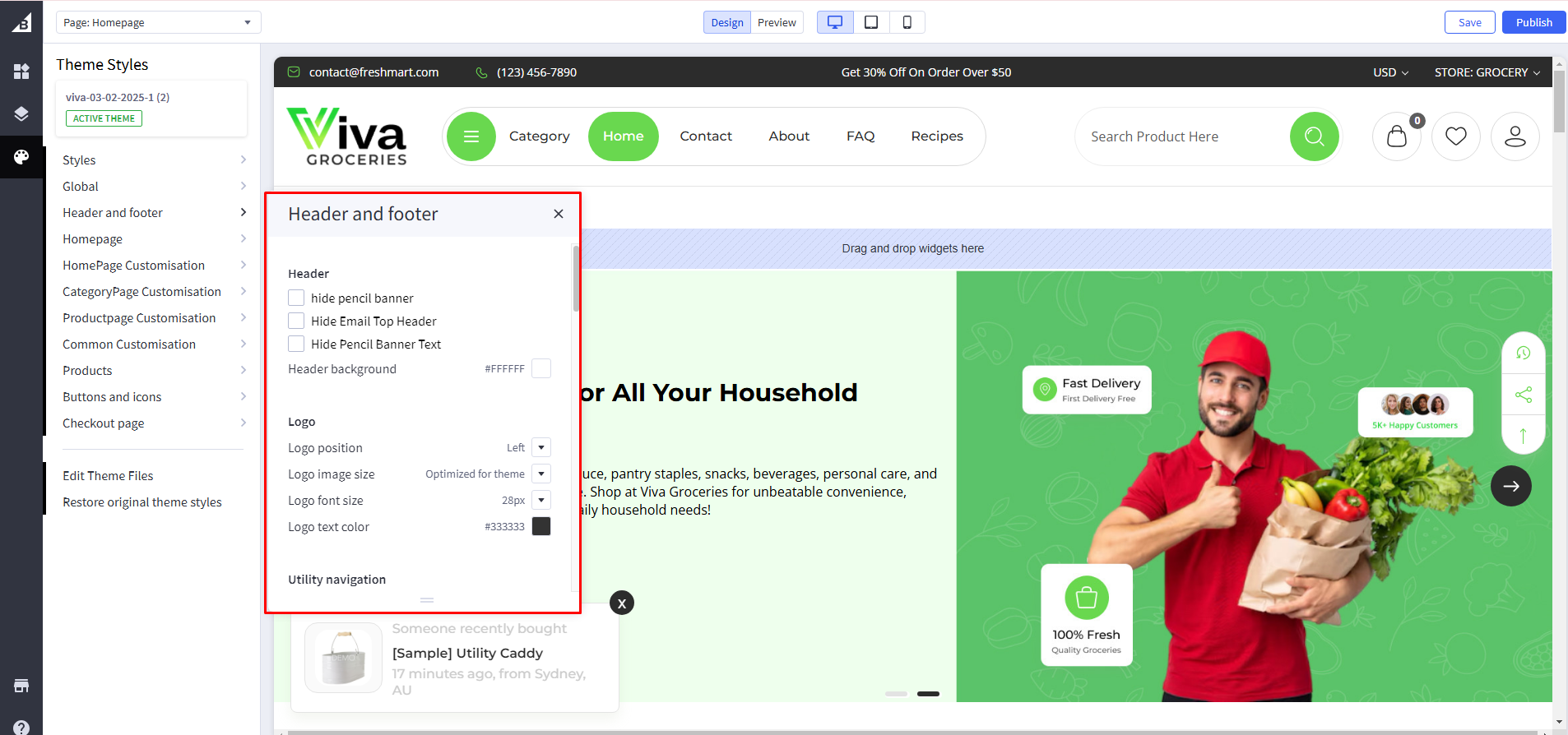
Pencil Banner

Hide Pencil Banner : If checked, it will hide a pencil banner, i,e.Shop 35% on your first.
Pencil Banner Text : pencil banner text that will be visible in all pages. Here, Shop 35% on your first.
Hide Pencil Banner Email : If checked, it will hide a pencil banner Email
Header
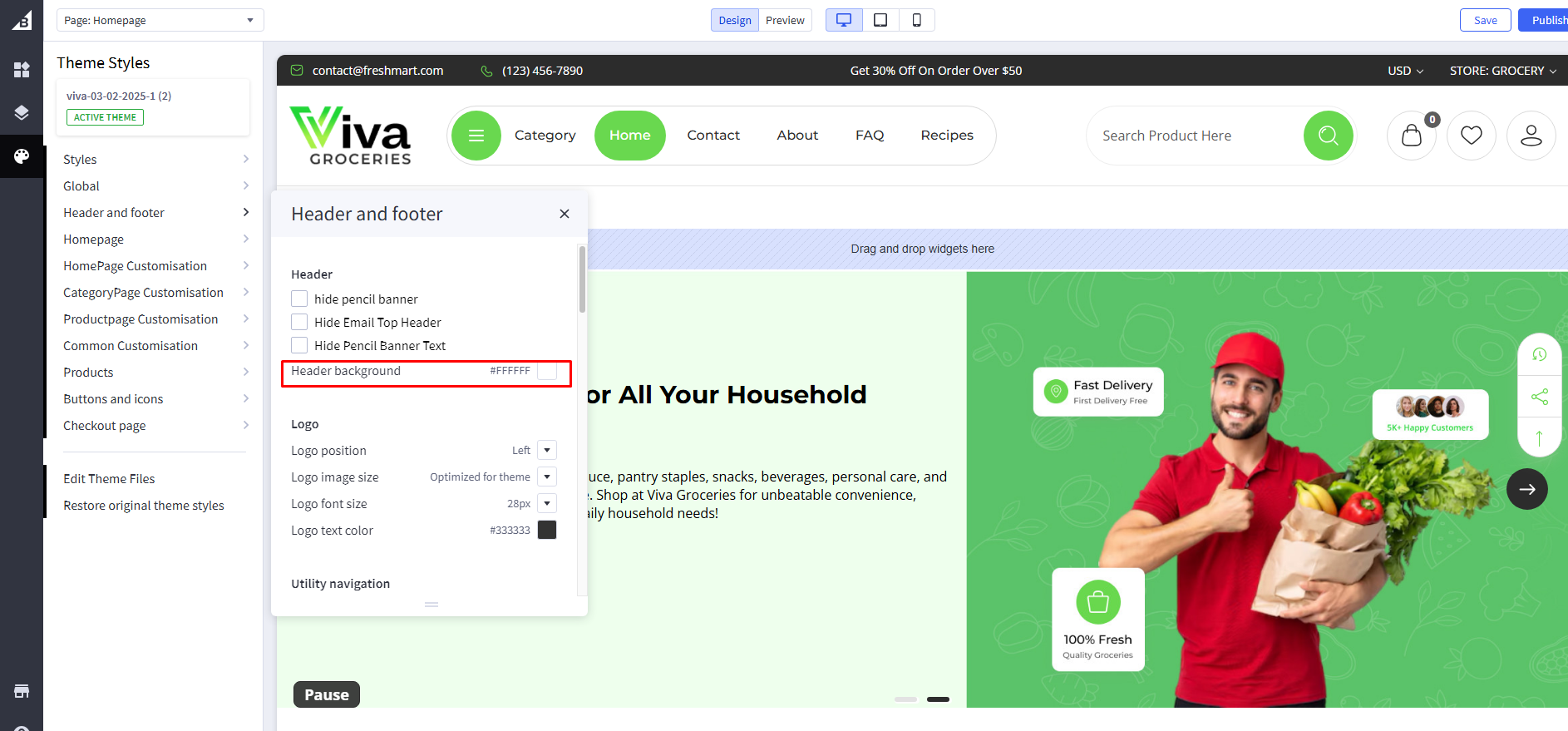
Header Background Color
Set background color. It will appear behind the Logo.
Header Logo
Logo position : aligns the logo left, center or right. Applicable for both image and header content.
Logo Left View :
Viva Grocery

Viva Automotive

Viva Gifts

Logo Center View :
Viva Grocery

Viva Automotive

Viva Gifts

Logo Right View :
Viva Grocery

Viva Automotive

Viva Gifts

Header Menu Design
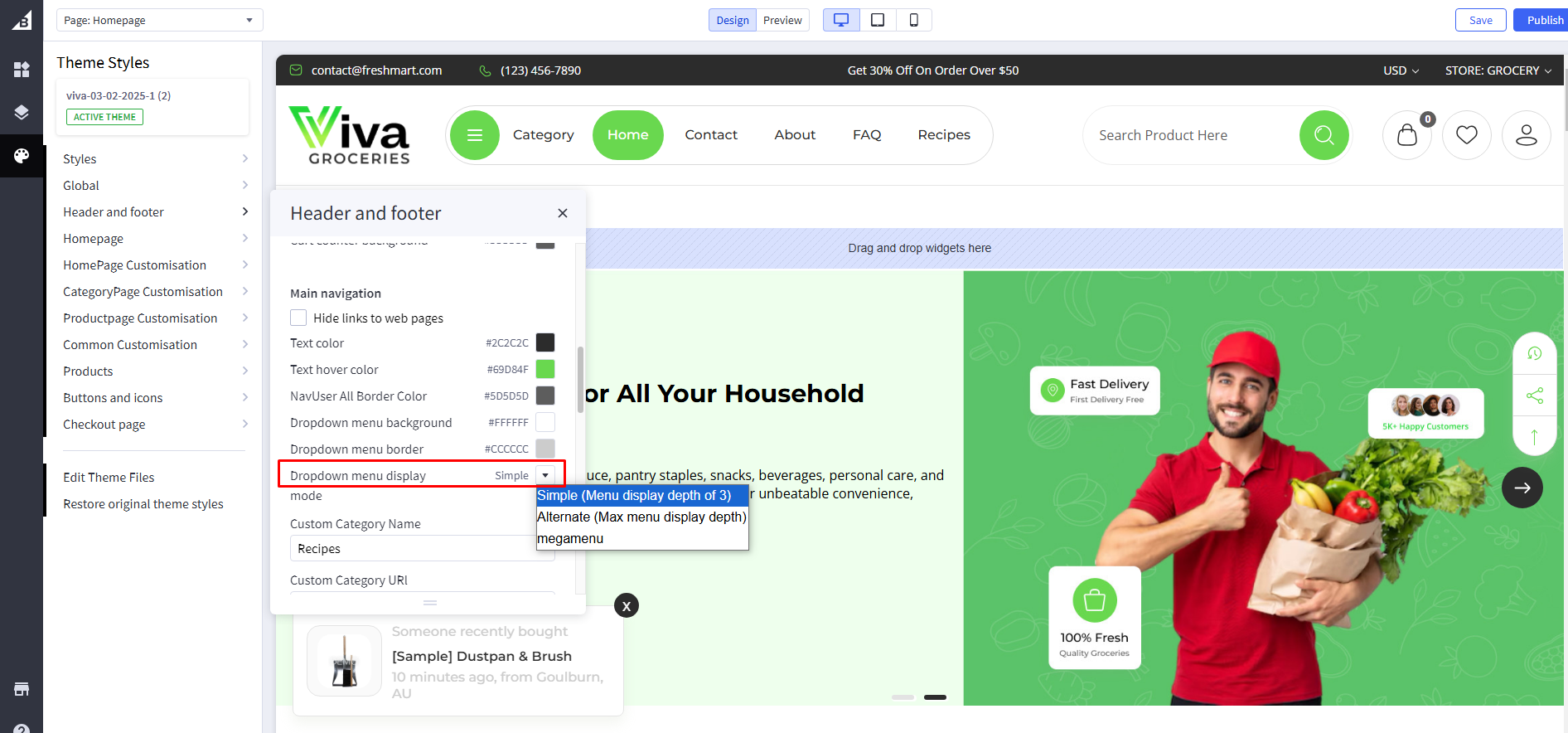
Simple Design
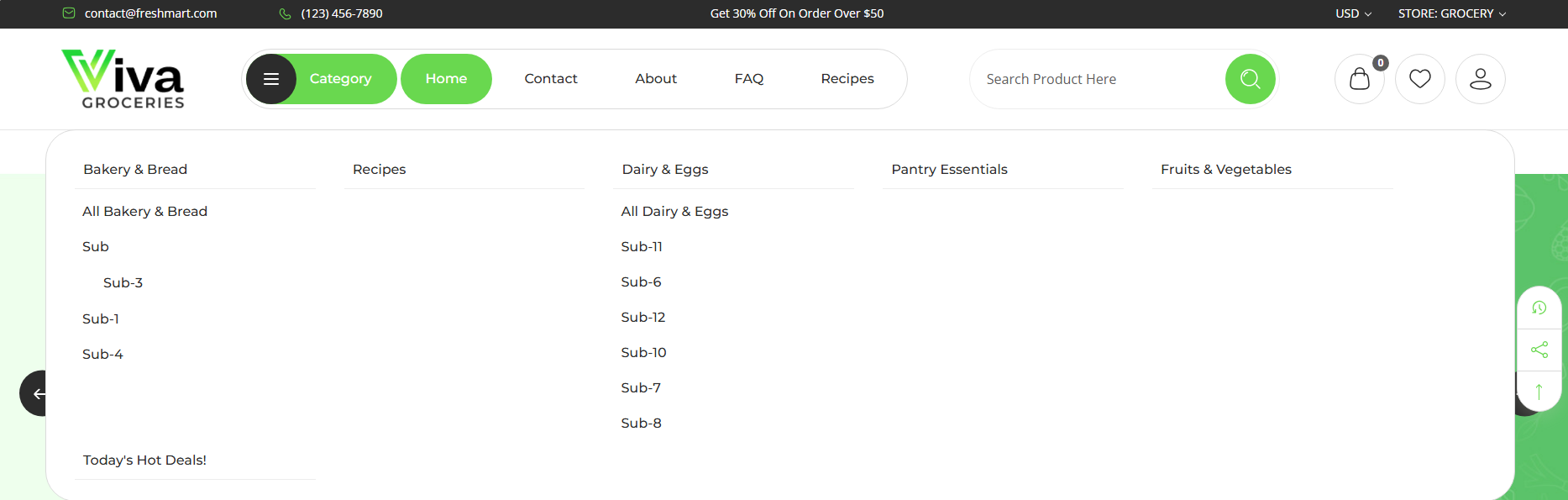
Alternate Design
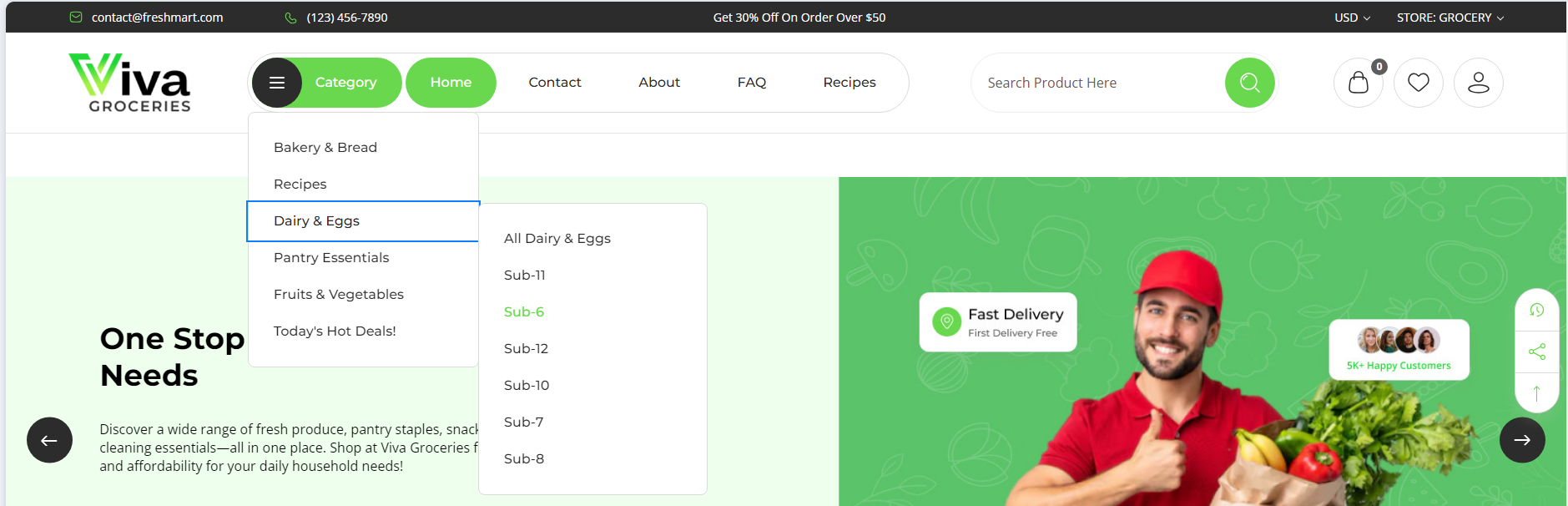
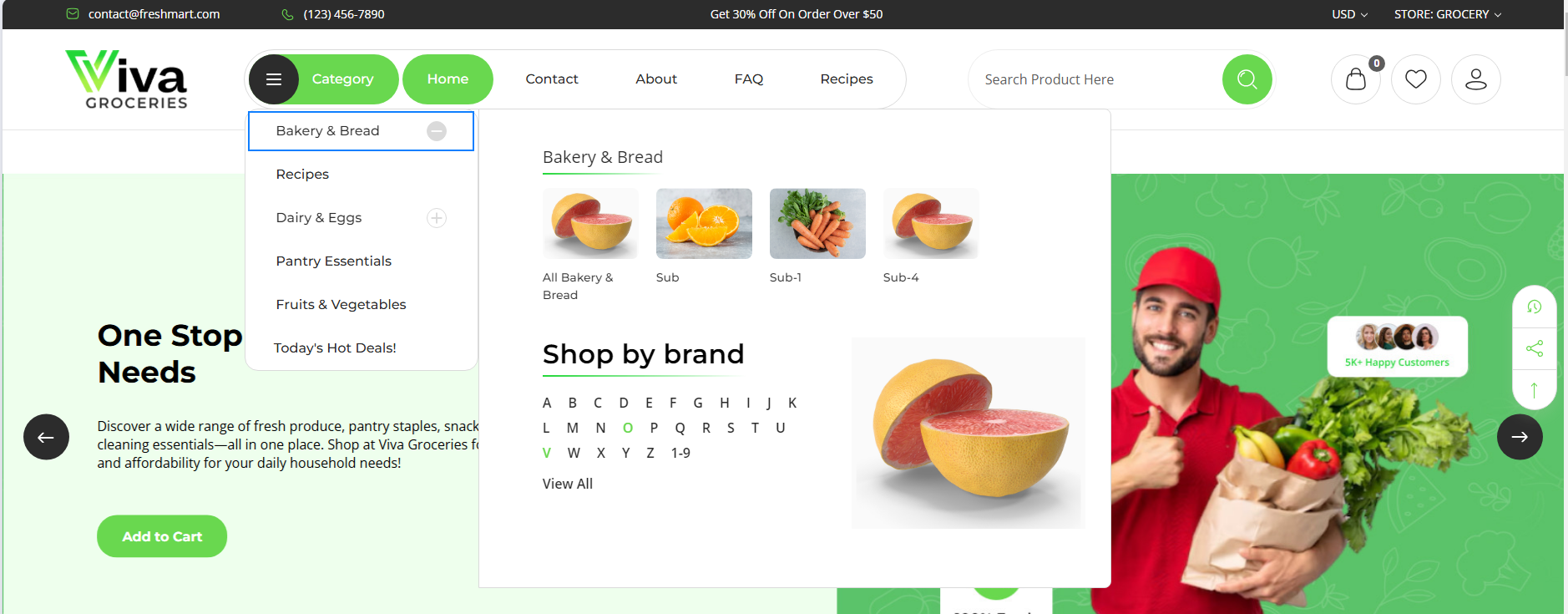
Megamenu Design
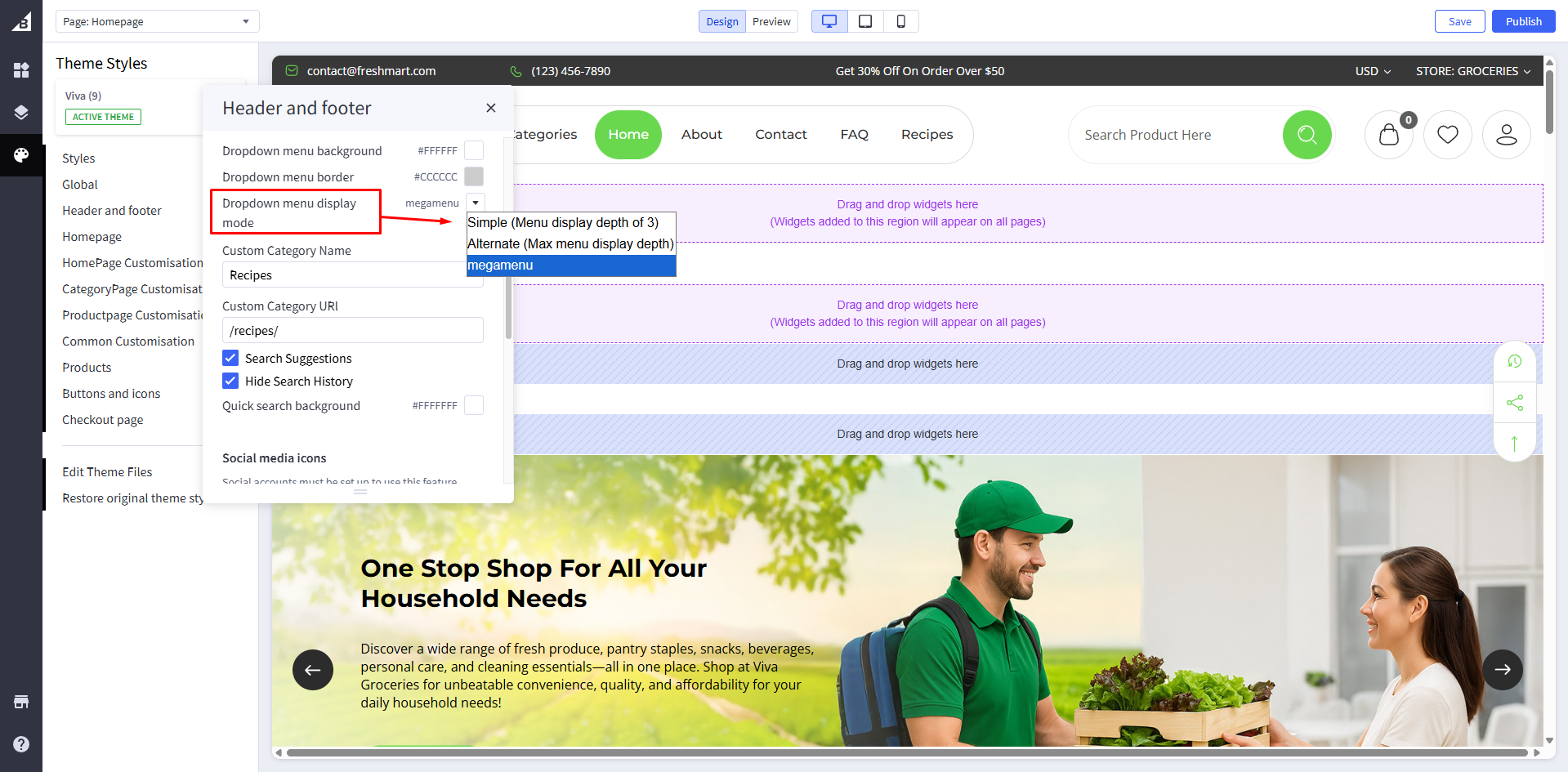
Dropdown menu display mode : Change Dropdown menu display Mode to Simple , Alternate and megamenu
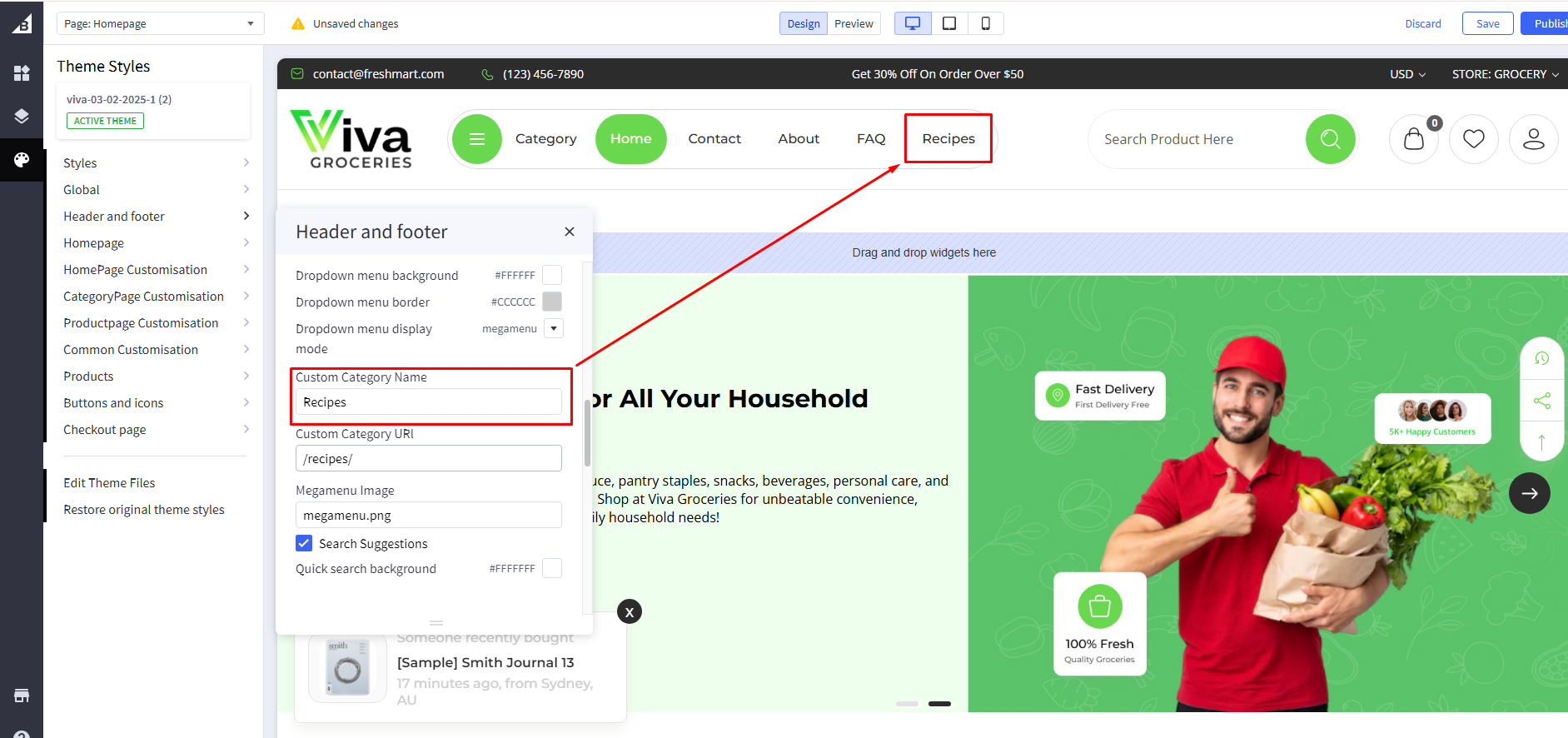
Custom Category Name : add custom category name
Custom Category URL : add custom category URL
Search Suggestions
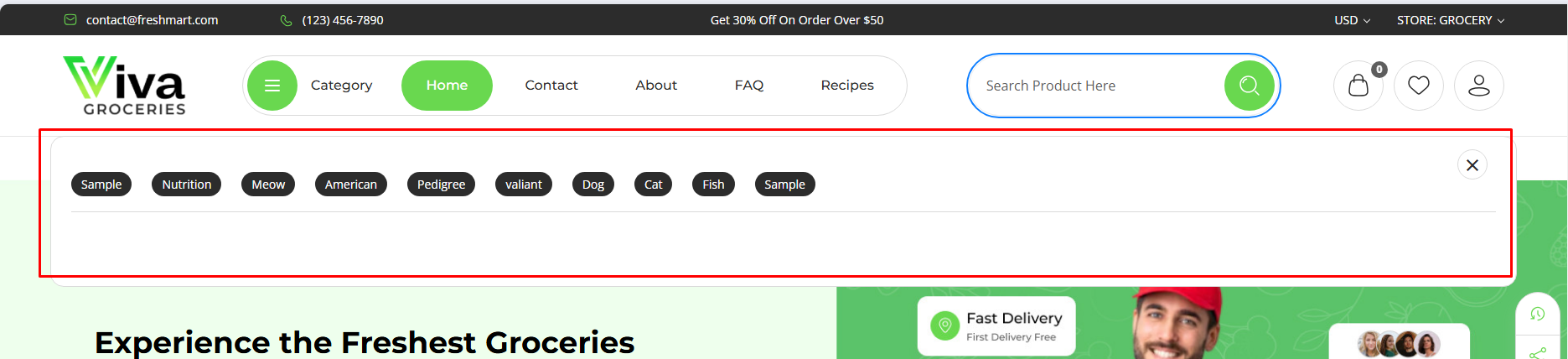
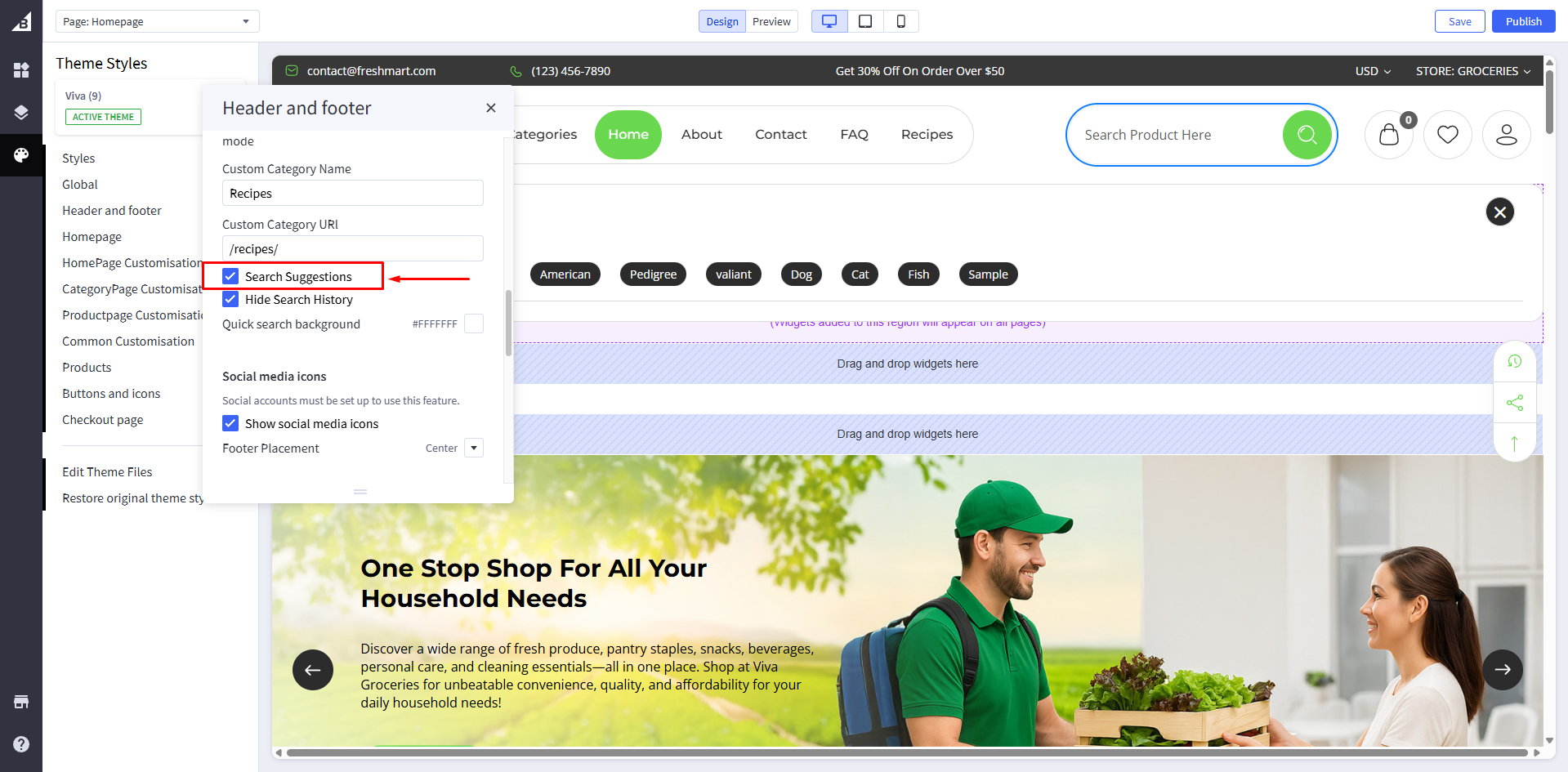
Search Suggestions : If unchecked, it will hide a Hide Search suggestions
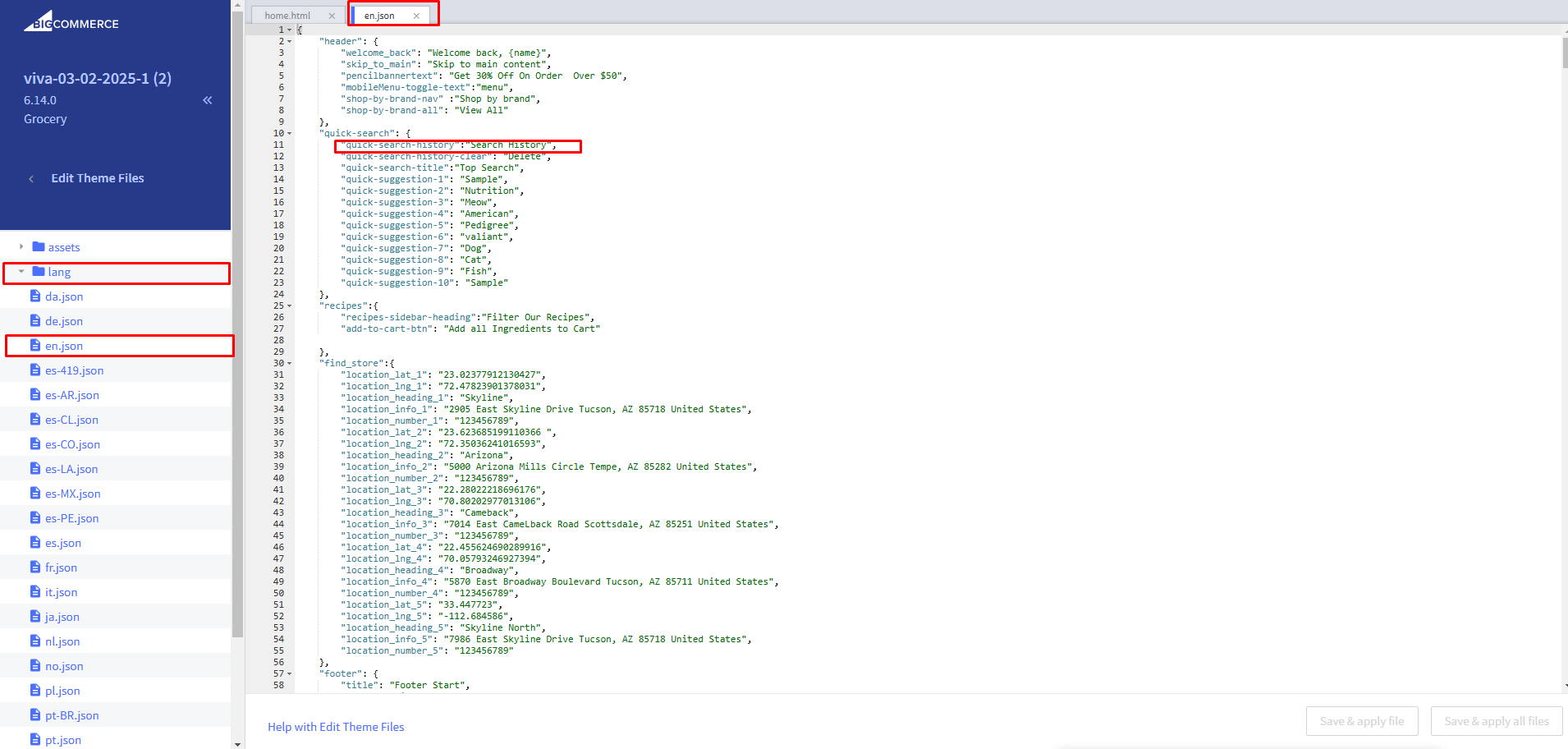
Manage suggestion text : For text change Go to channels > Themes > Advanced > Edit Theme Files > lang > en.json and update text in "quick-suggestion-1" to "quick-suggestion-10"
As users type in the search bar, real-time suggestions appear instantly, showing matching products, categories, and popular keywords. This enhances the user experience by helping customers find what they’re looking for faster and boosting product discovery

Search History
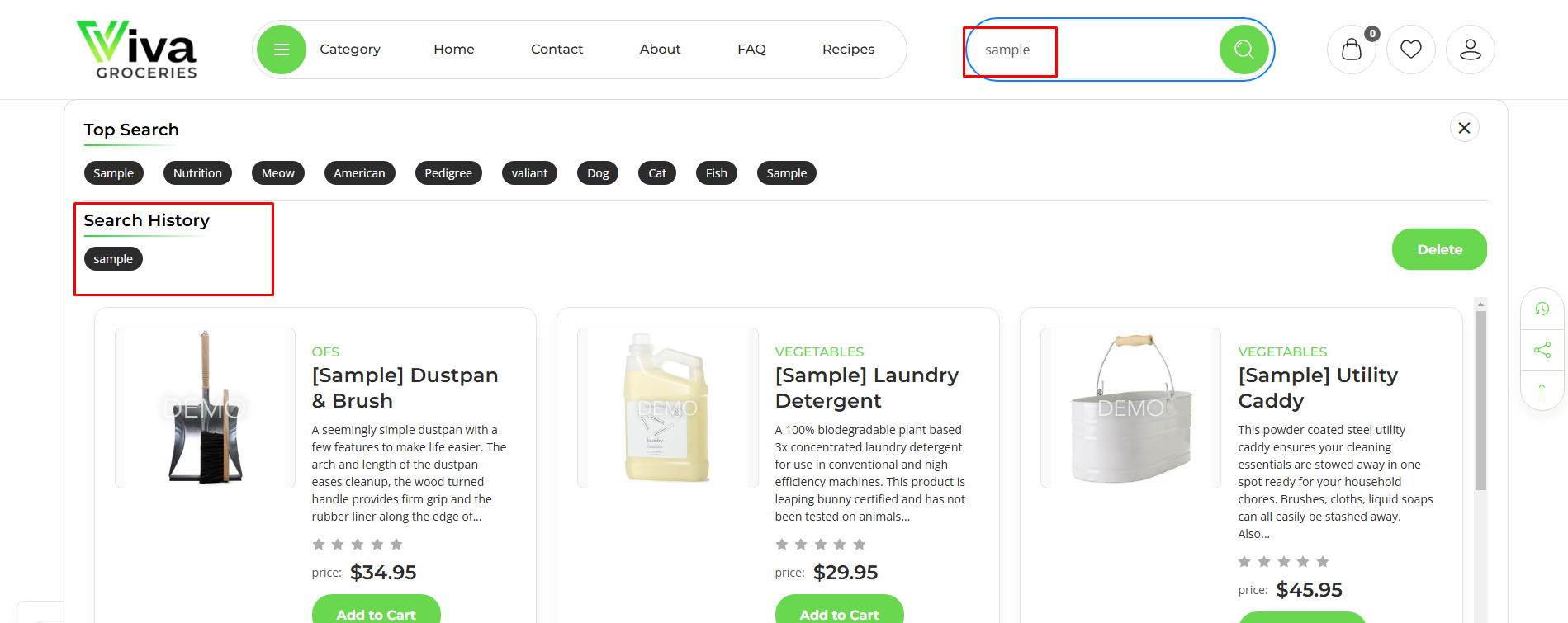
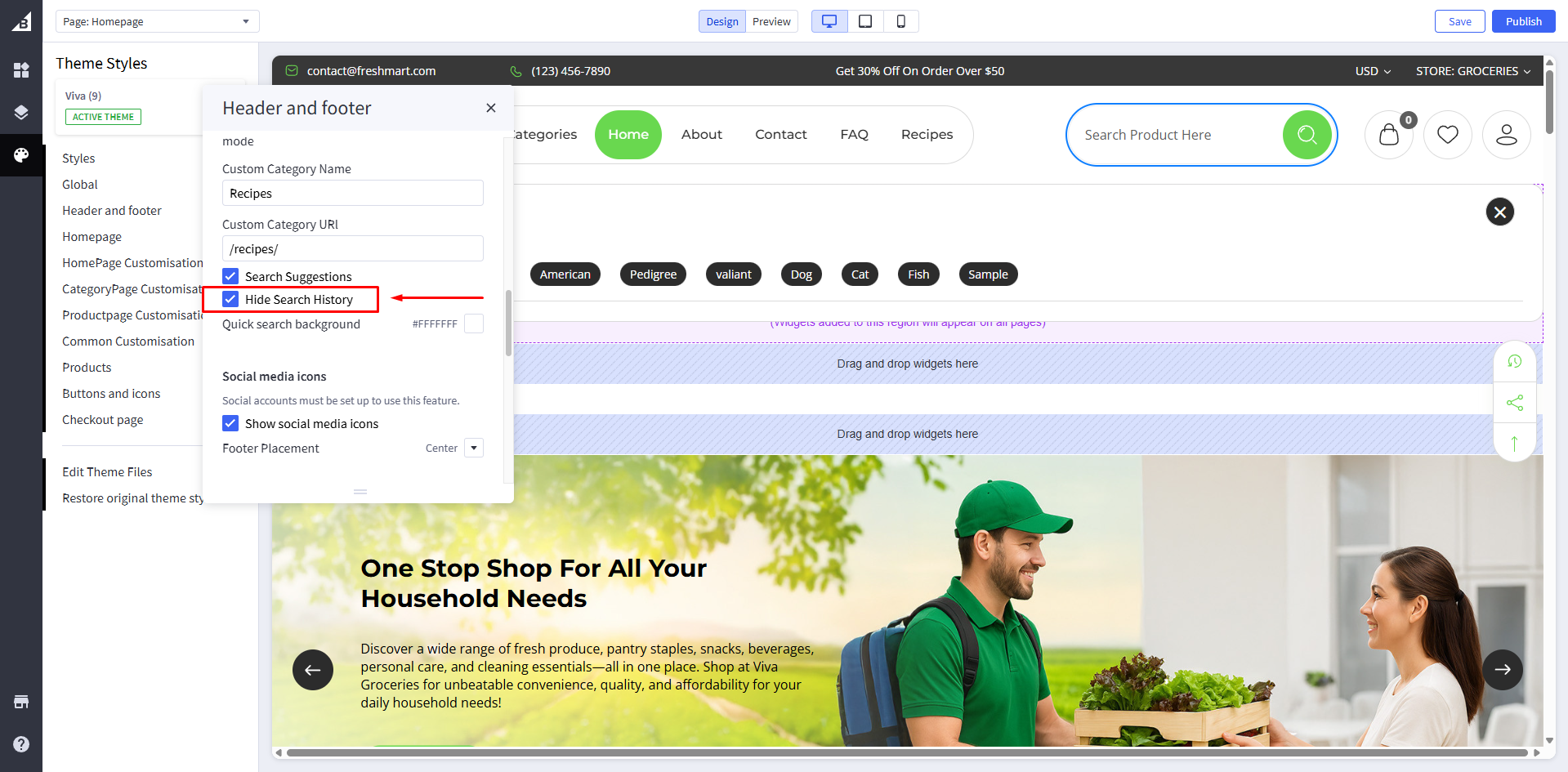
Hide Search History : If unchecked, it will hide a Search History
Displays a list of the user’s recent search terms directly in the search dropdown or input field. It allows returning visitors to quickly revisit previous queries, improving convenience and enhancing product exploration
Search History Title : For text change Go to channels > Themes > Advanced > Edit Theme Files > lang > en.json and update text in "quick-search-history"
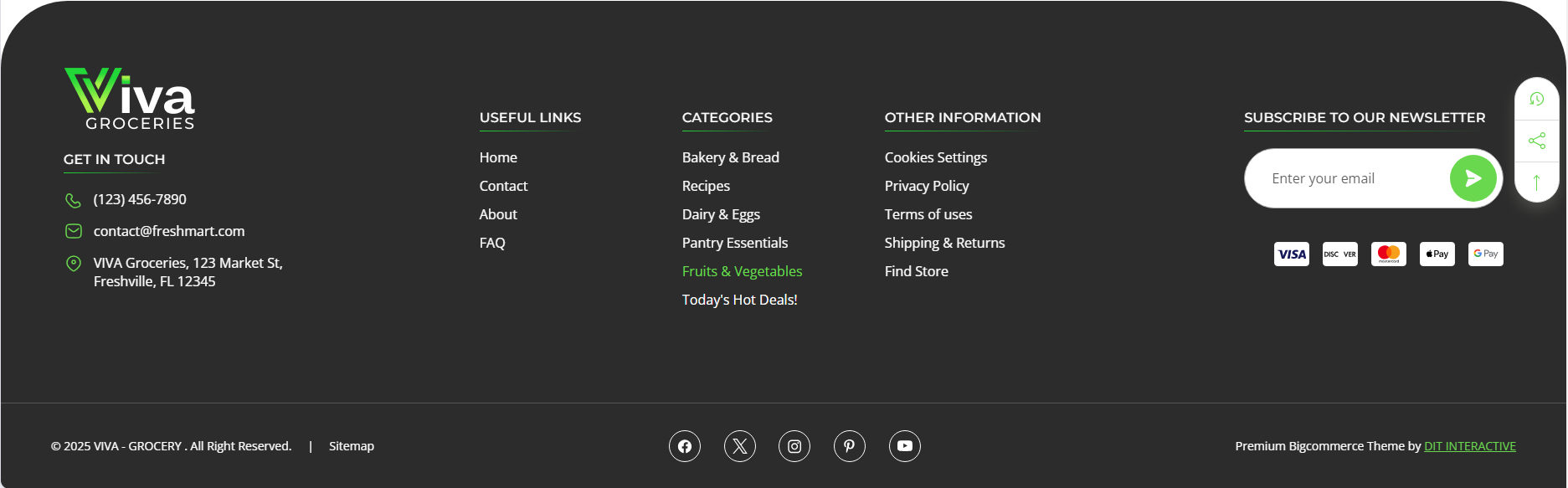
Footer
Grocery variant
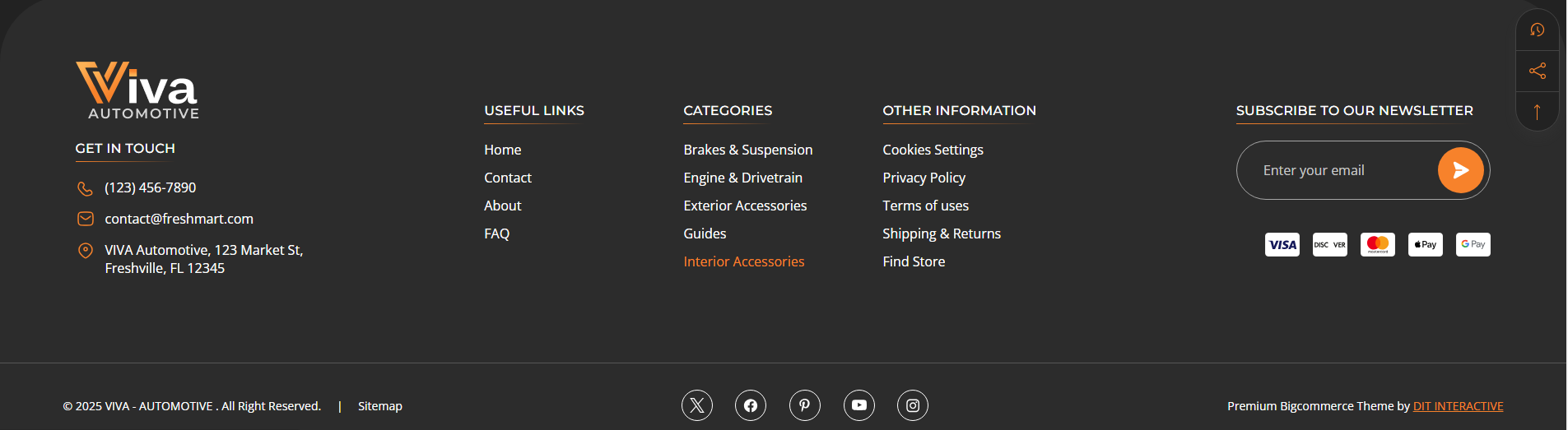
Automotive variant
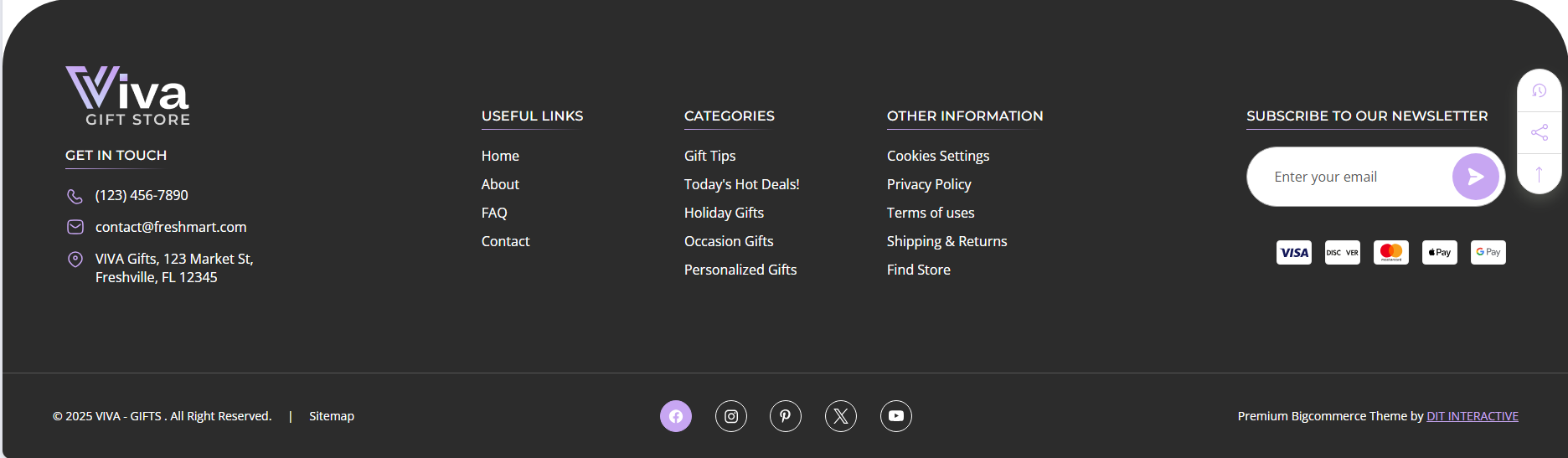
Gifts variant
Footer Logo
Footer logo : Add footer logo image
Footer Settings
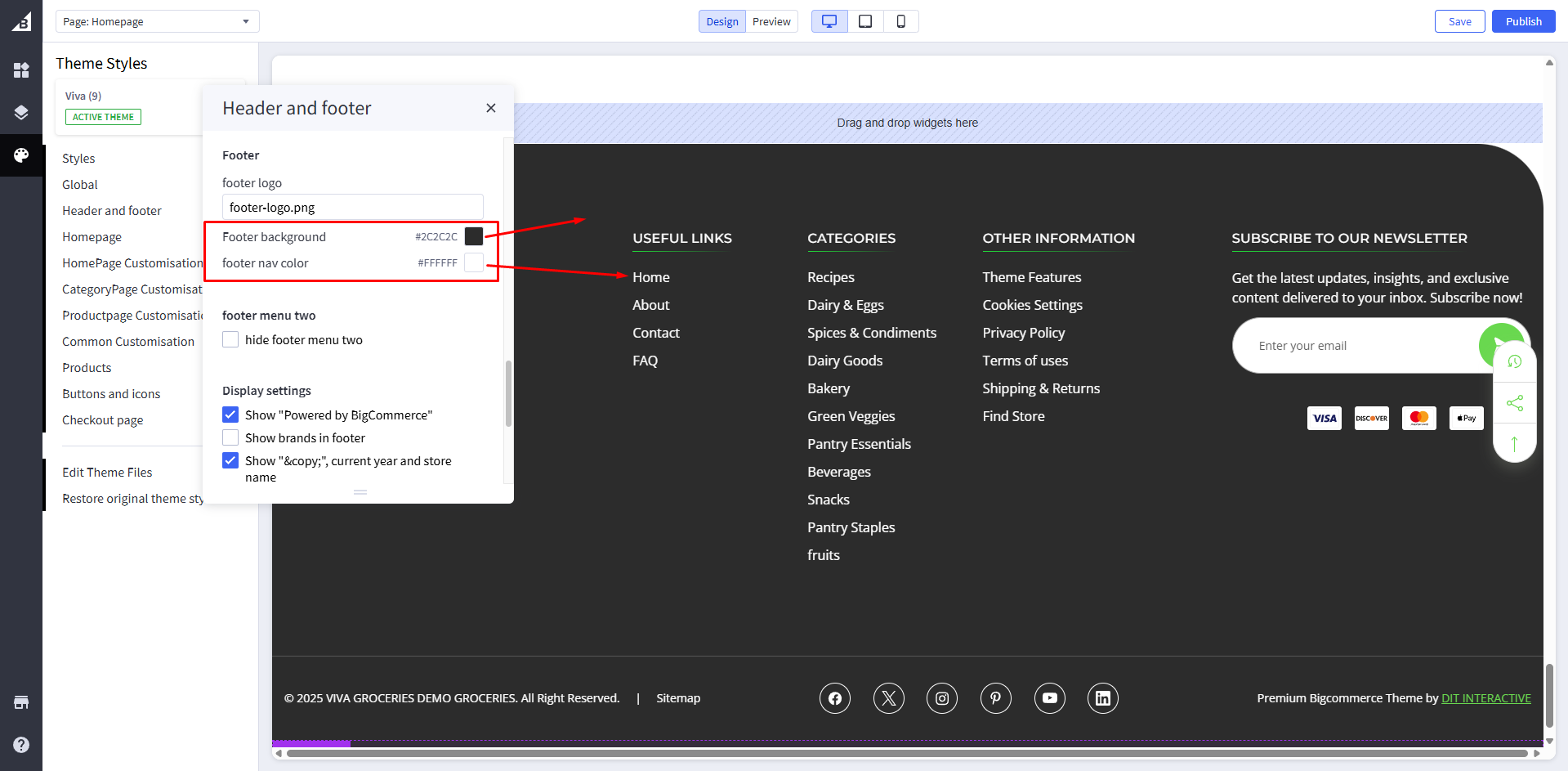
Footer Background Color : Set background color
Footer Navigation Link Color : Add navigation color on Footer
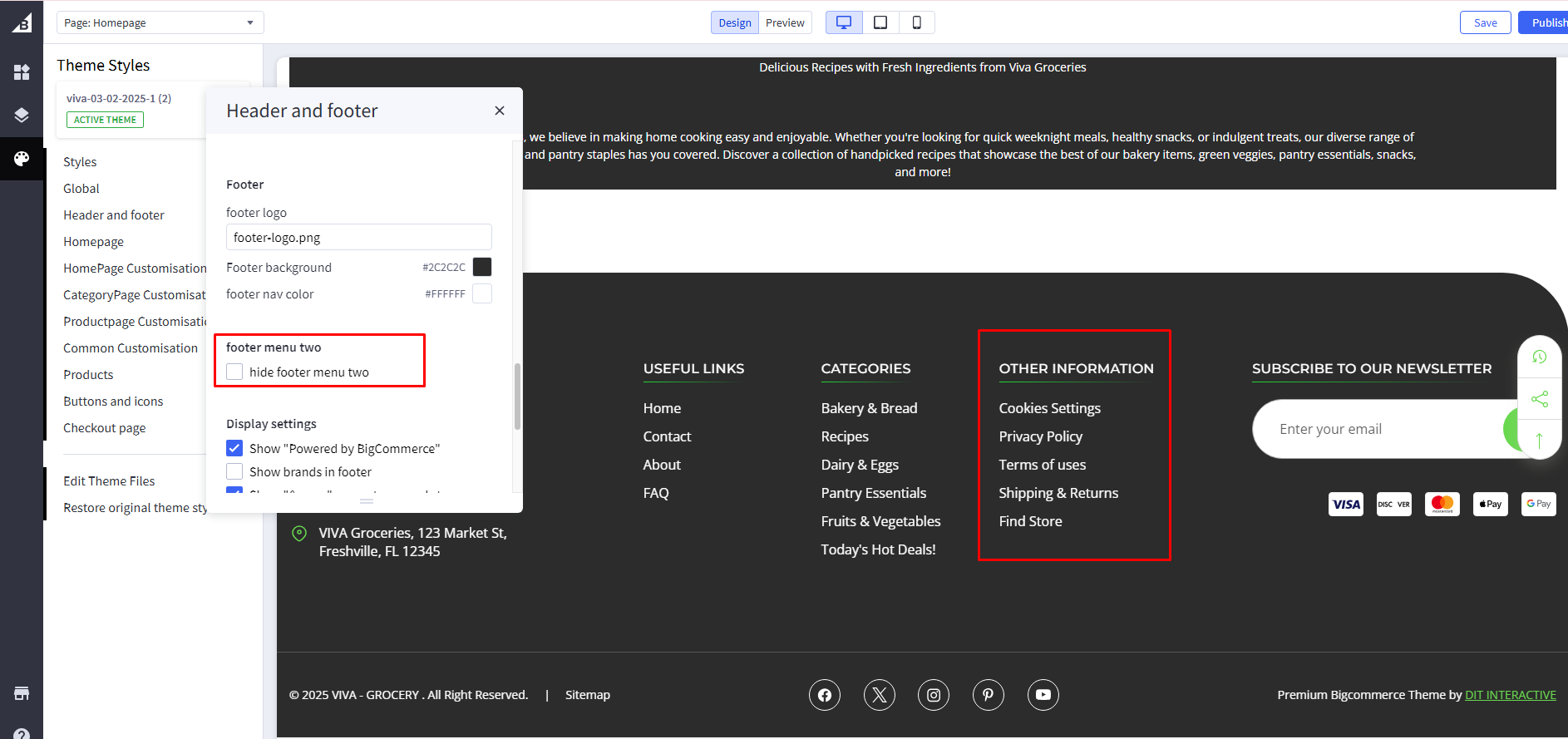
Footer Menu Two
Hide Footer Menu Two : If checked, it will hide a Hide navigation menu
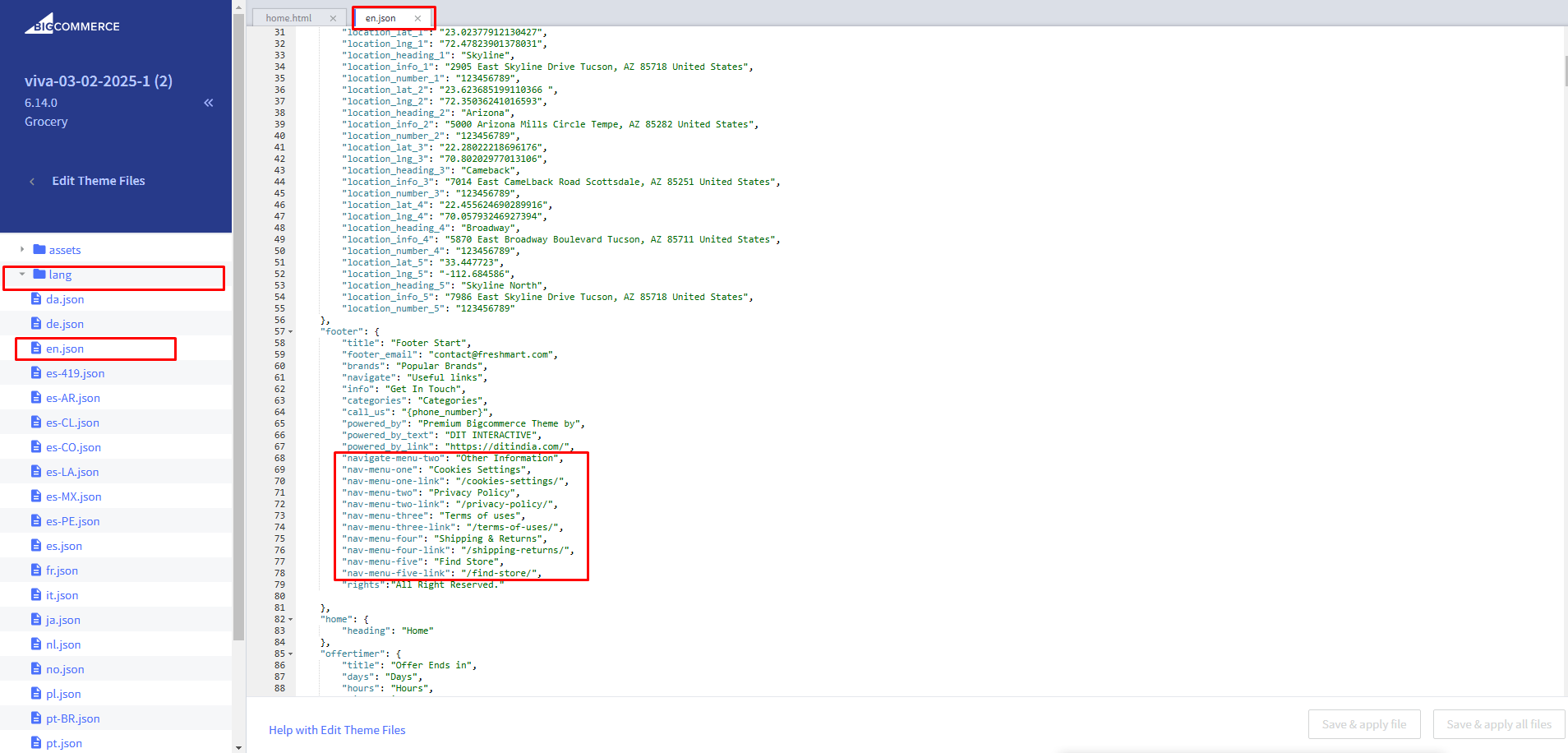
Navigation Customization
Navigation Title and URL : For text change Go to channels > Themes > Advanced > Edit Theme Files > lang > en.json and update navigation name and URL
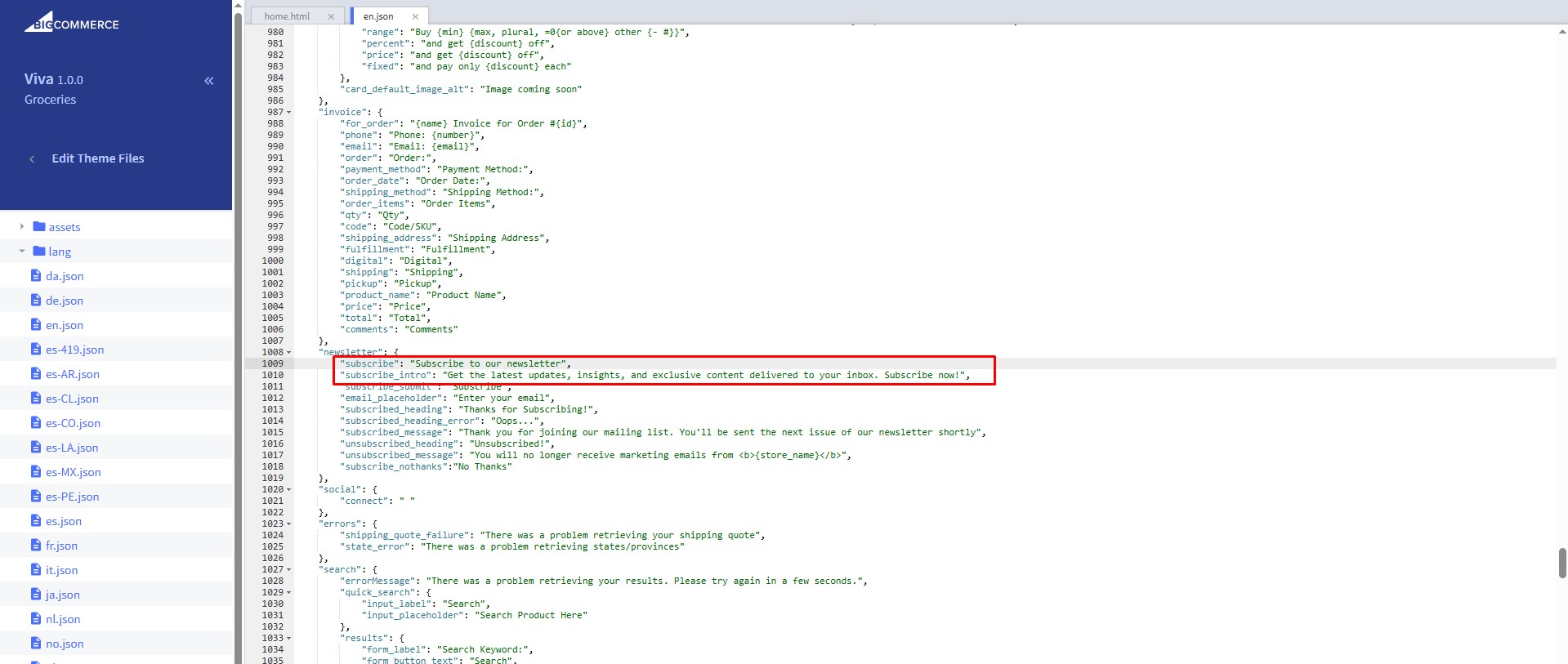
Newsletter Settings
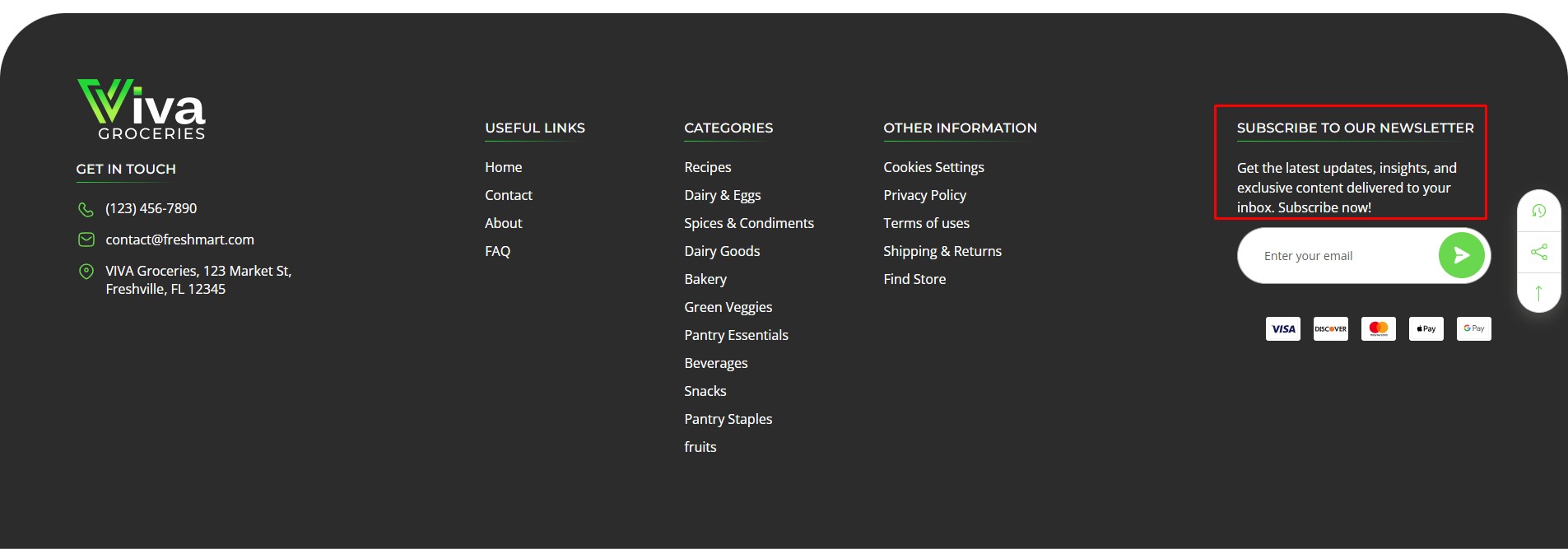
Customize Newsletter Title and summary: For text change Go to channels > Themes > Advanced > Edit Theme Files > lang > en.json and update newsletter title and summary
Home Page
Go to Storefront > My Themes in your control panel and click the blue Customize button to launch Theme Editor.
On the left-hand side of the Theme Editor, click on Home Page
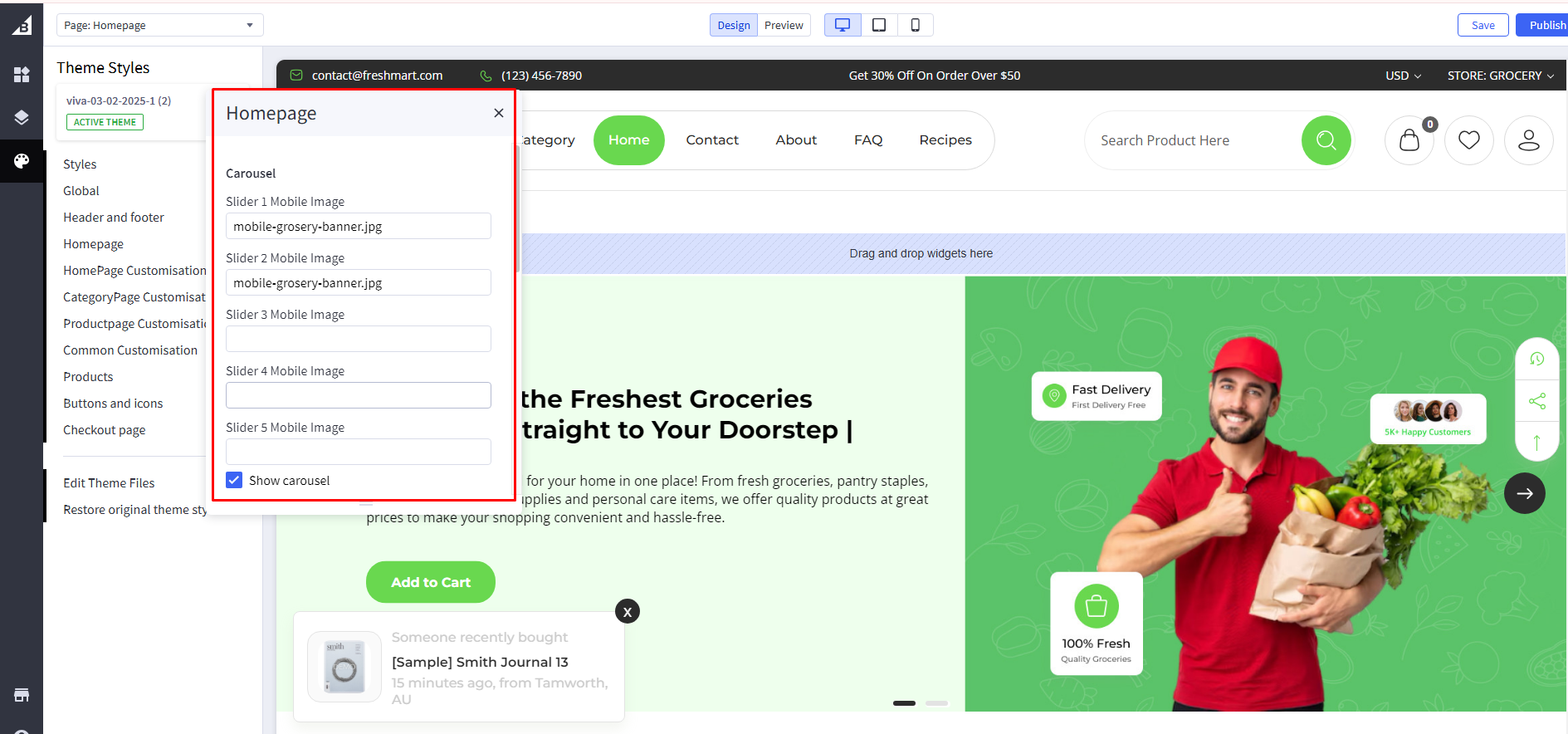
Hero Carousel
Add Mobile Image : Add mobile image image for each carousel slide
Home Page Customisation
Go to Storefront > My Themes in your control panel and click on the Customize button to launch Theme Editor.
On the left-hand side of the Theme Editor, click on HomePage Customisation
Common Settings
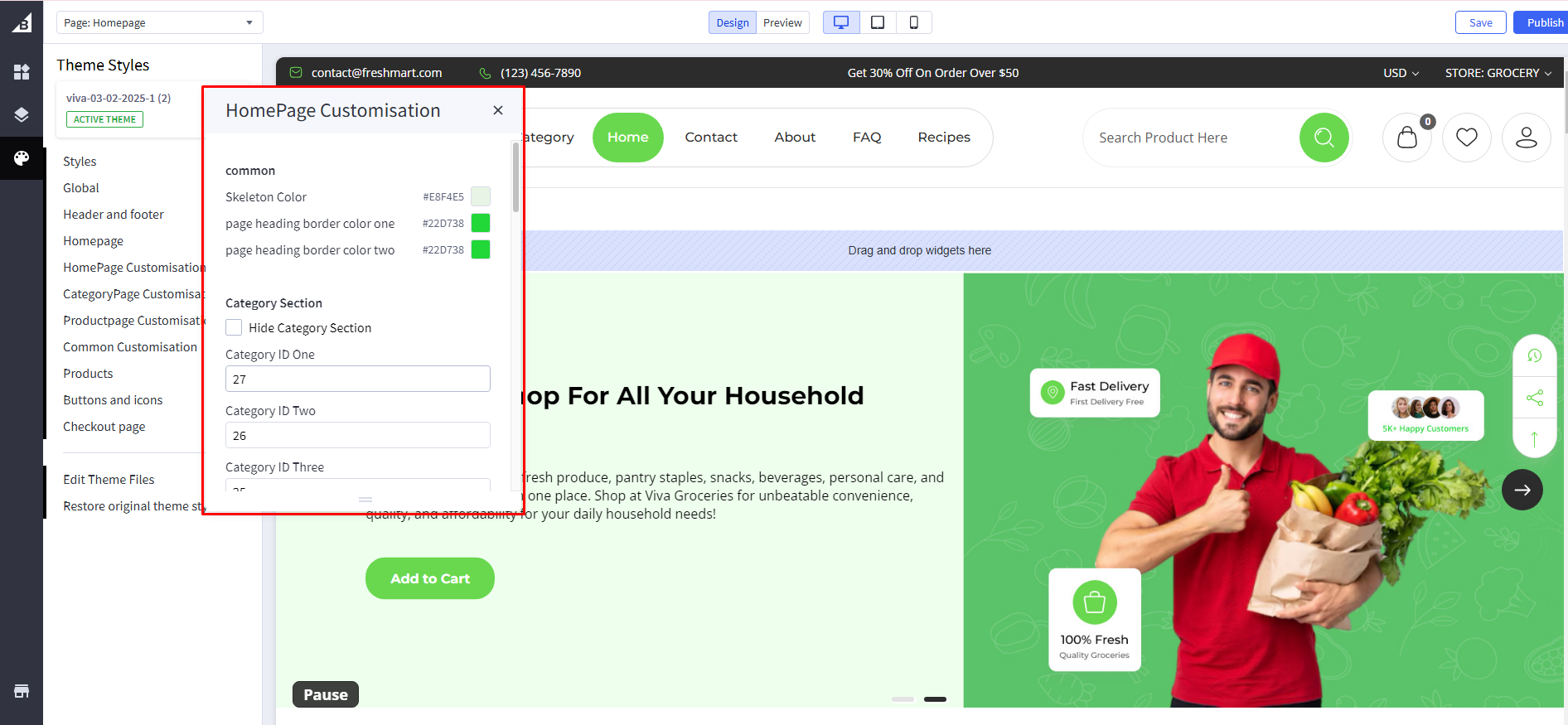
Skeleton color : Set skeleton color
All heading border Color : Set border color
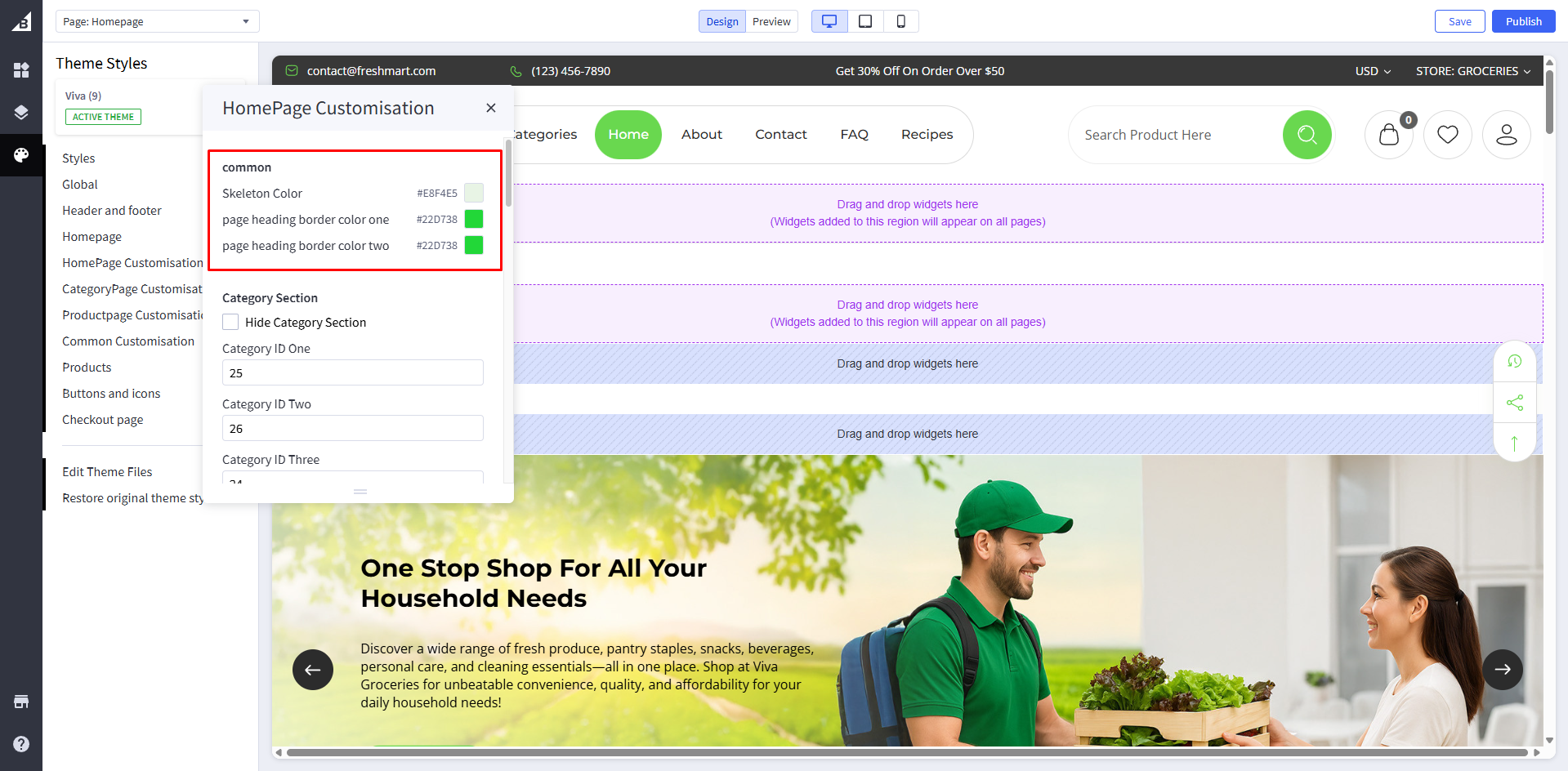
Category Section
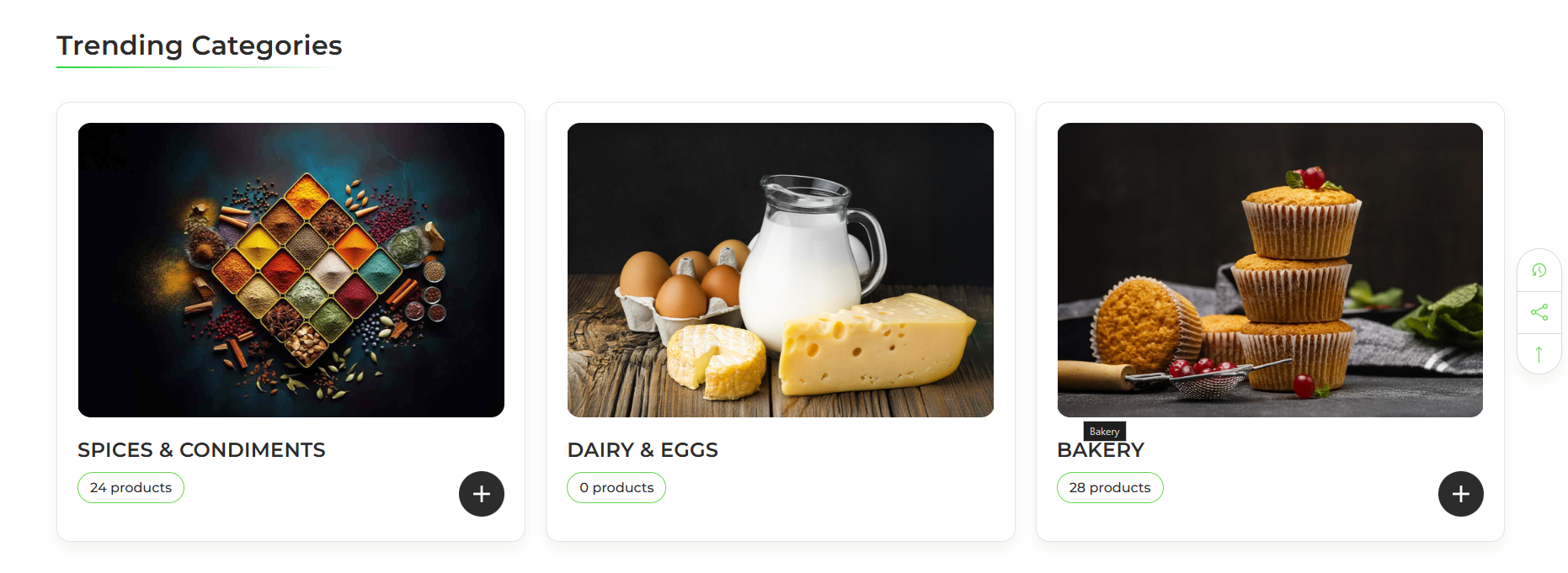
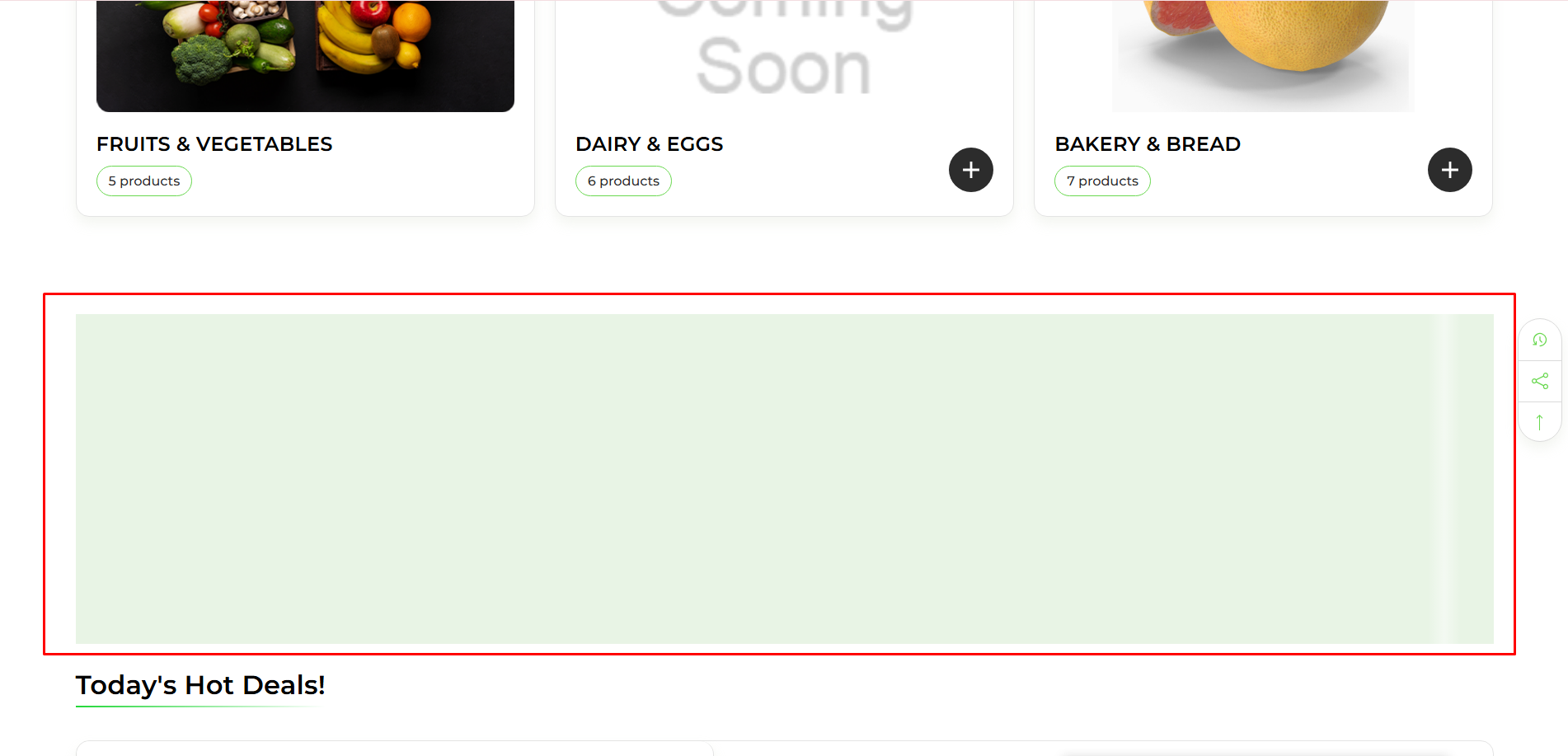
Hide Category Section : If Checked , it will hide a category section
Add Category ID : Add Category ID
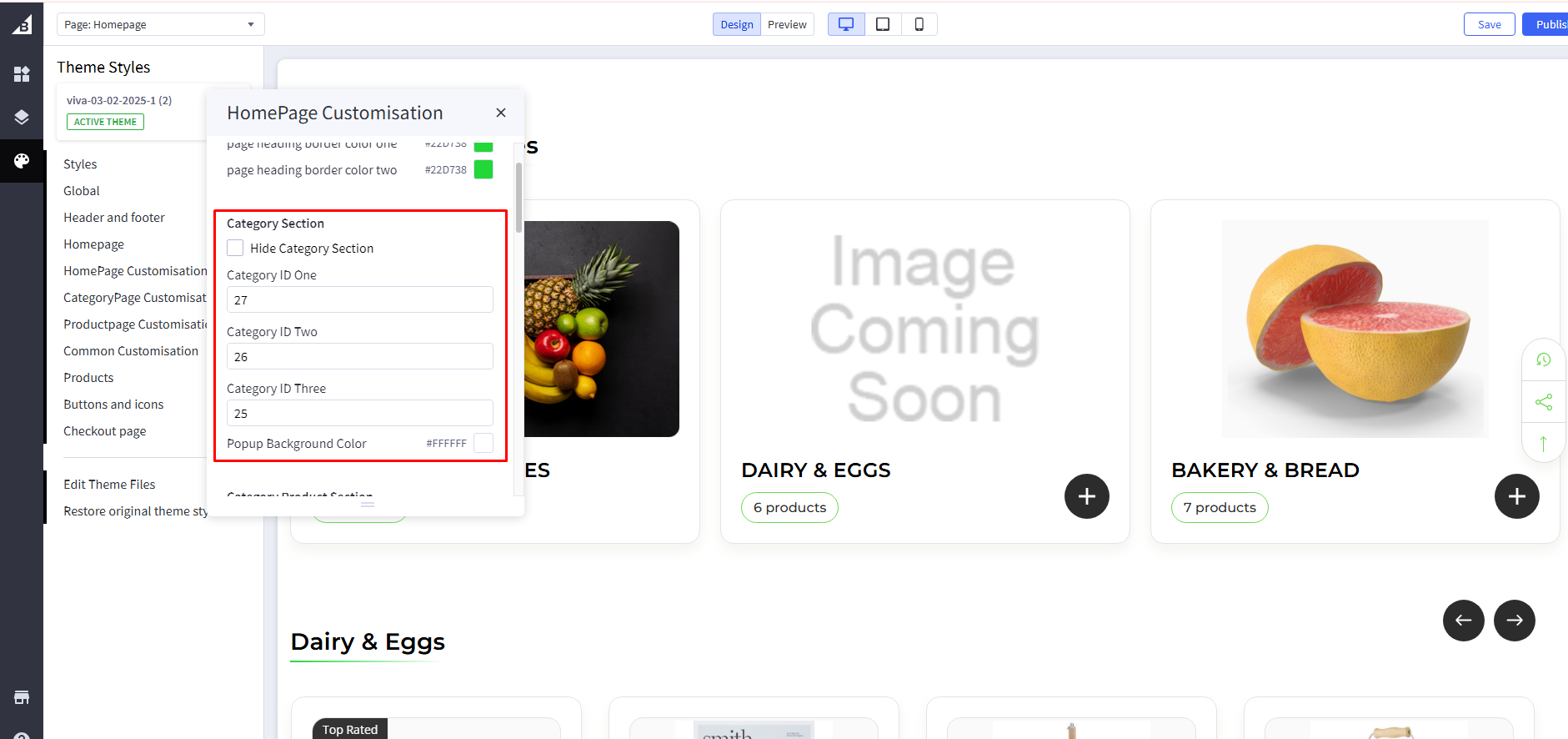
Popup background Color : Set background Color
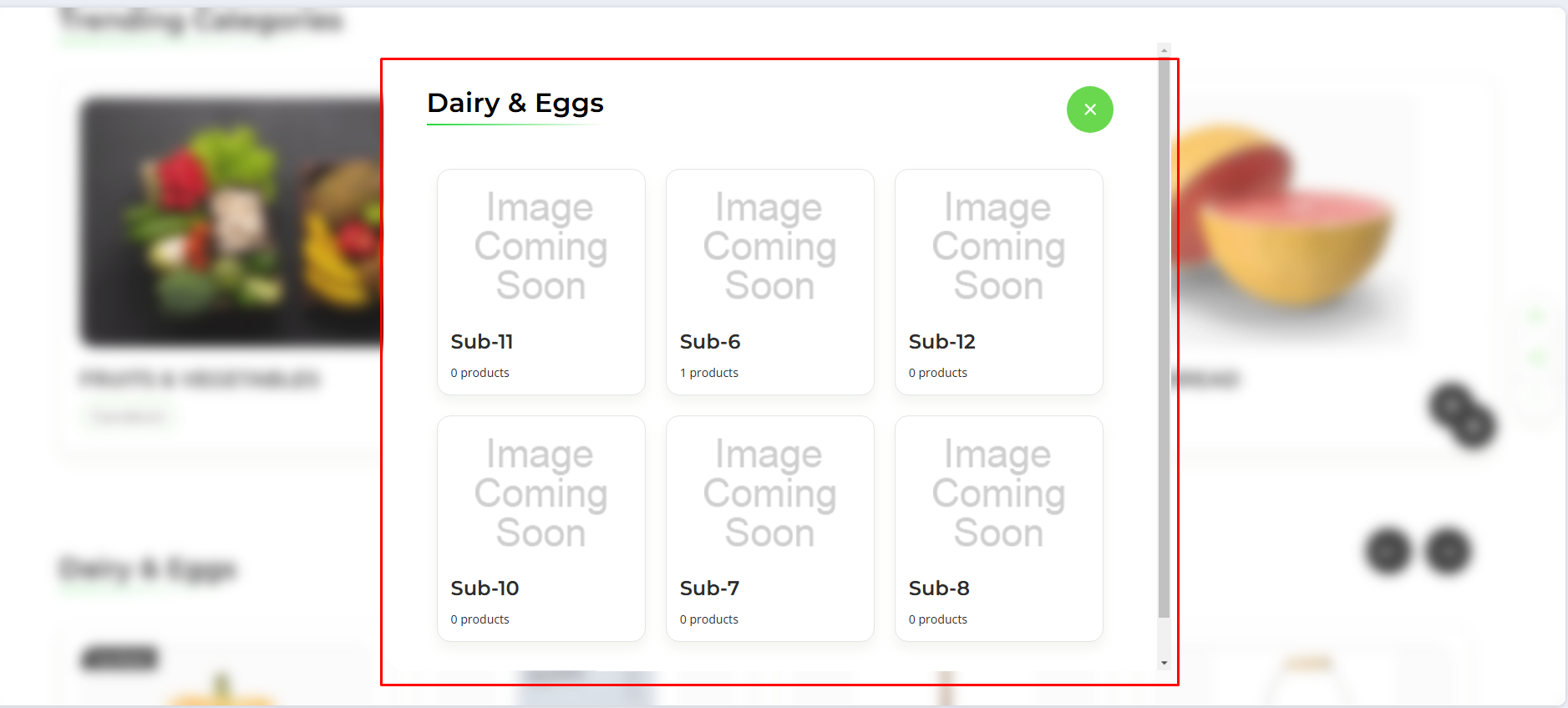
Category Product Section

Hide Category Product Section : If Checked , it will hide a category Product section.
Category Product ID : Add Category IDsaperated by comma(,)

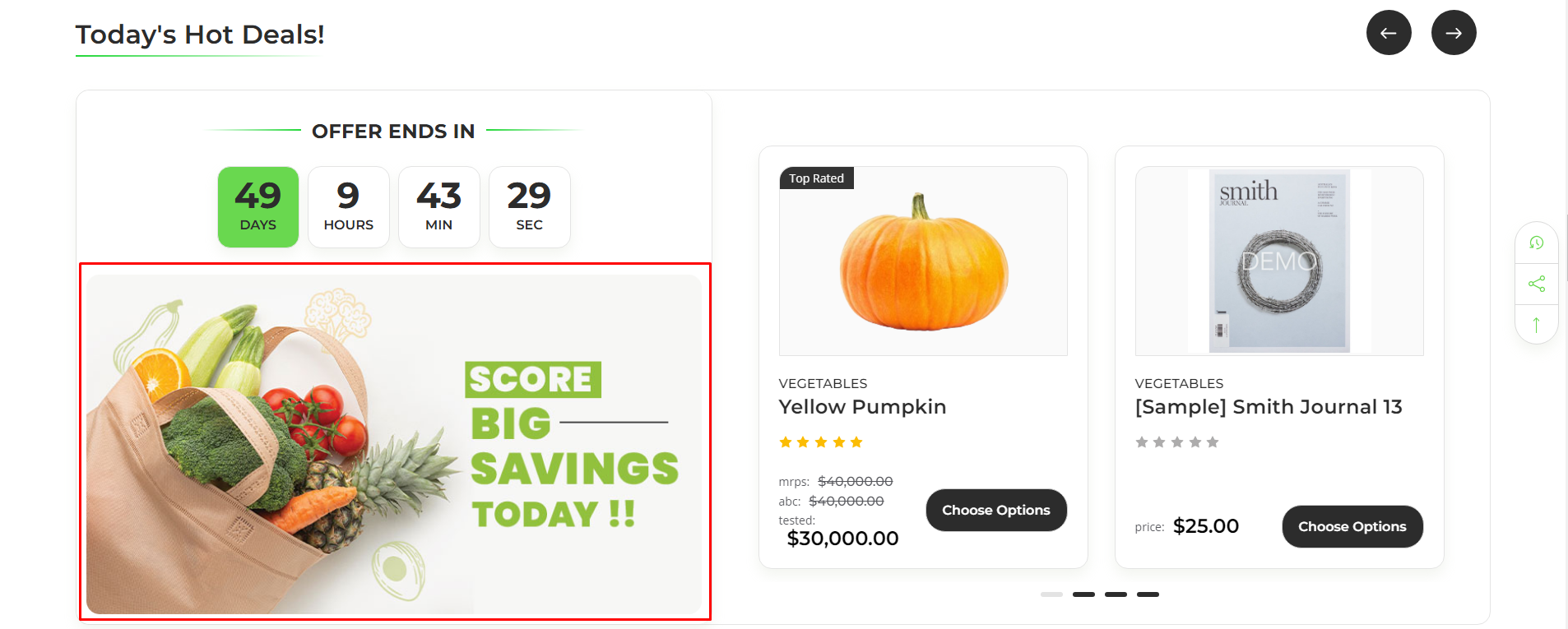
Today’s Deal Category Section
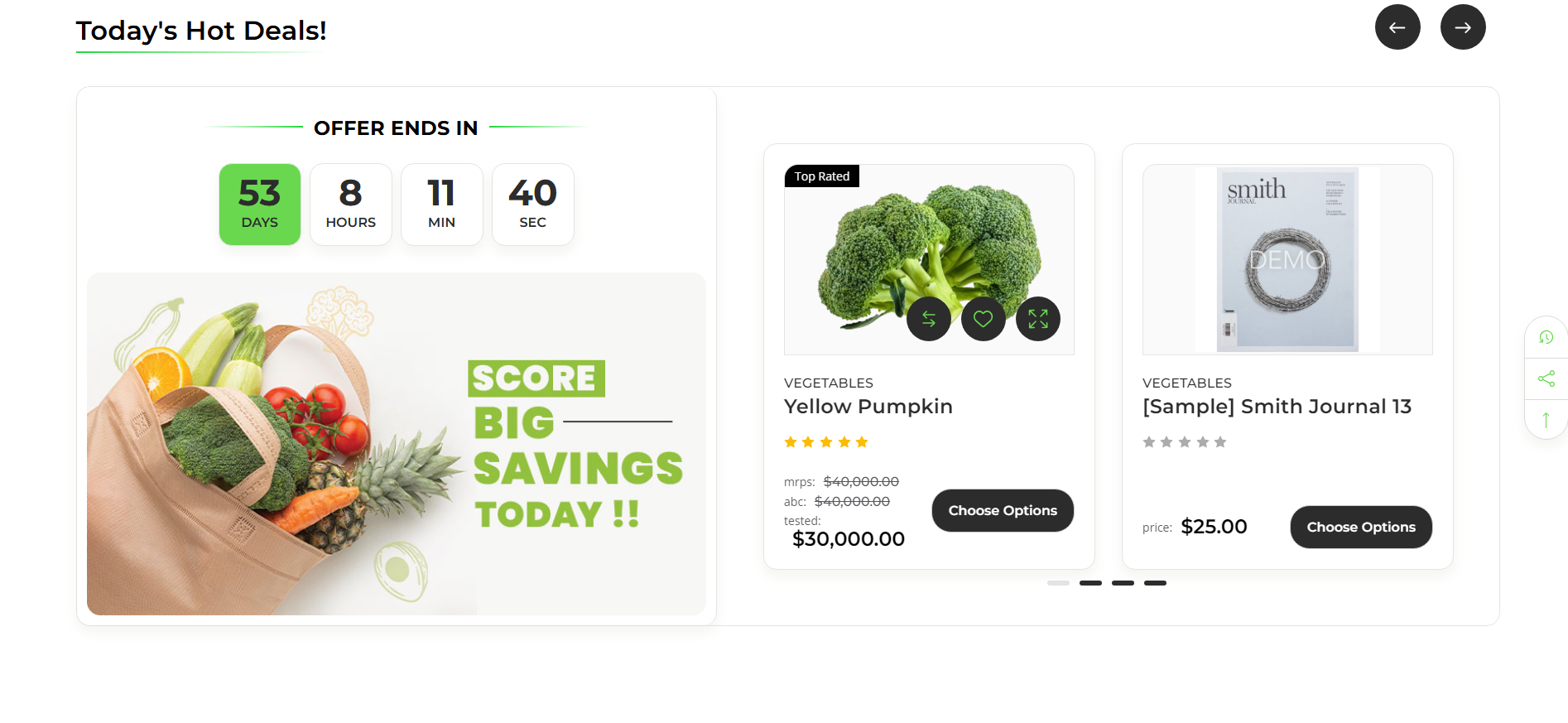
Go to Storefront > My Themes in your control panel and click on the Customize button to launch Theme Editor.
On the left-hand side of the Theme Editor, click on HomePage Customisation
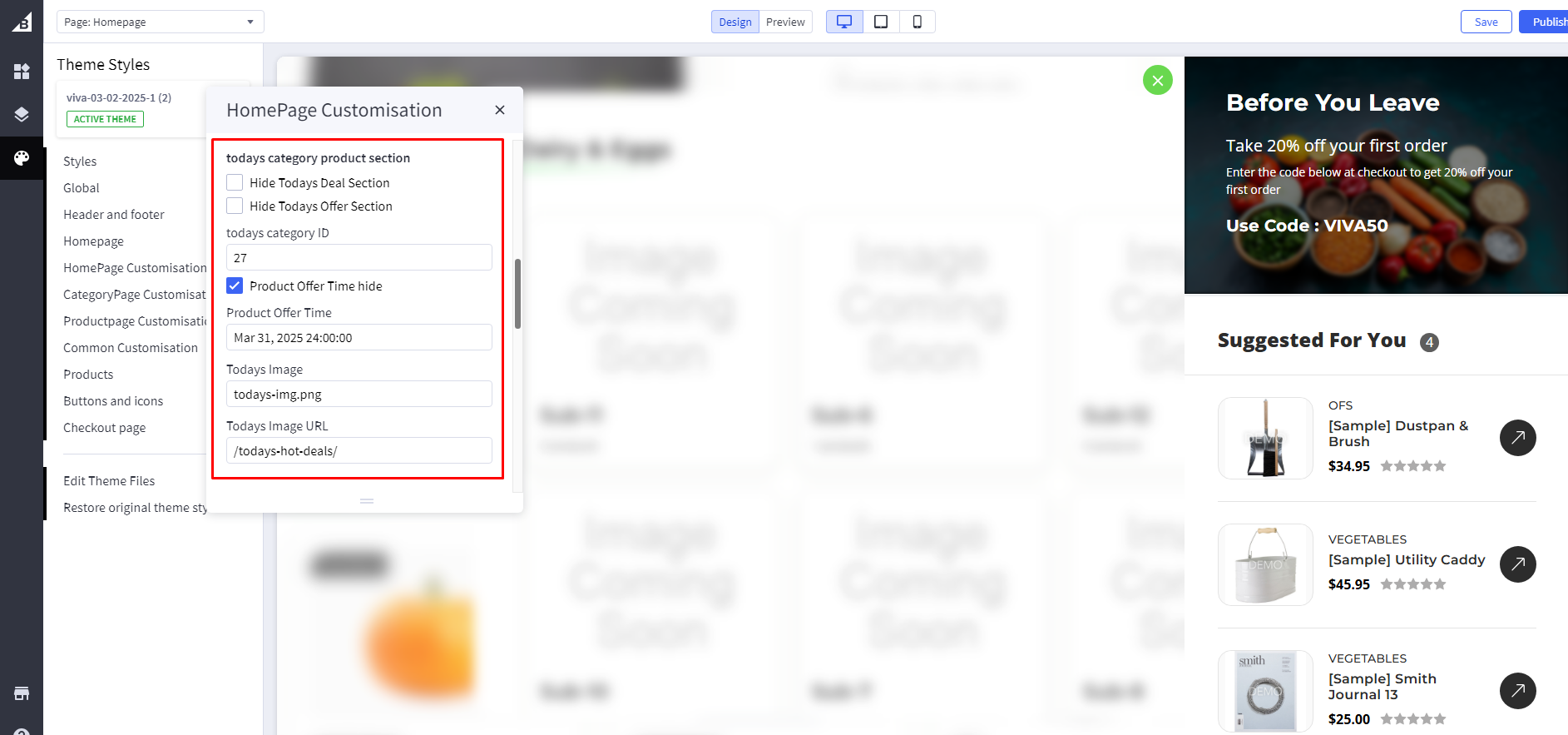
Hide today’s deal Section : If Checked , it will hide a hide today’s deal section
Hide today’s Offer Section : If Checked , it will hide a hide today’s offer section
Hide today’s Offer Timer : If Checked , it will hide a hide today’s offer Timer
Today’s Offer Time Count : set a time count
Today’s Offer Image : Add image file
Today’s Offer Image URL : add image URL
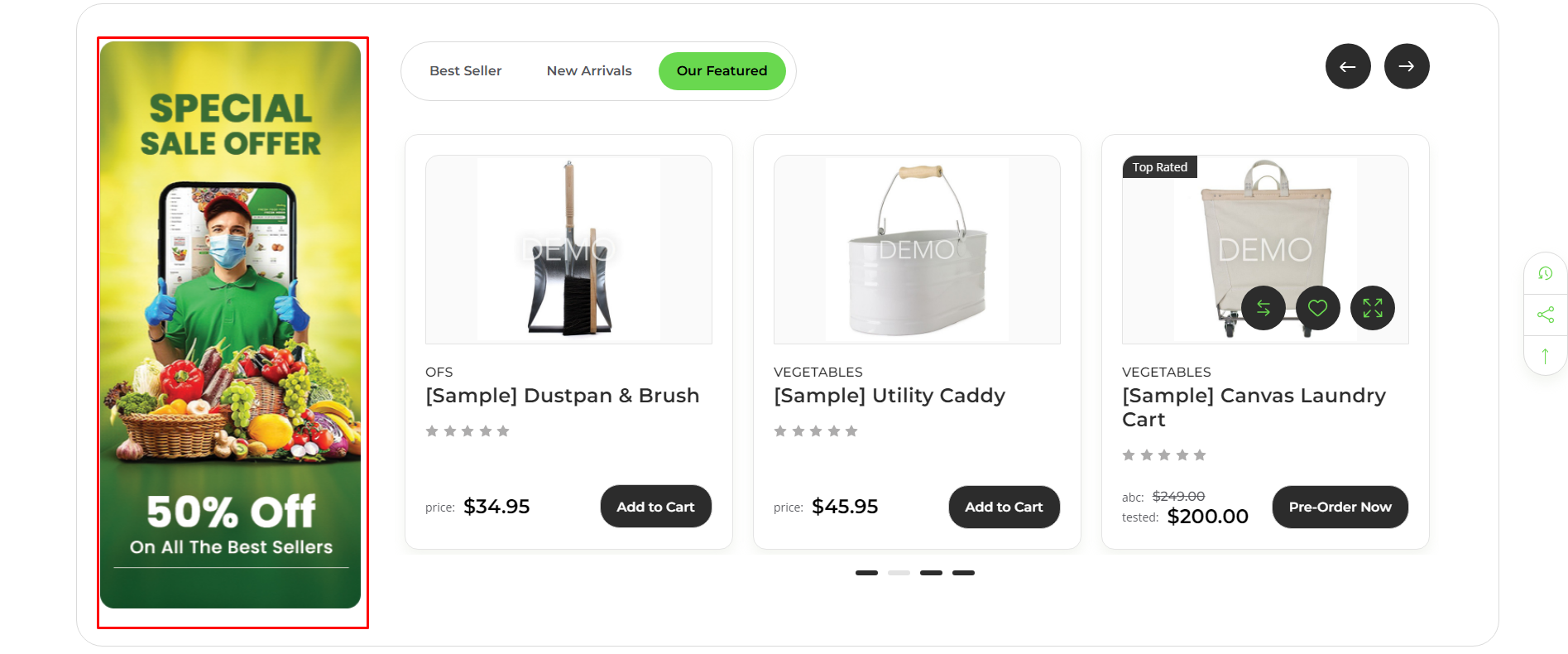
Product Tab Section
Product Section Tab

Product Section Row
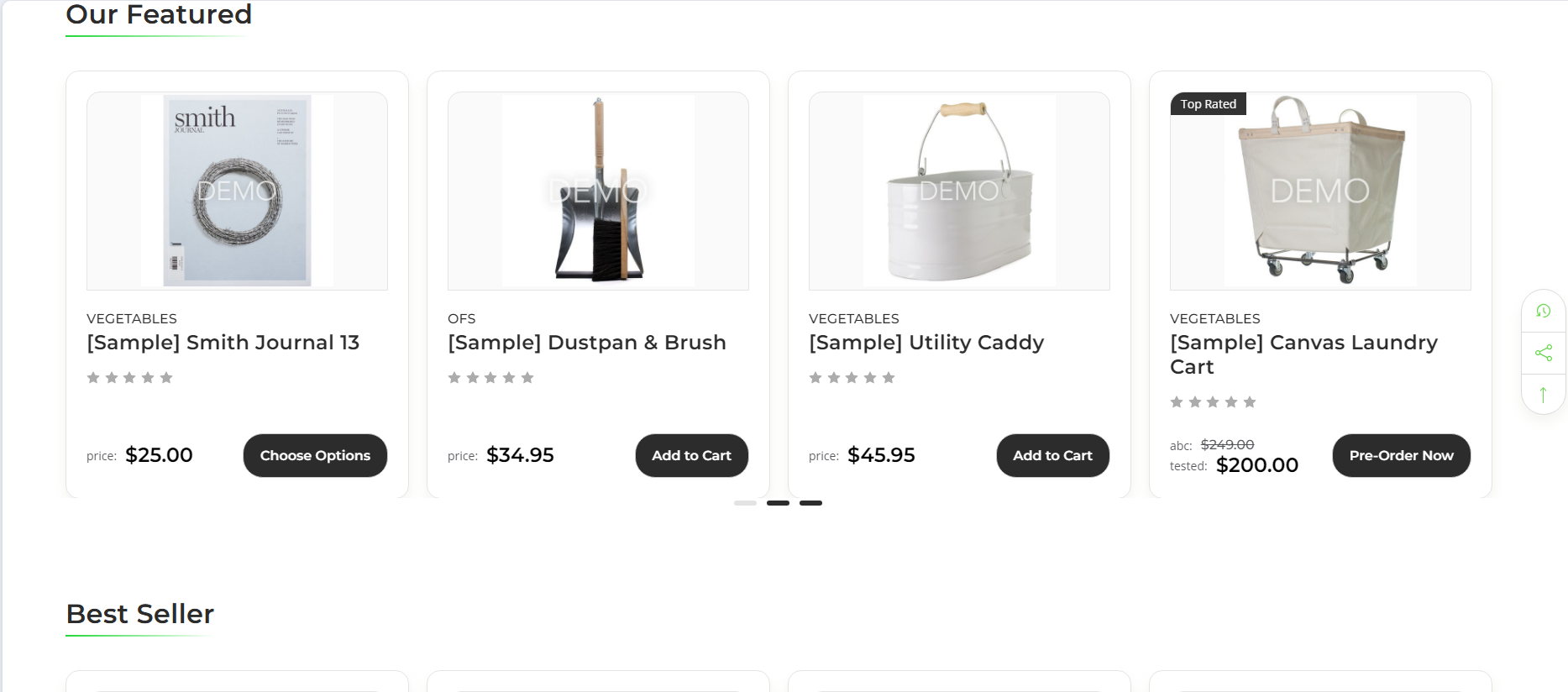
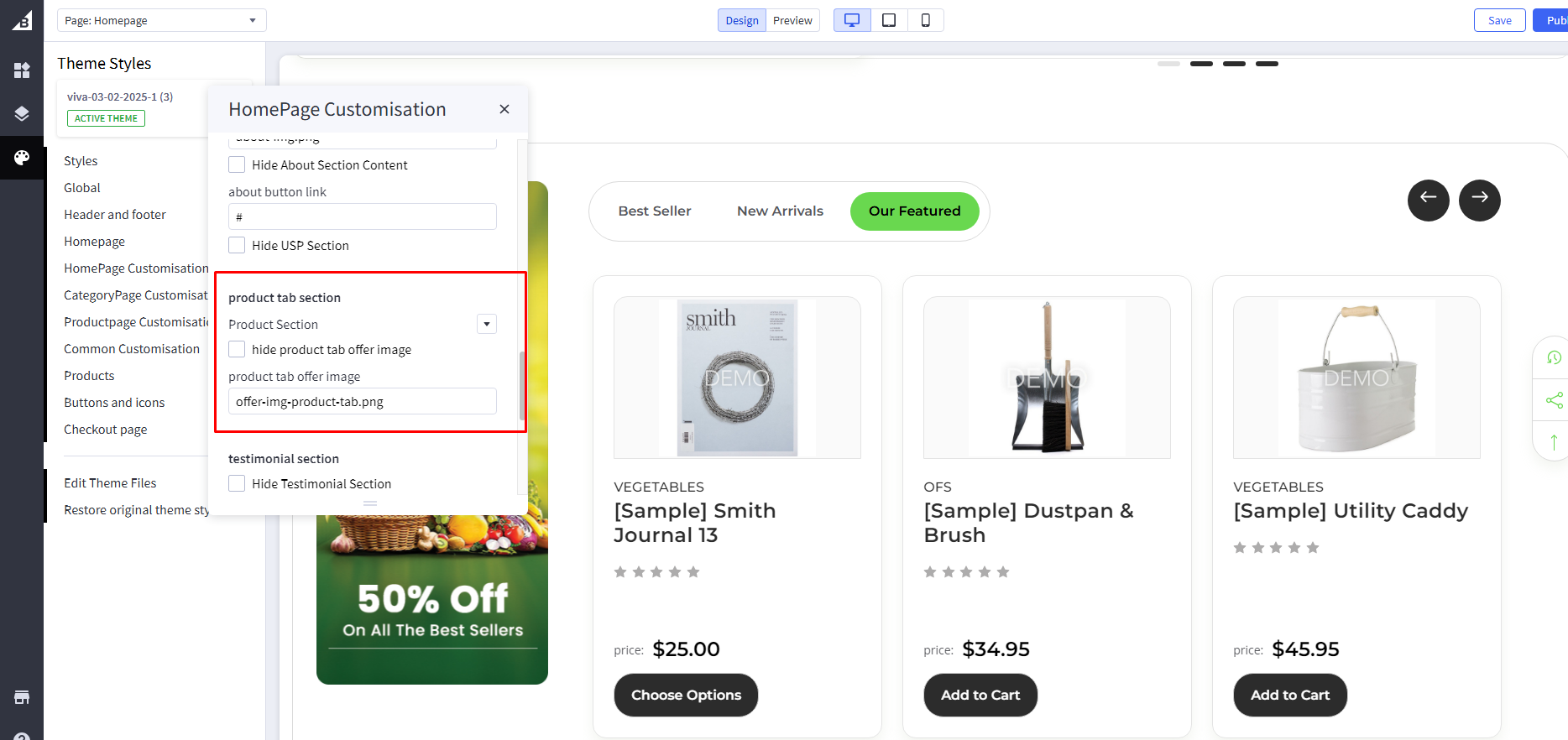
Product Section : Choose product section from dropdown to display in tab or row
Hide Product Tab Section : If Checked , it will hide a hide Product tab section
Product Tab Offer Image : Add image file
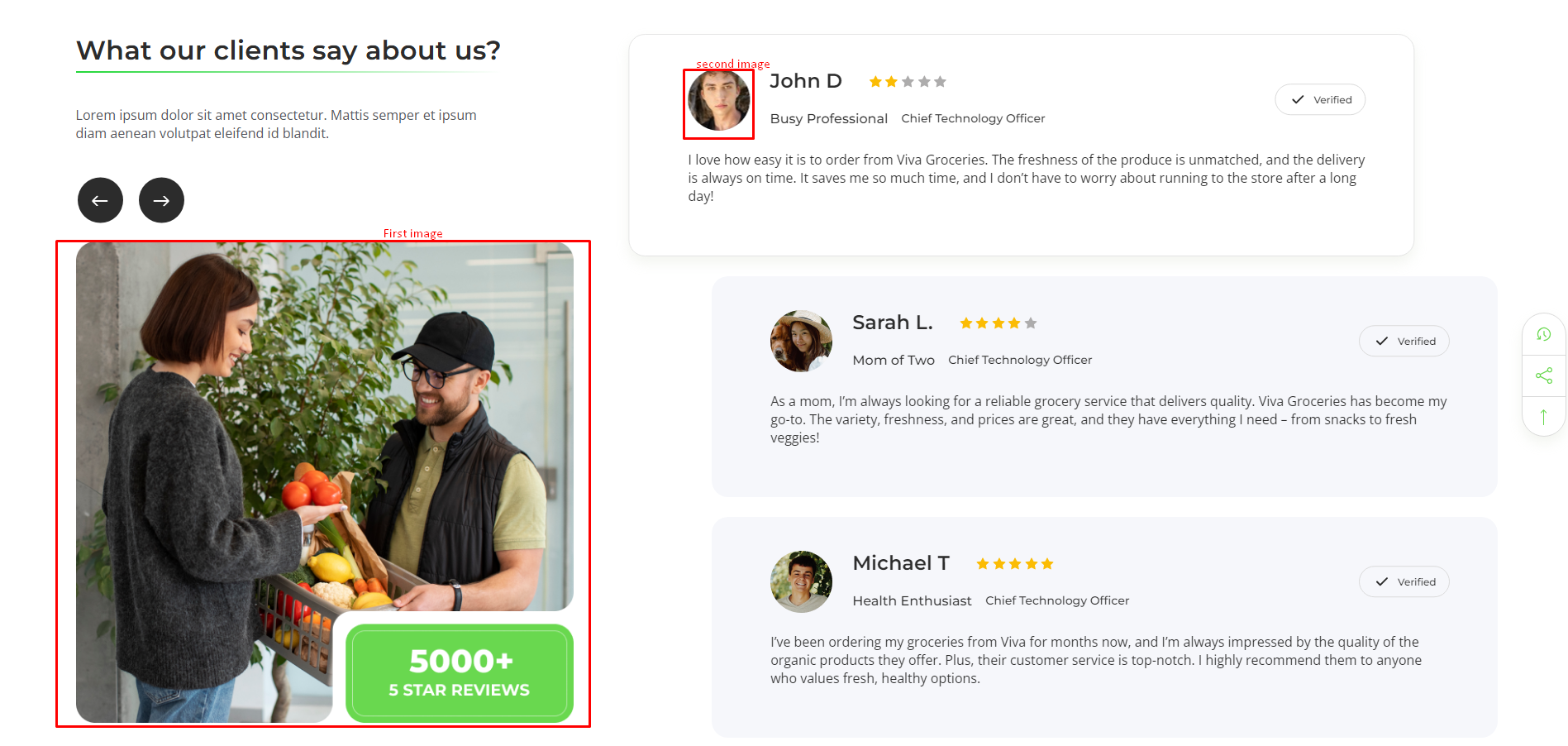
Testimonial Section
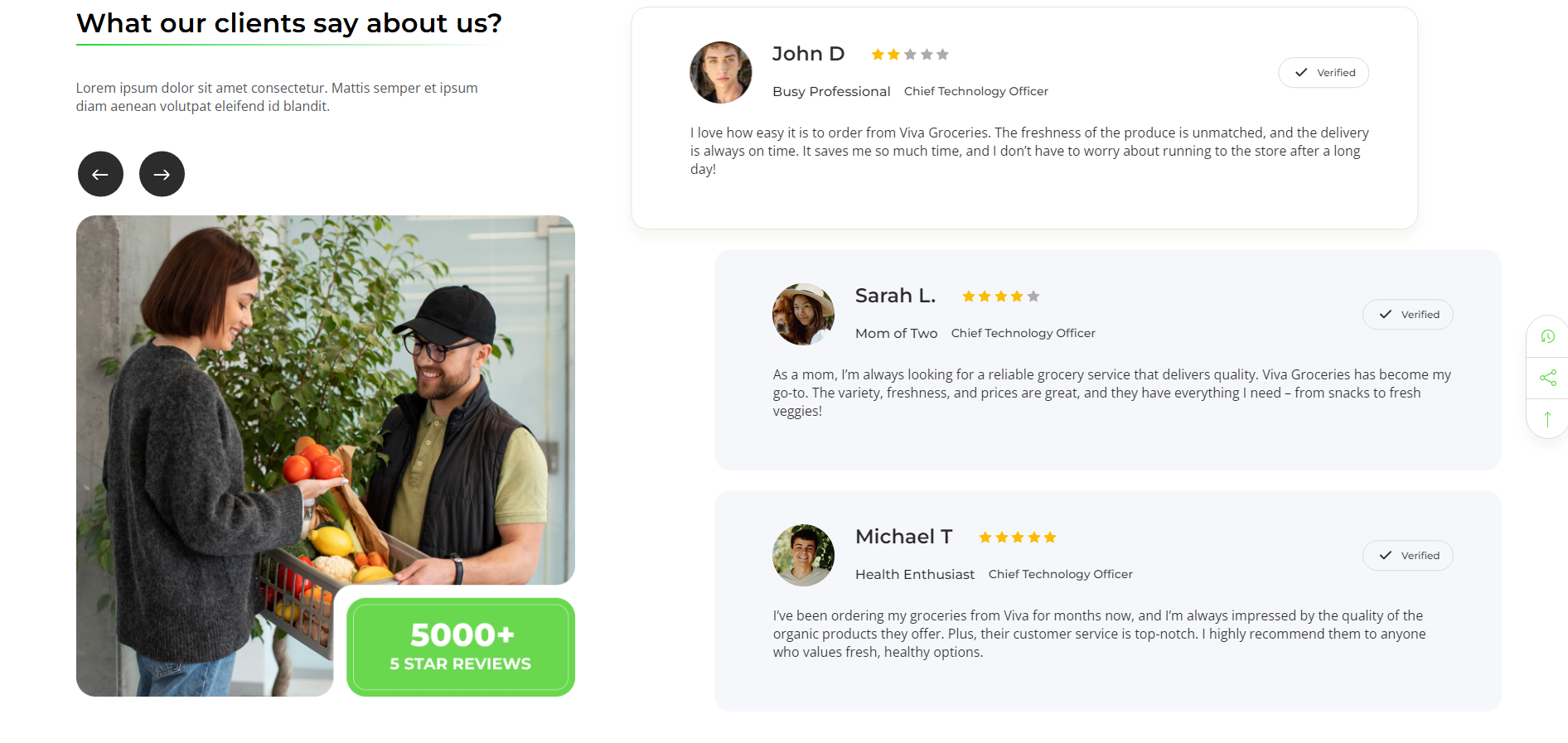
Hide Testimonial Section : If Checked , it will hide a hide Testimonial section
Testimonial Images : Add image file

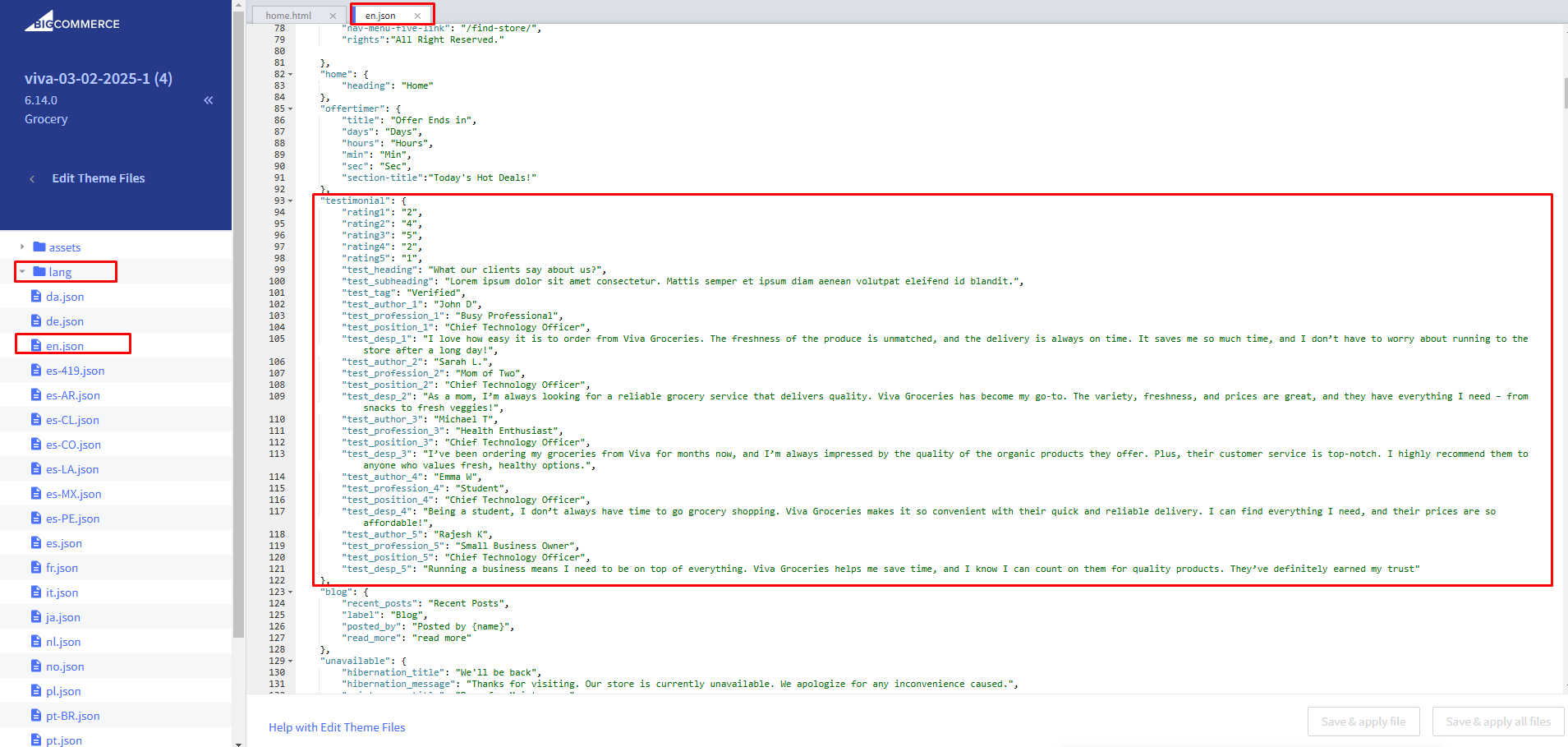
Testimonial Content : To customize testimonial content, Go to channels > Themes > Advanced > Edit Theme Files > lang > en.json and edit testimonial Content.
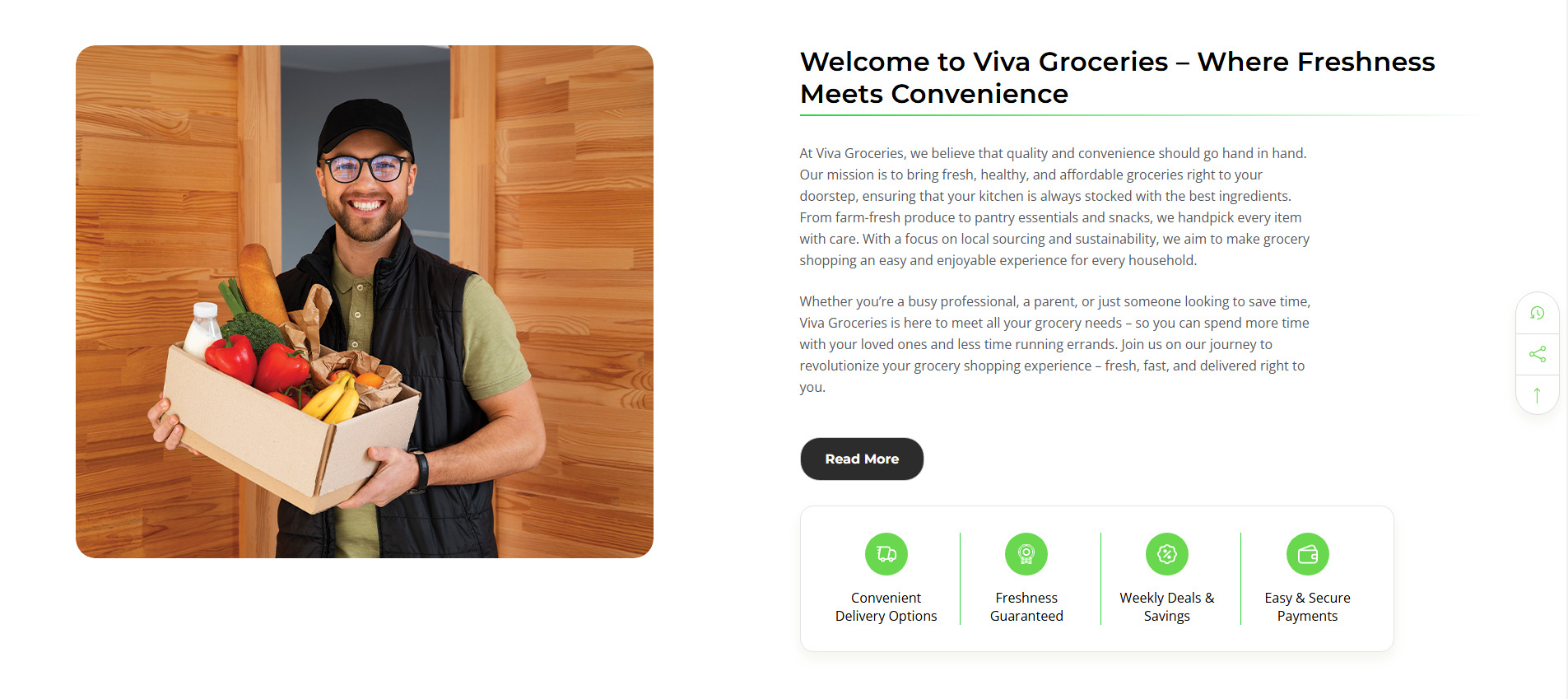
About Section
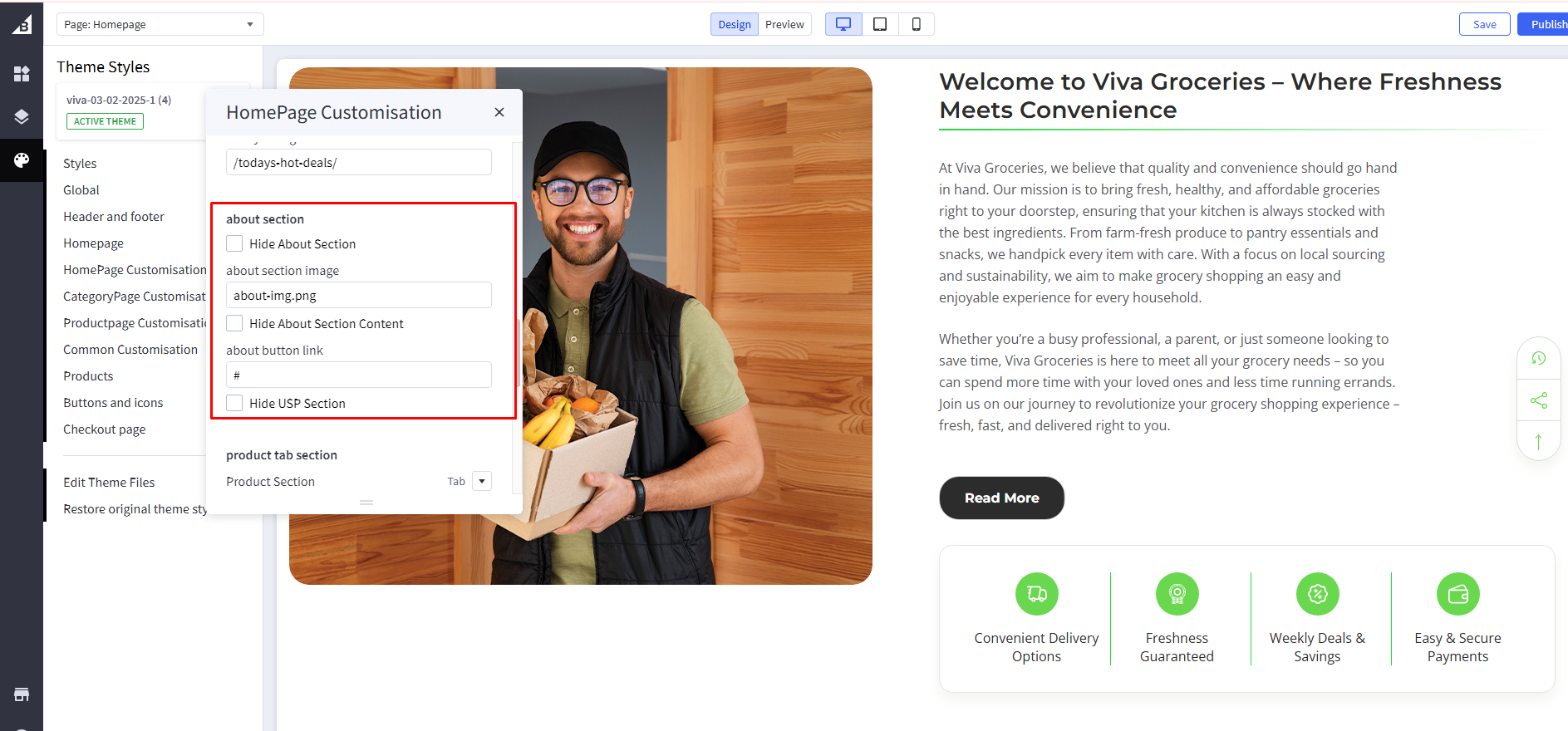
Hide About Section : If Checked , it will hide a hide About section
About Section Image : Add image file
Hide About Section Content : If Checked , it will hide a hide About section Content
About Button Link : Add button link
Hide USP Section : If Checked , it will hide a hide USP section
About Content Customisation: To customize about content, Go to channels > Themes > Advanced > Edit Theme Files > lang > en.json and edit about Content.
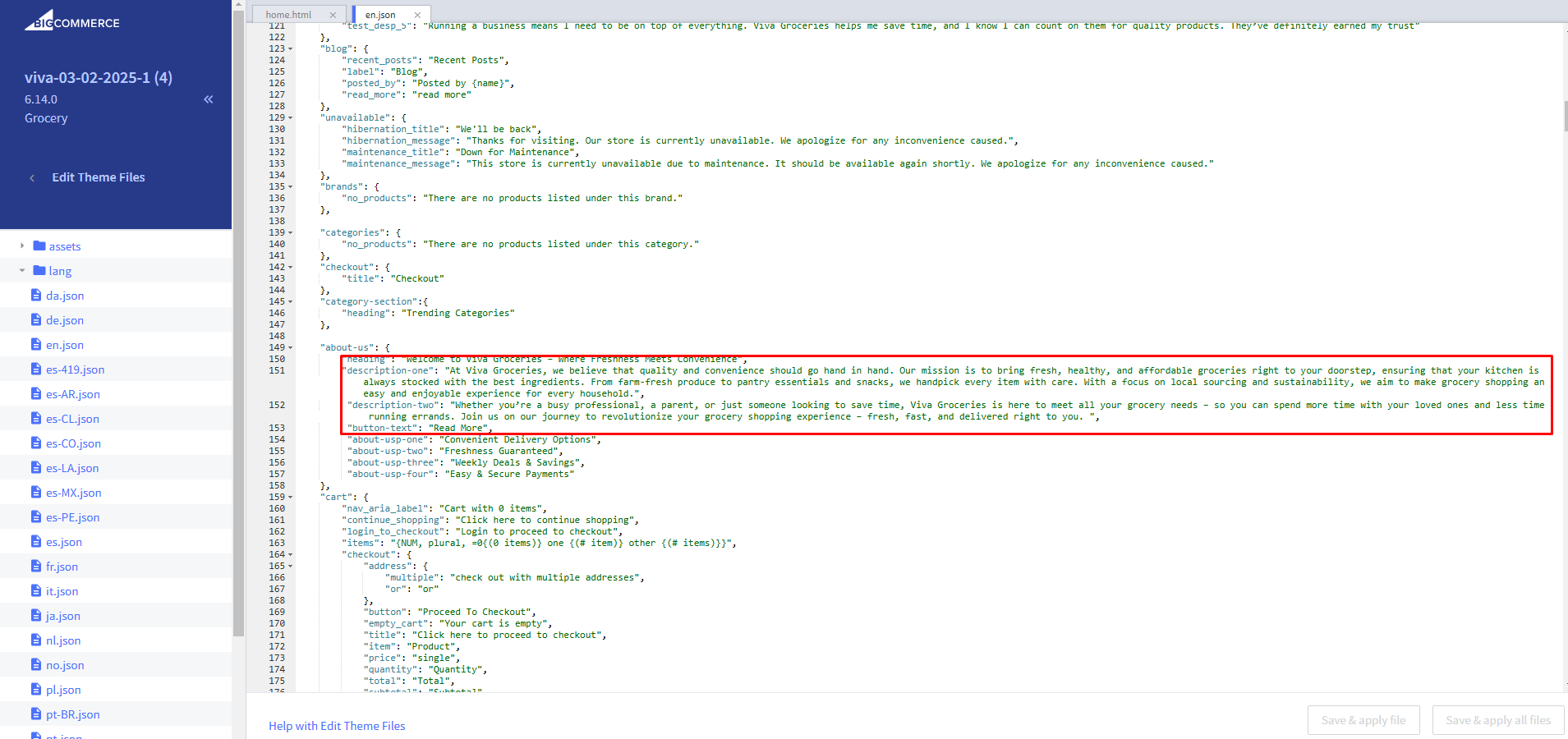
USP Content Customisation:
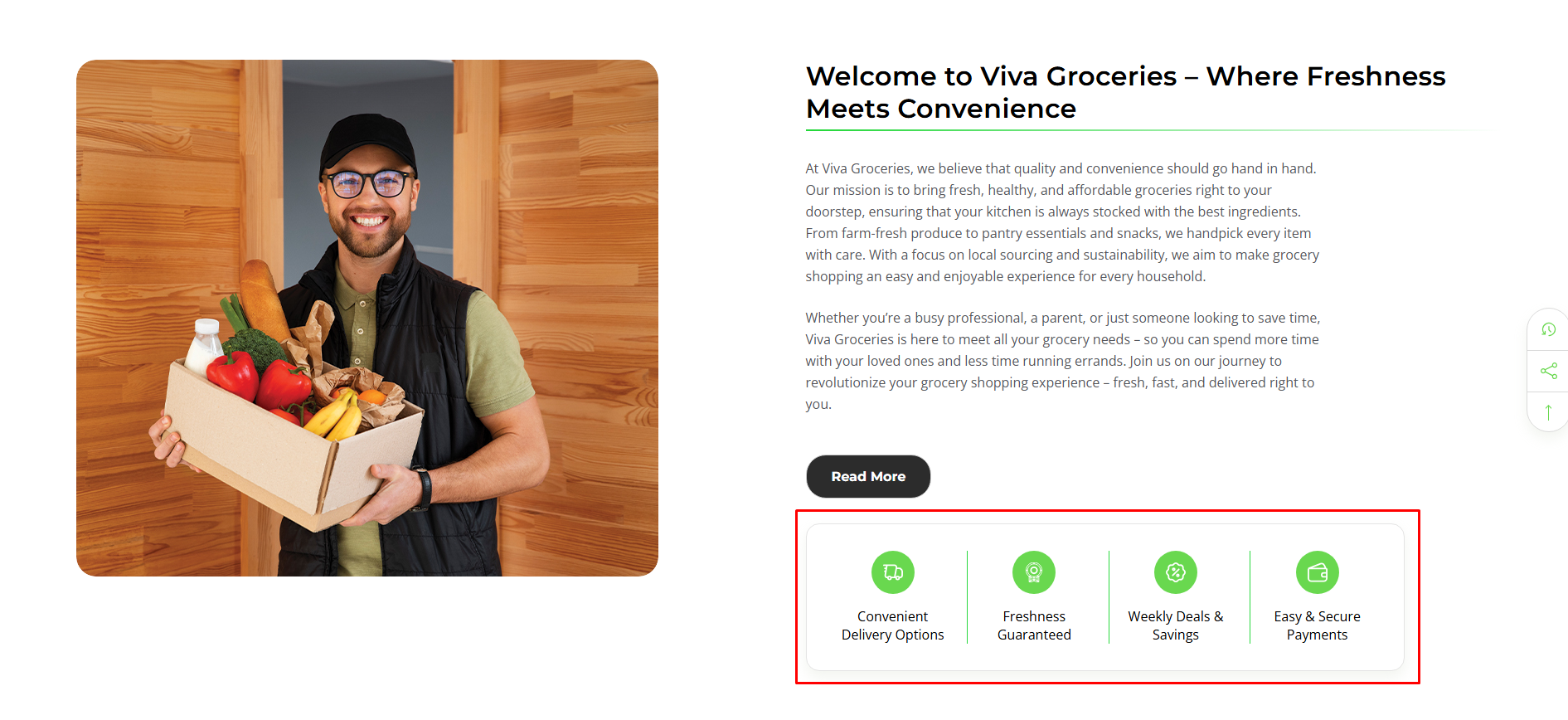
To customize USP content, Go to channels > Themes > Advanced > Edit Theme Files > lang > en.json and edit USP Content.

Category Page Customisation
Go to Storefront > My Themes in your control panel and click the blue Customize button to launch Theme Editor.
On the left-hand side of the Theme Editor, click on the CategoryPage Customisation'.
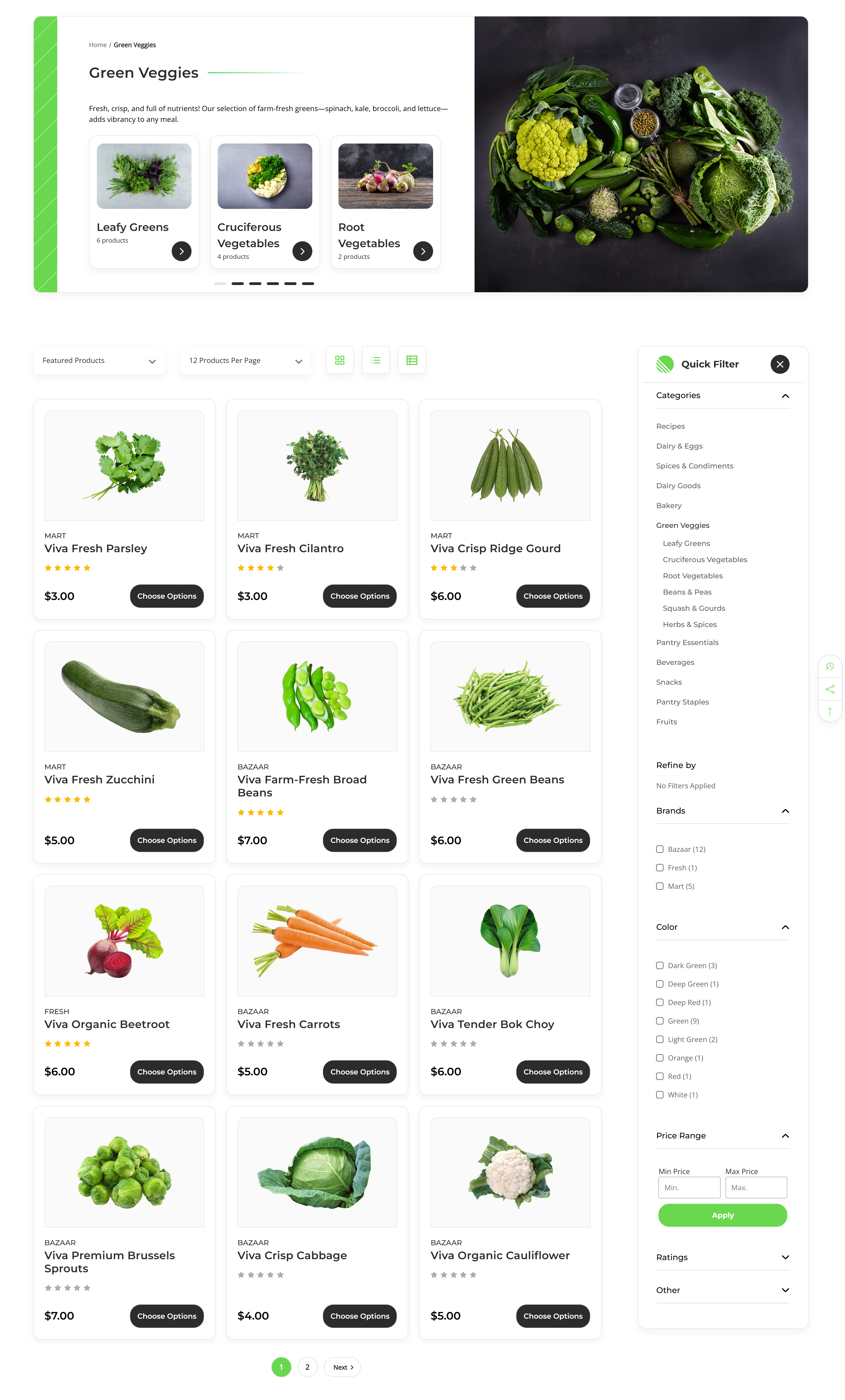
Hide Sub Category : If checked, it will hide a sub categories.
Sub Category Background Color: Set category card background color
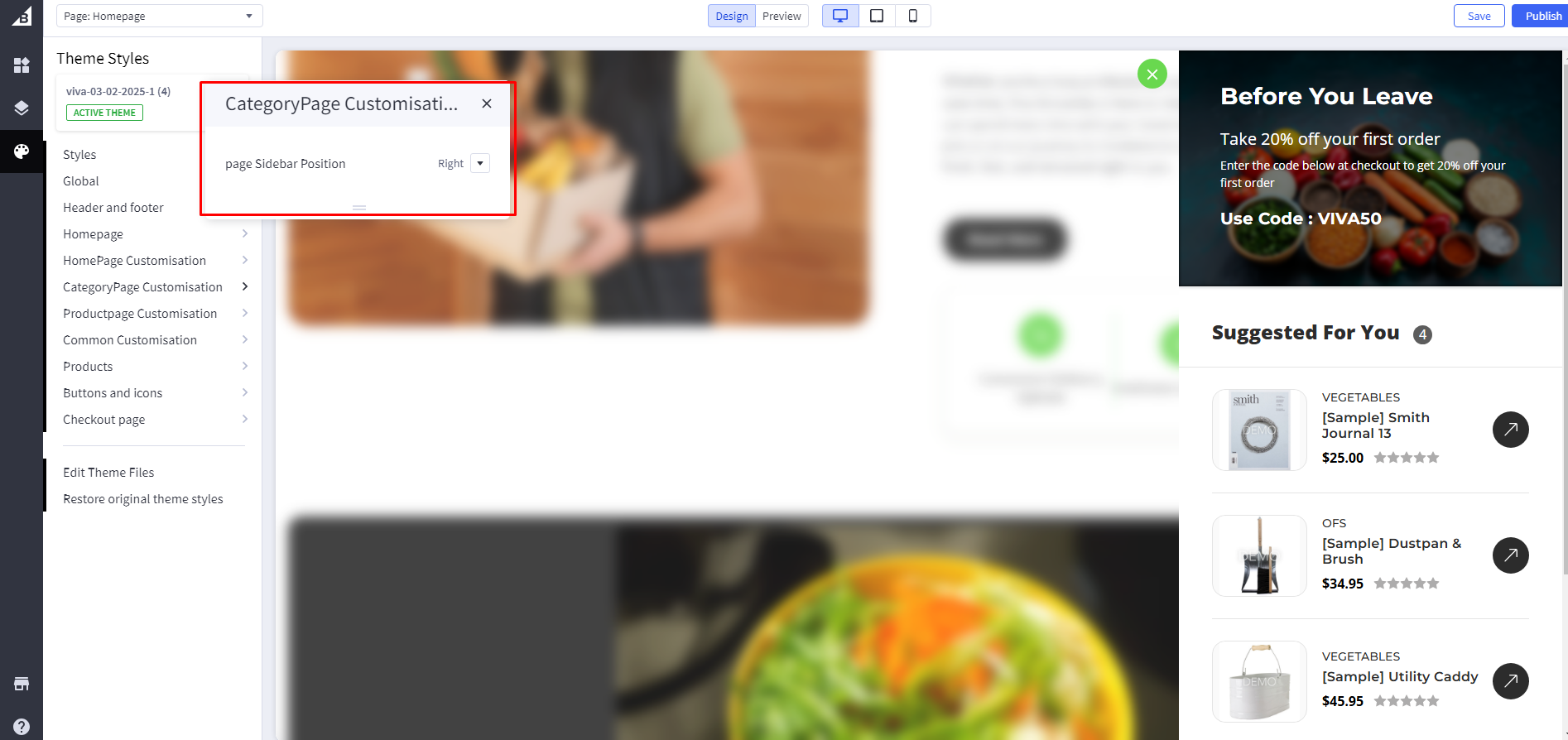
Category page sidebar position: Choose sidebar position from dropdown (Left or Right)
Left Sidebar
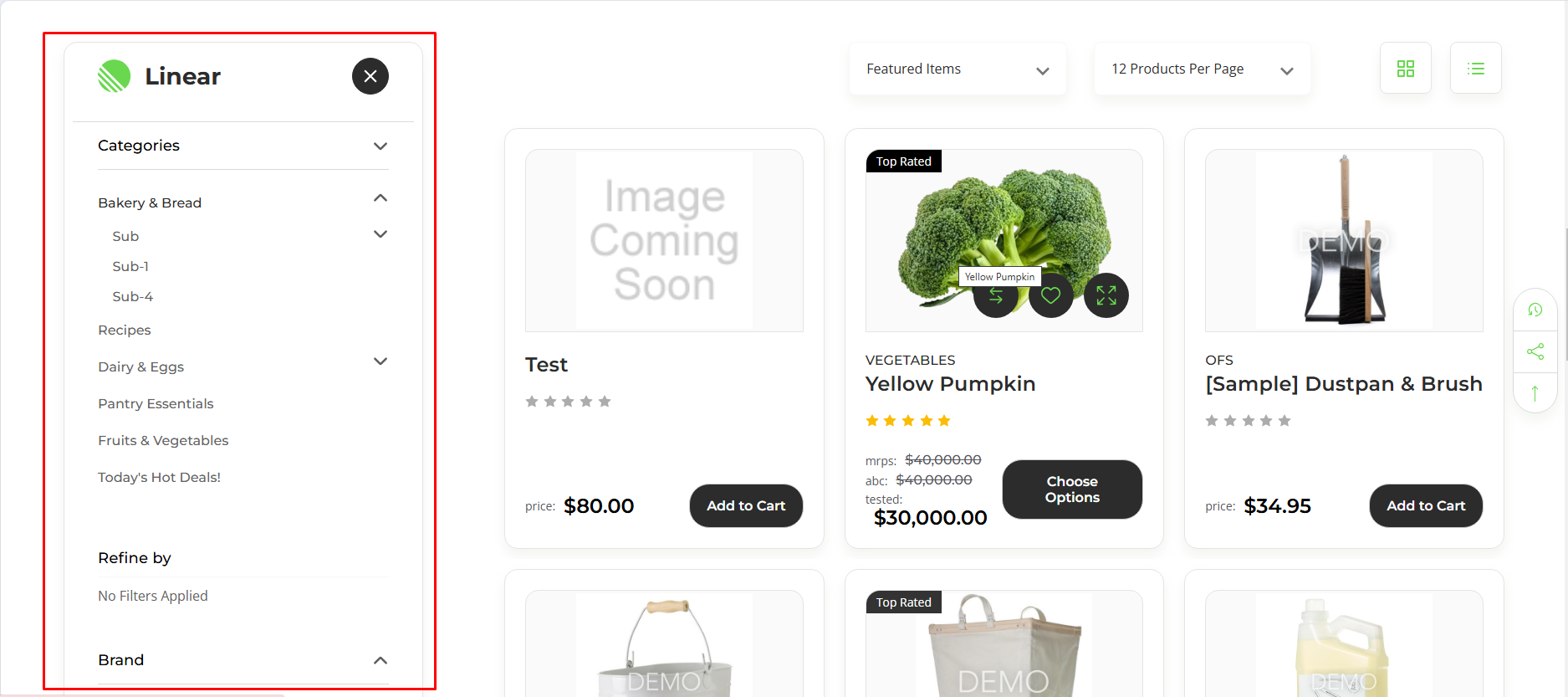
Right Sidebar

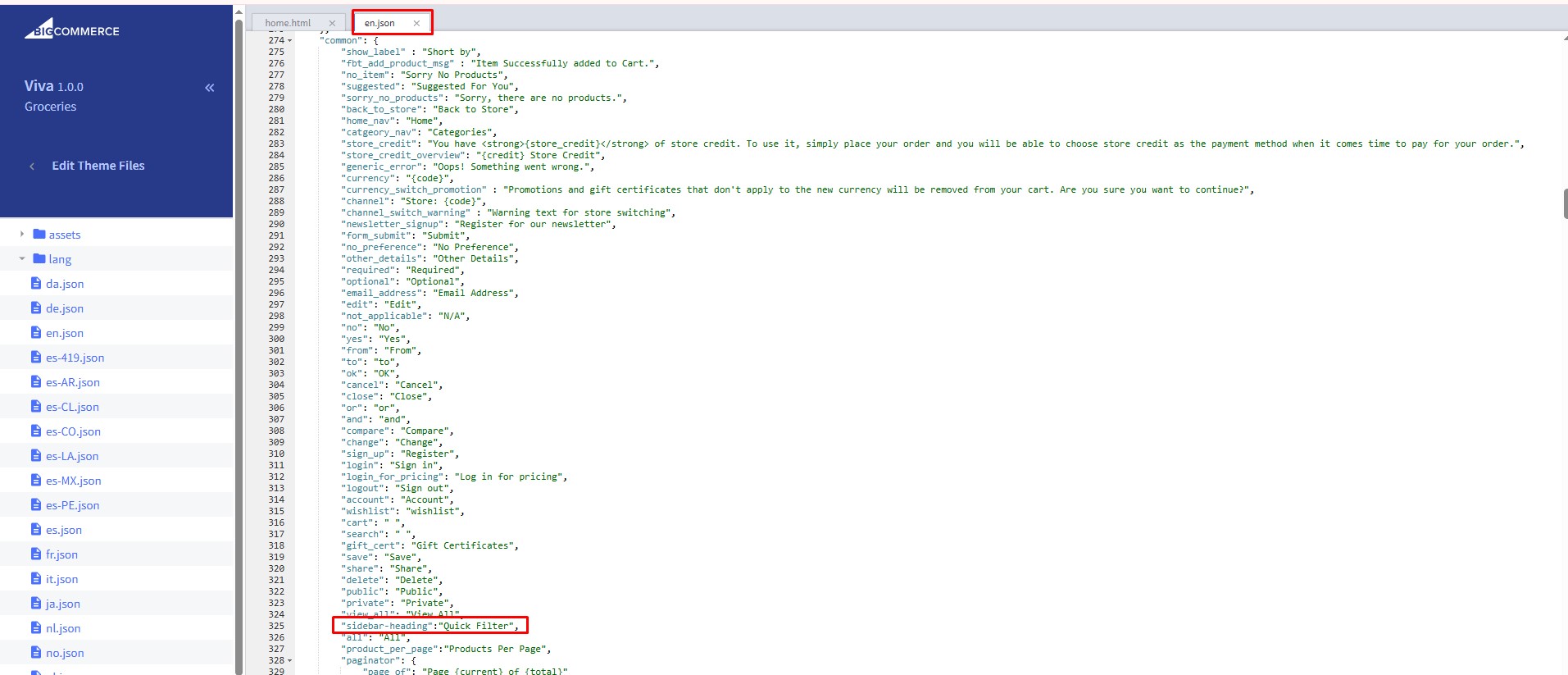
Change Sidebar Heading Text :To change sidebar heading text, Go to channels > Themes > Advanced > Edit Theme Files > lang > en.json and update sidebar heading text
Product Page Customisation
Go to Storefront > My Themes in your control panel and click the blue Customize button to launch Theme Editor.
On the left-hand side of the Theme Editor, click on the ProductPage Customisation
PDP USP Section
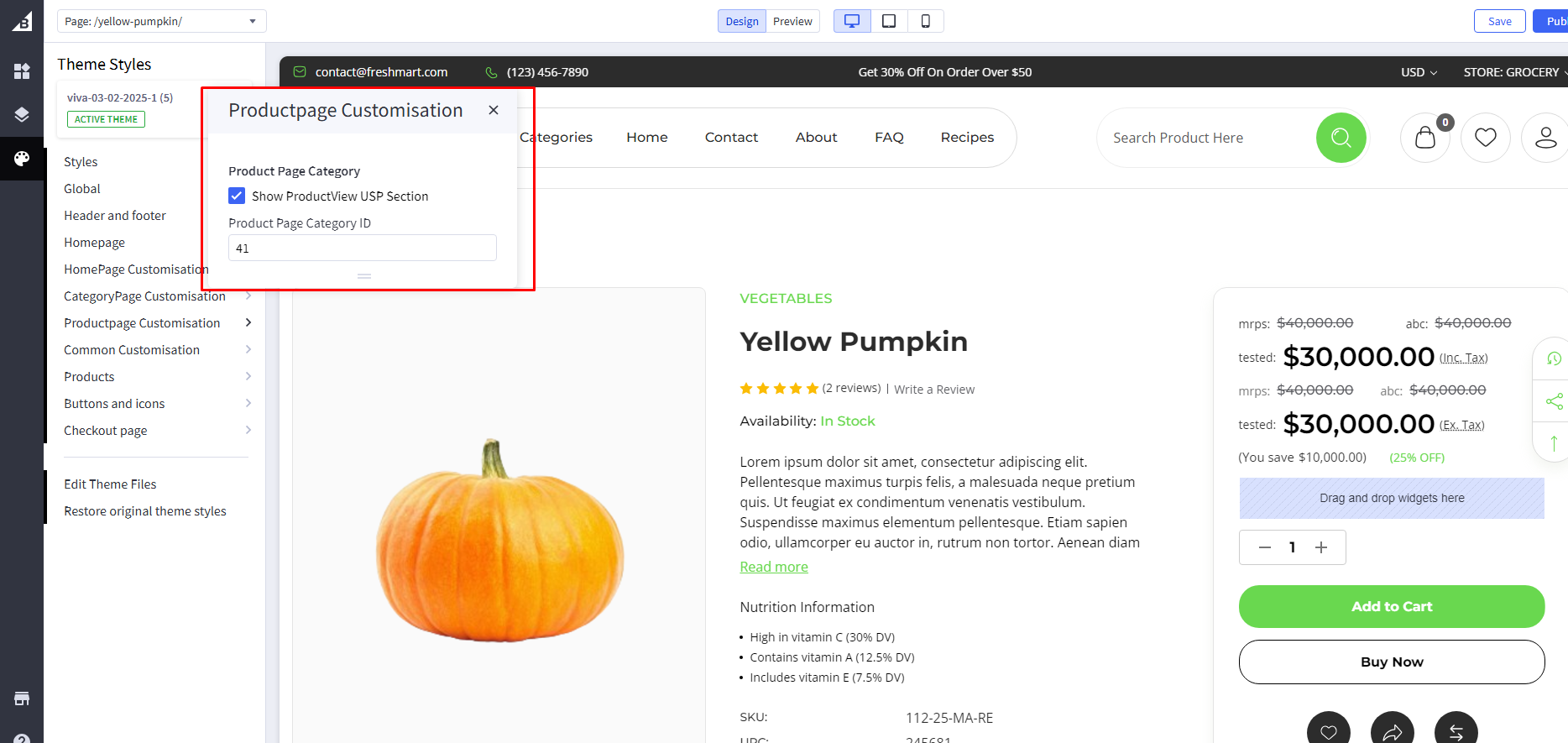
Show ProductView USP Section : If Checked , it will Show a ProductView USP section
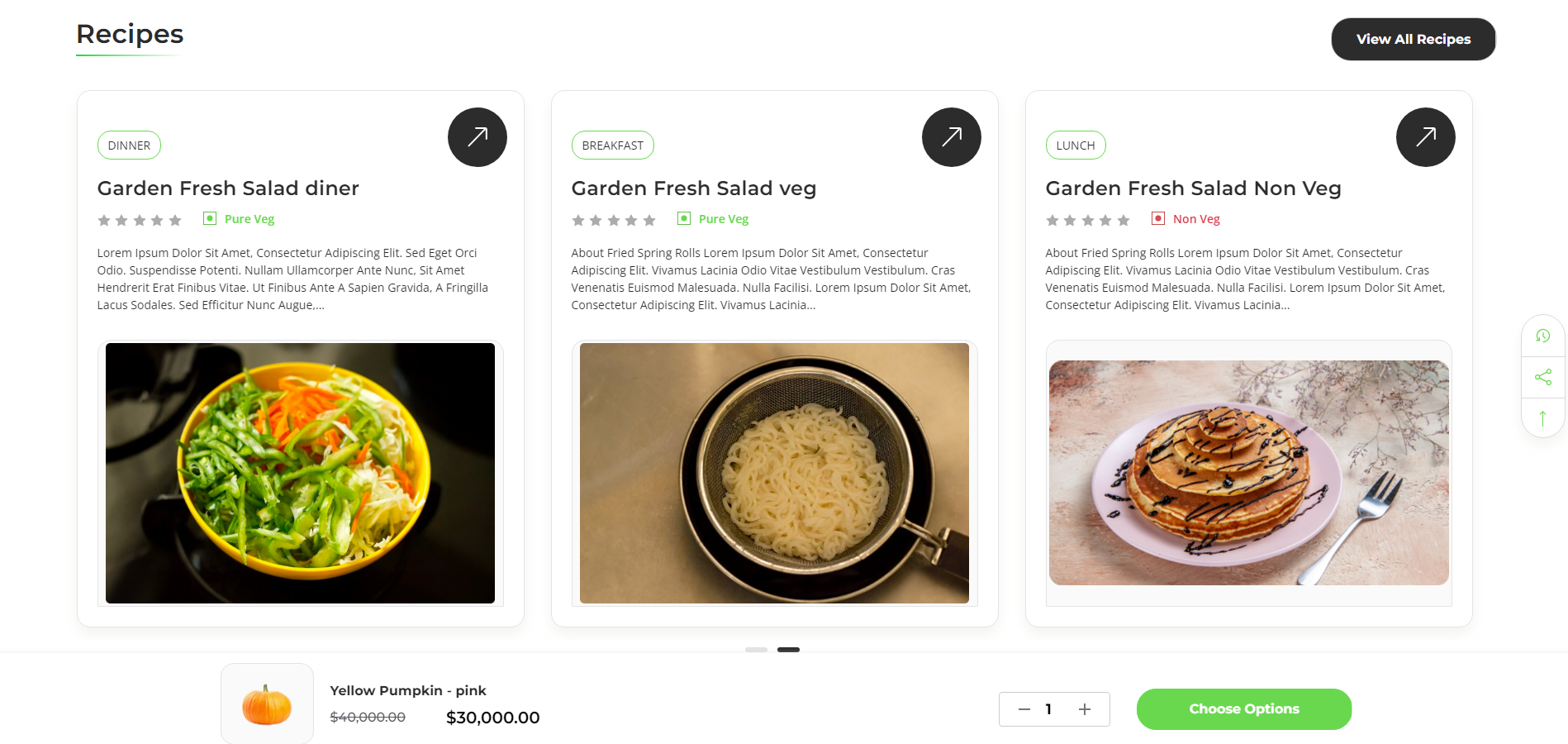
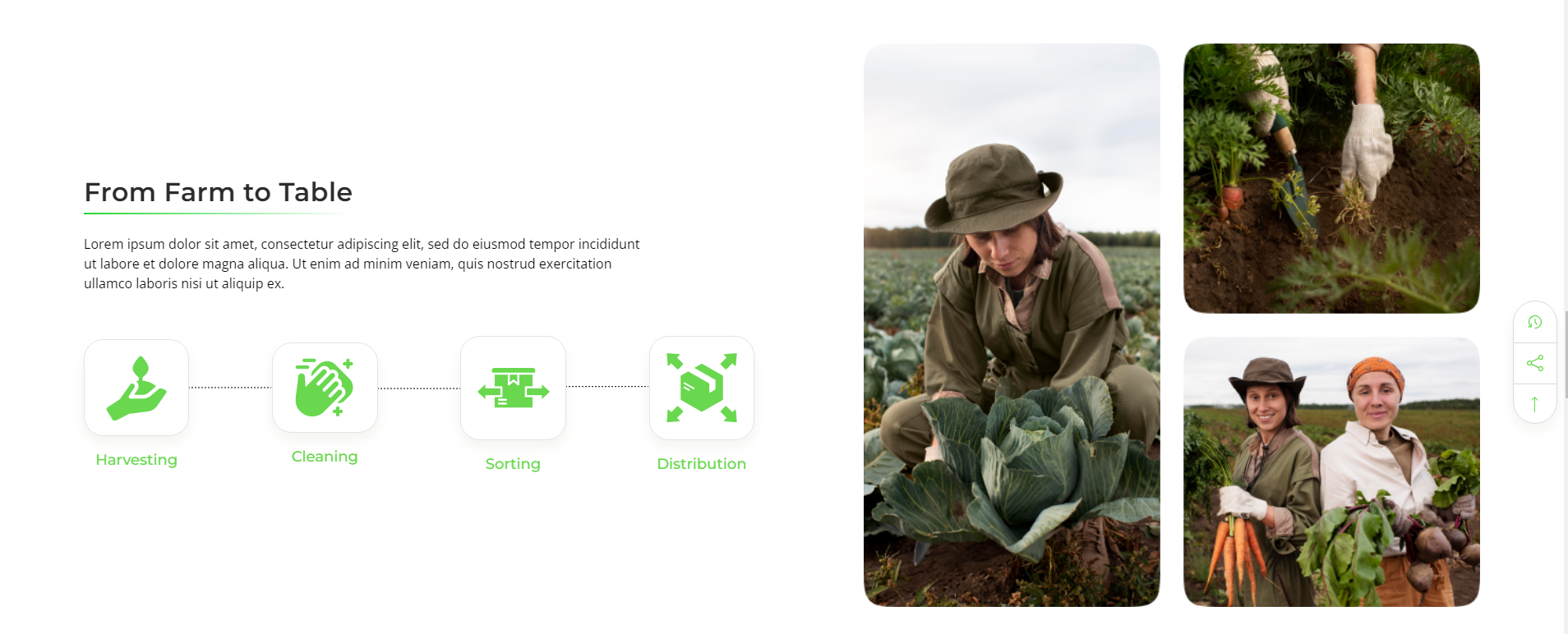
This section is used for a specific product, and its steps and code are given below.
Step 1: Go to Storefront > Theme > Customize > Preview
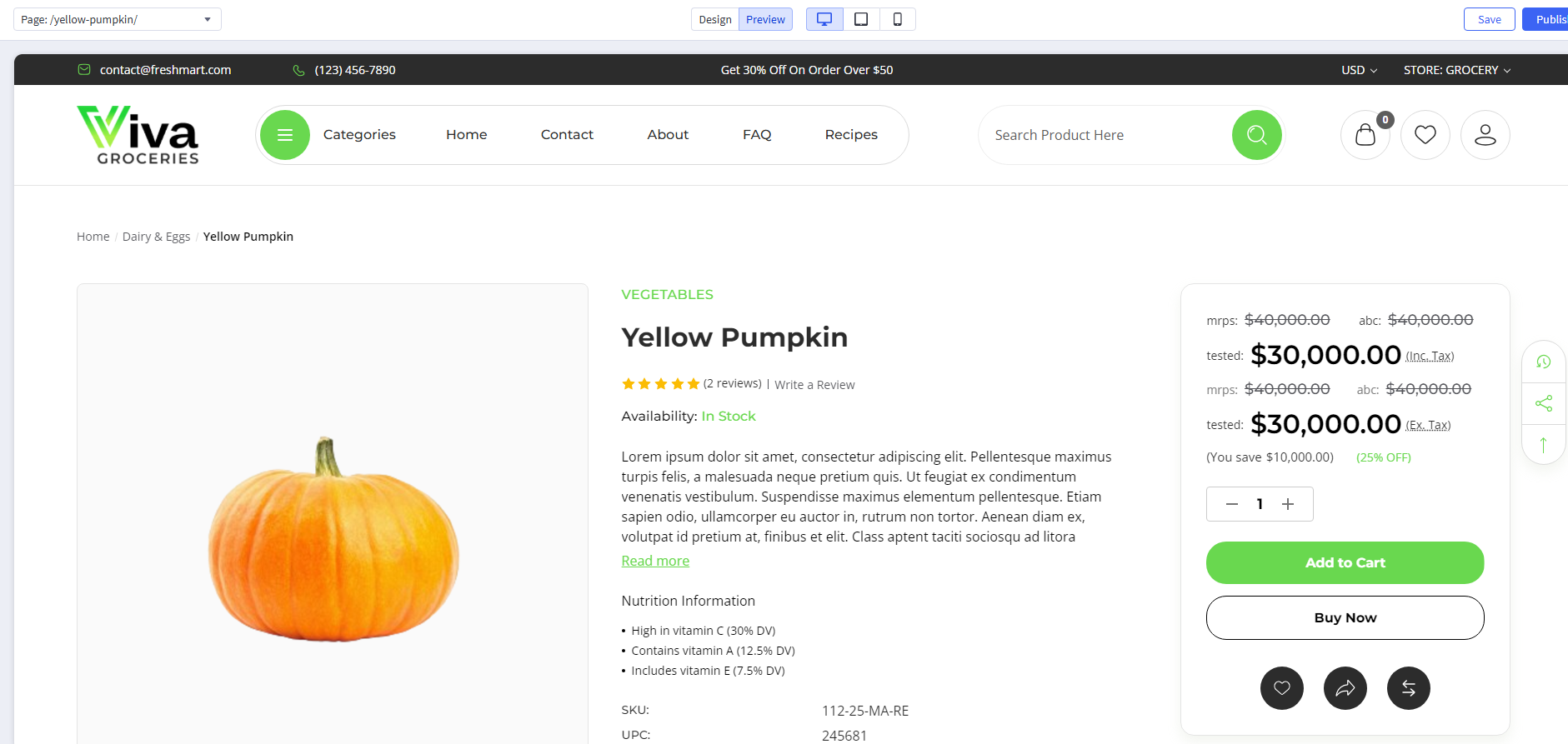
Step 2: Go to Product page and move to Design mode
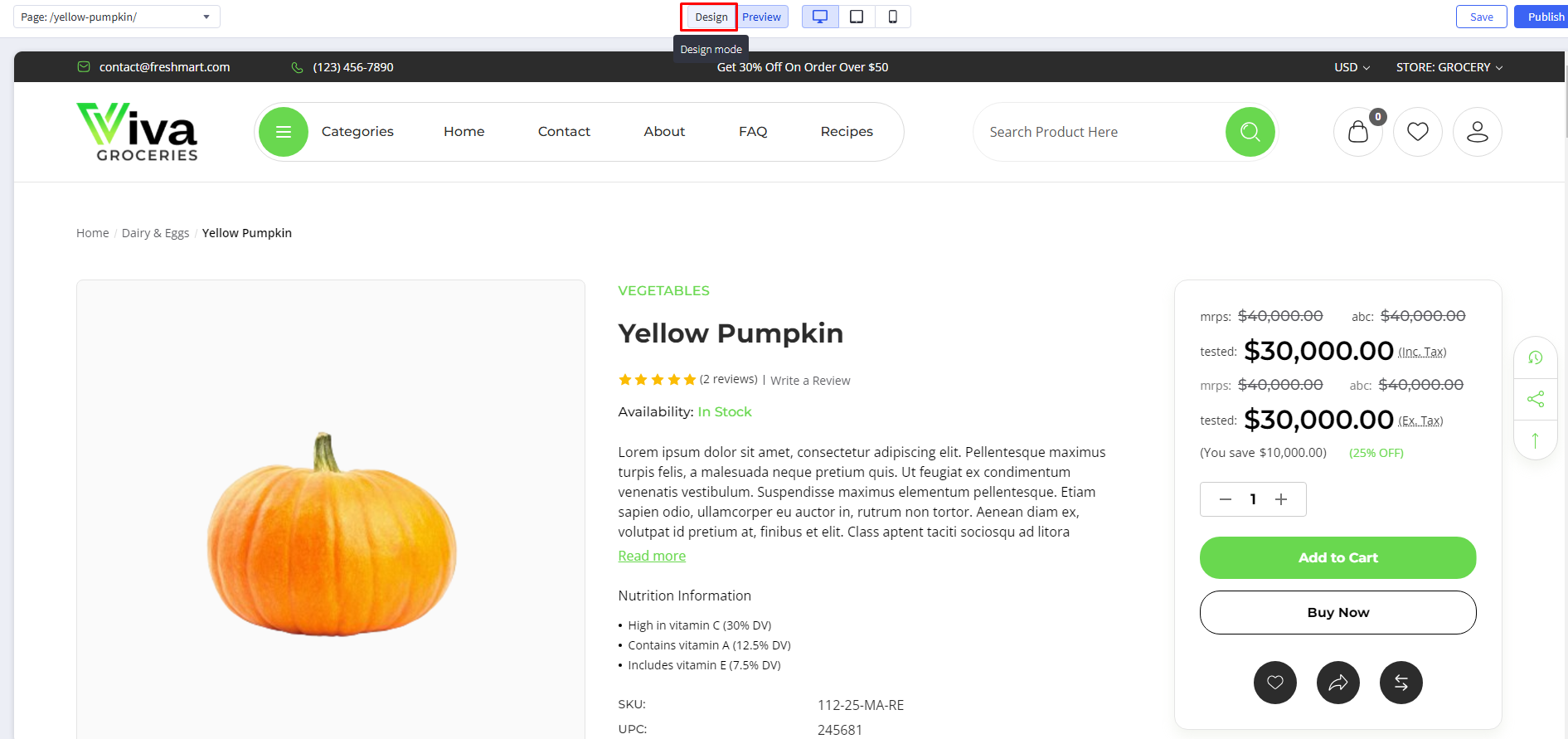
Step 3: Scroll down at end of description tabs. drag and drop HTML widget on page builder.
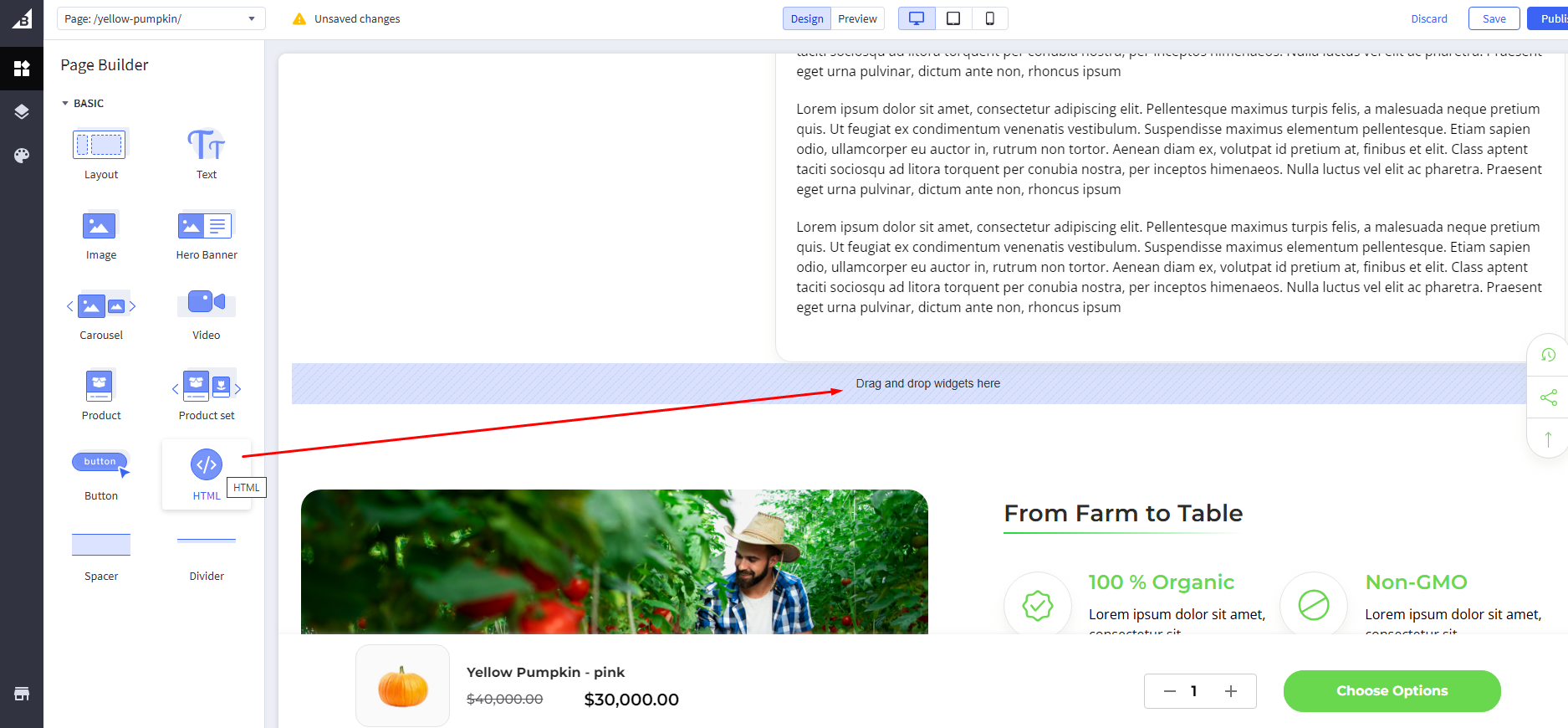
Step 4: Droping widget on page builder will show HTML code editor on left side panel. Add HTML code as per below code with your own content. And Click on save HTML button and publish your theme.
Step 5: Add image URL in HTML code as per below code.
Step 6: Save HTML and publish your theme.
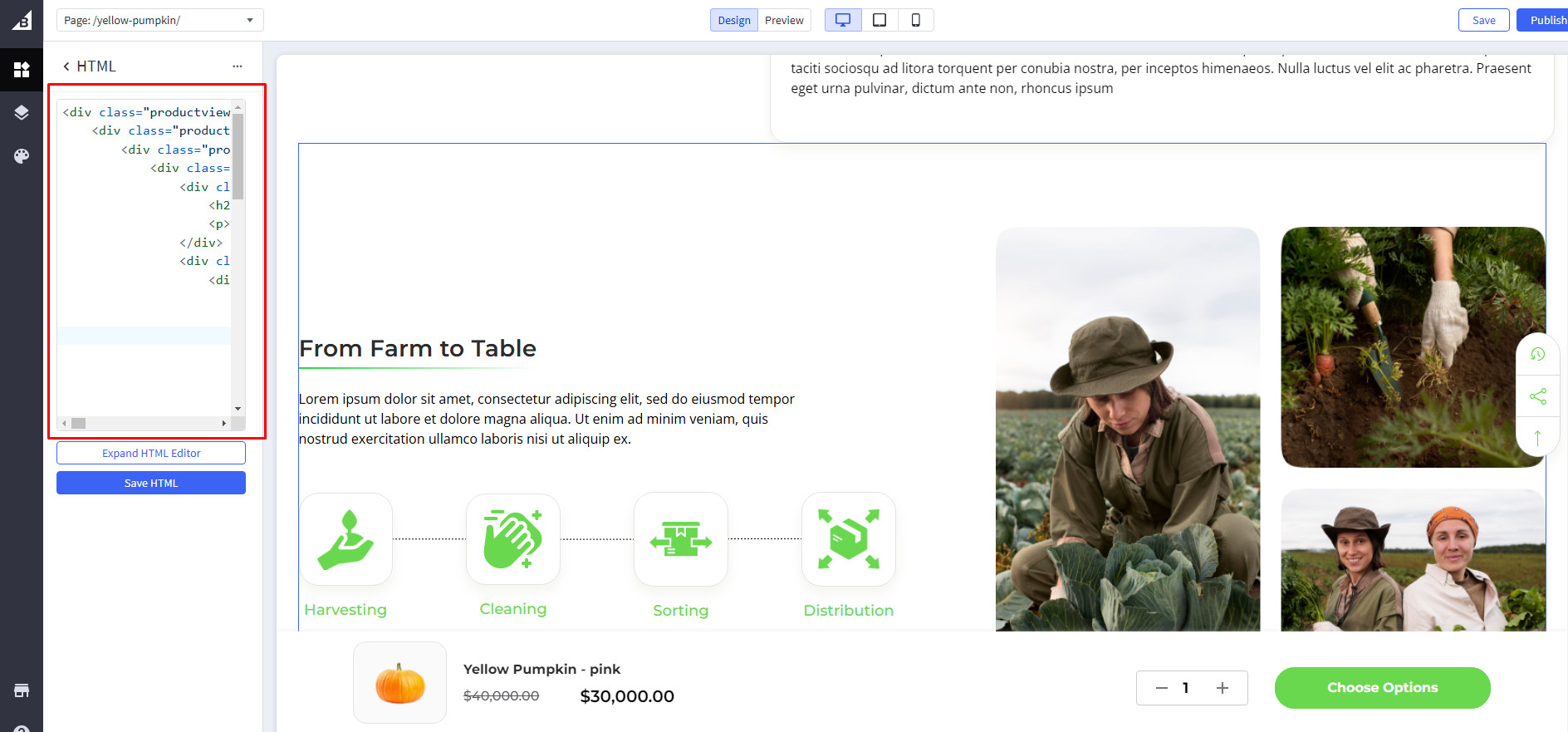
HTML Demo Code :
See the Pen VIVA - Recipe Product Process Section Code Generator by bigcommerce_ditindia (@bigcommerce_ditindia) on CodePen.
NOTE : Do not change HTML code structure only for update content and image
Recipe Product USP Section
Follow same steps of Recipe Product Process Section to add this section on product page. Just different is Code as per below code with your own content.
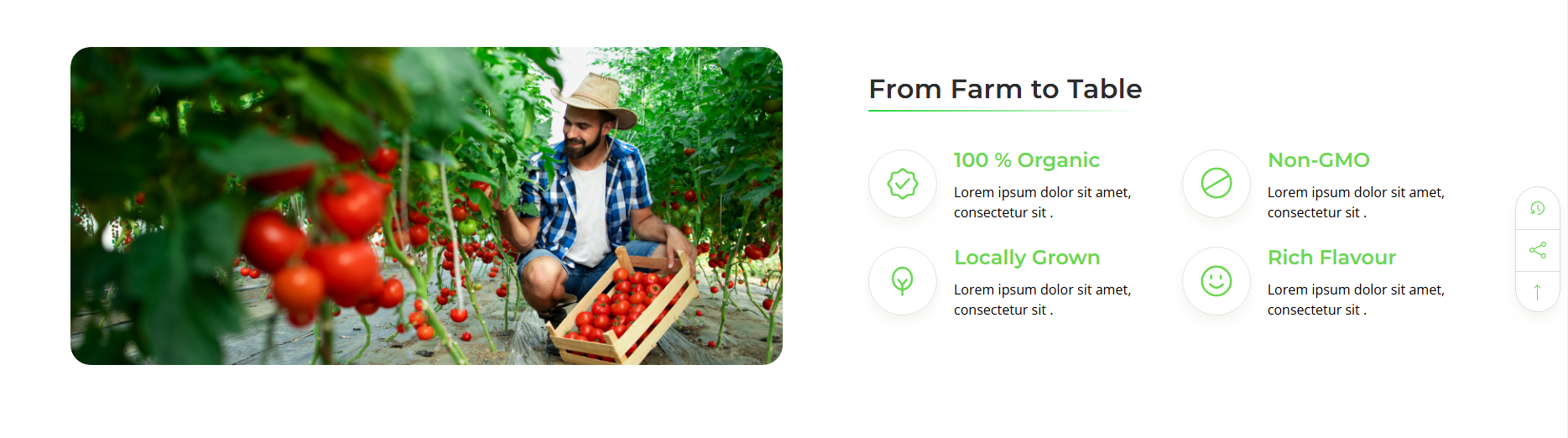
HTML Demo Code :
See the Pen VIVA - Recipe Product USP Section Code Generator by bigcommerce_ditindia (@bigcommerce_ditindia) on CodePen.
NOTE : Do not change HTML code structure only for update content and image
FAQ Section
To add FAQ section on product page, follow same steps of From Farm to Table Section One to add this section on product page. Just different is Code as per below code with your own content. Add your own Image in FAQ content area.
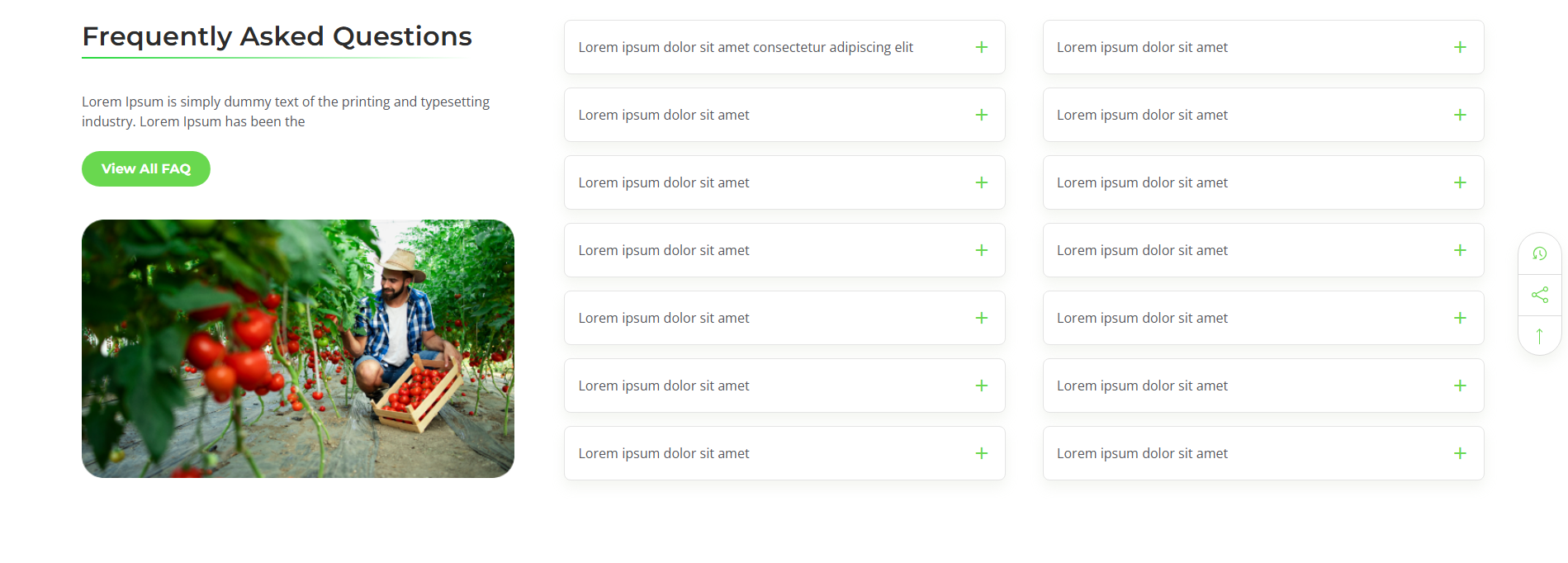
HTML Demo Code :
See the Pen VIVA - PDP FAQ Section by bigcommerce_ditindia (@bigcommerce_ditindia) on CodePen.
NOTE : Do not change HTML code structure only for update content and image
Common Customisation
Go to Storefront > My Themes in your control panel and click the blue Customize button to launch Theme Editor.
On the left-hand side of the Theme Editor, click on Common Customisation

Bulk Order Page
The Bulk Order page on Viva is designed to make it simple for customers to purchase a wide range of products in large quantities, catering to both individual consumers and businesses like restaurants, retailers, or event planners. The page showcases a variety of products within each category—whether it's automotive parts, grocery items, or gift sets—with clear descriptions, prices, and availability. The layout is clean and intuitive, providing easy navigation between different products so users can quickly find what they're looking for. Each product listing offers an option to specify the desired quantity, making it ideal for bulk buyers.
In addition to standard product information, the page includes bulk-specific features such as volume discounts, which are automatically applied when customers order a higher quantity of a single product. A prominent call-to-action encourages users to inquire about custom orders or get assistance if they require specific bulk quantities not listed on the page. The design is responsive, optimized for both desktop and mobile devices, ensuring that customers can place their bulk orders easily, no matter the device they are using.
- Bulk Pricing & Discounts
- Quantity Input for Each Product
- Cart Update in Real-Time
- Product Details
- Price Transparency
- Fast Checkout
- Mobile-Friendly Design
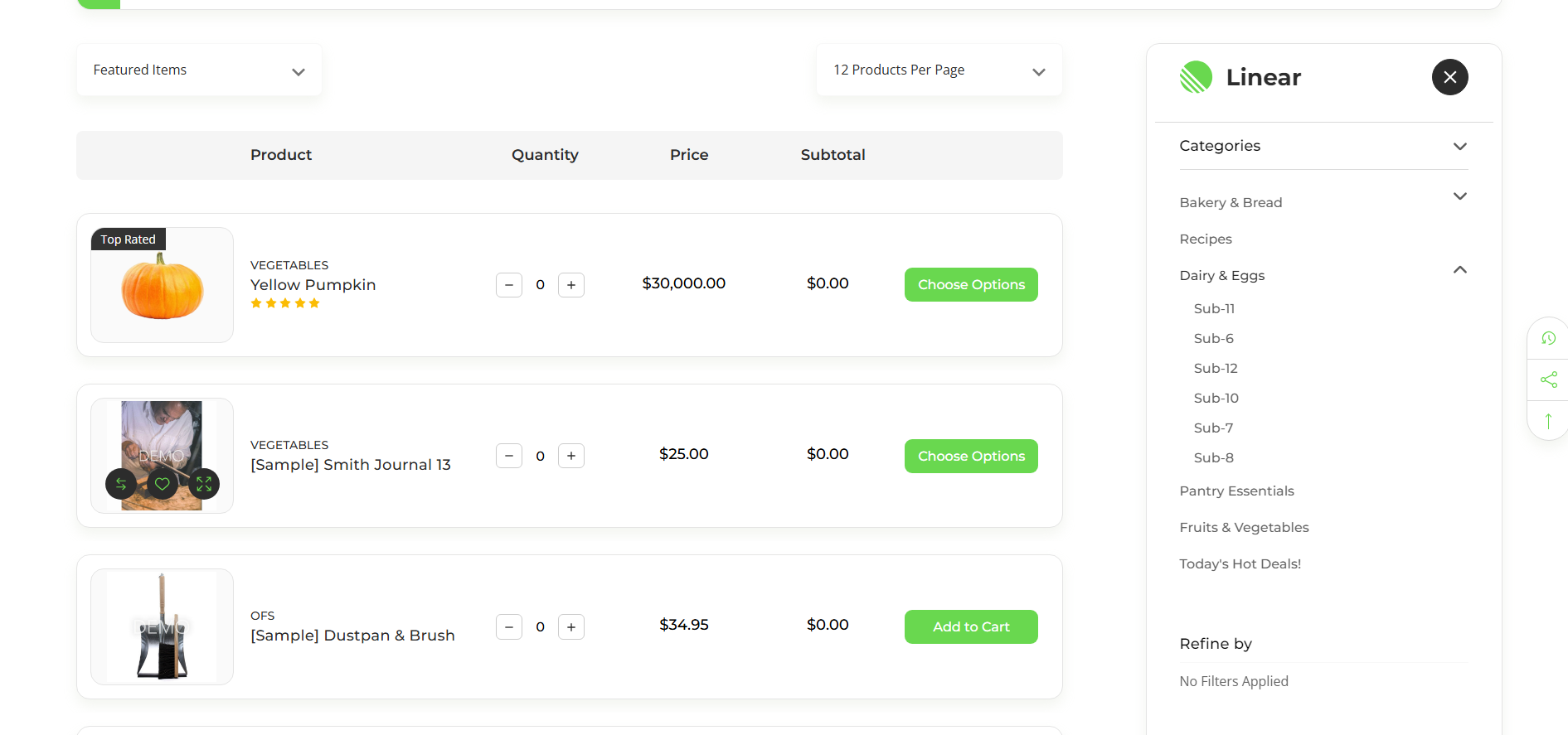
Ajax add to cart : If Checked , it will add ajax addto cart
Show bulk order mode : If Checked , it will working on bulk order
Bulk order Header background : add background Color
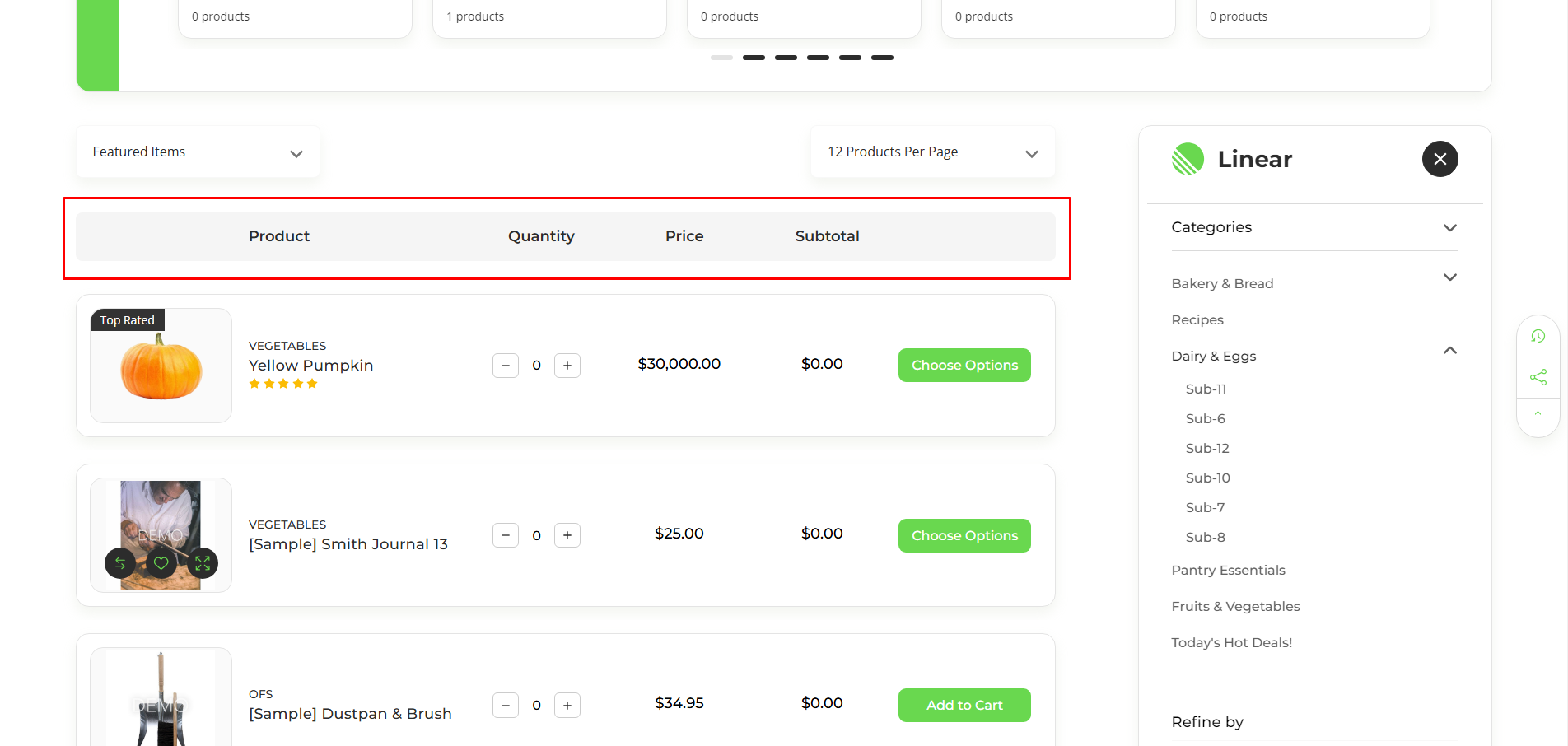
You can add bulk order functionality to any category. Steps are given below:
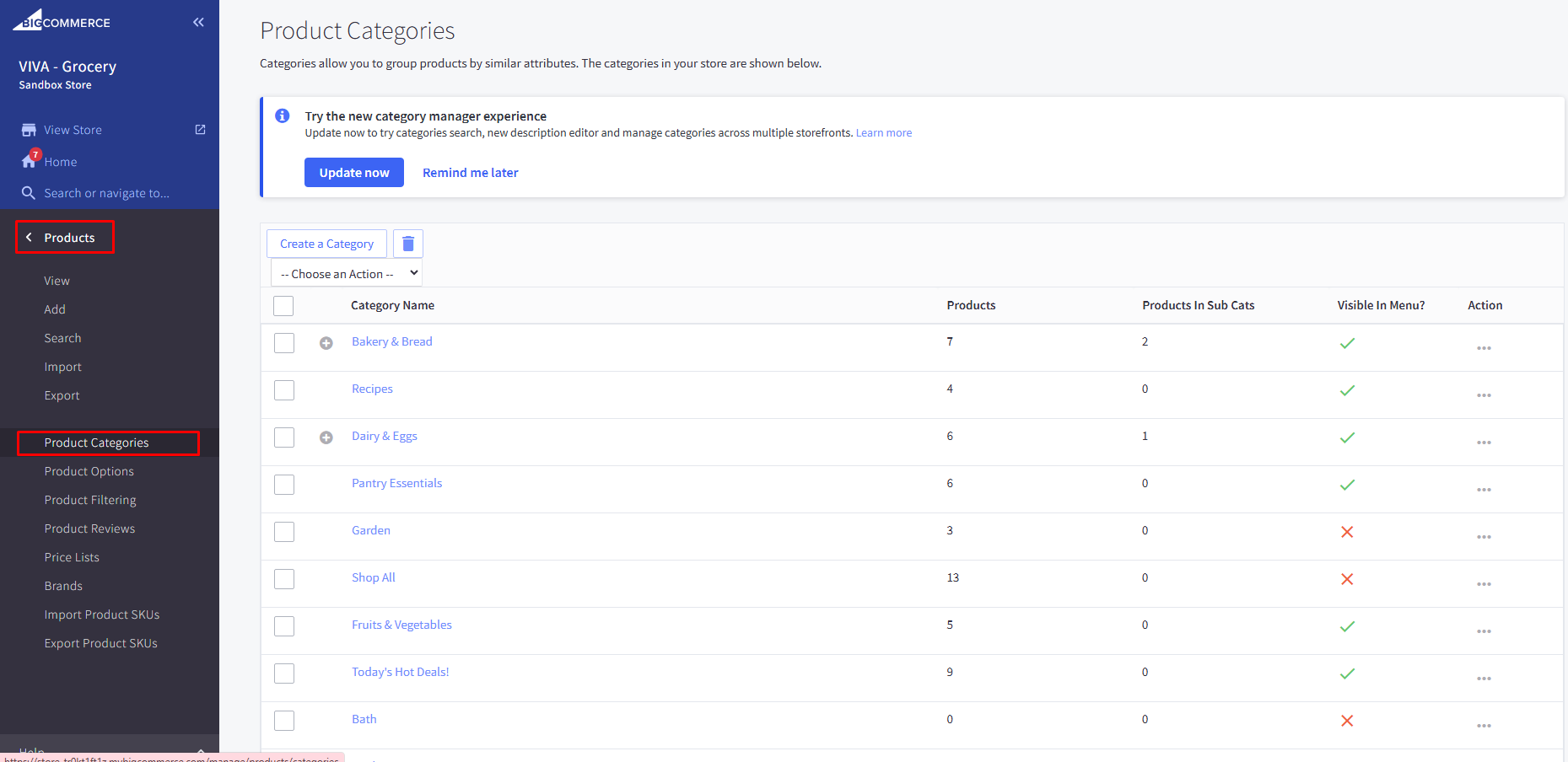
Step 1: Go to Products > Product Categories
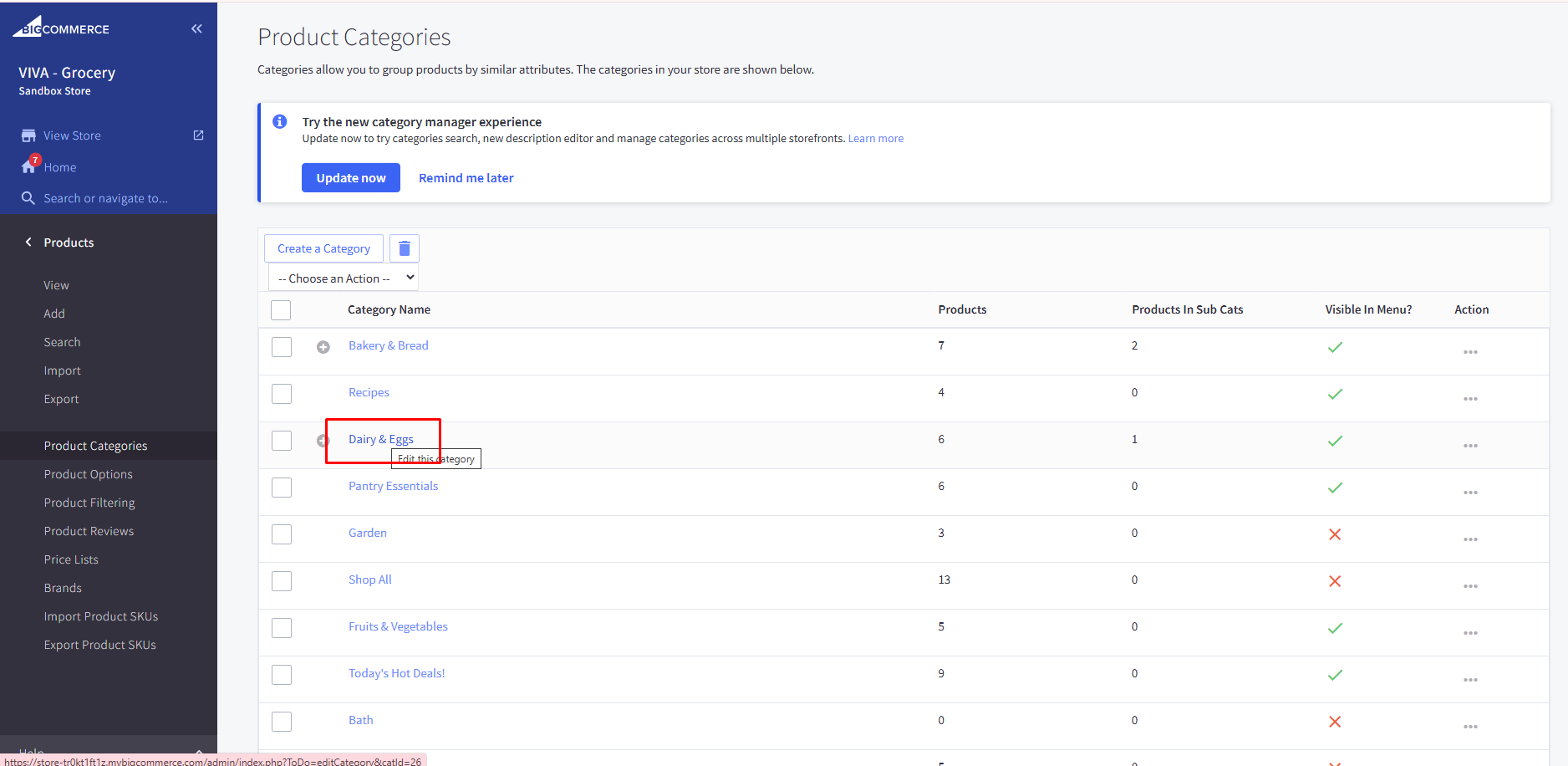
Step 2: Go to desired Category and click on it
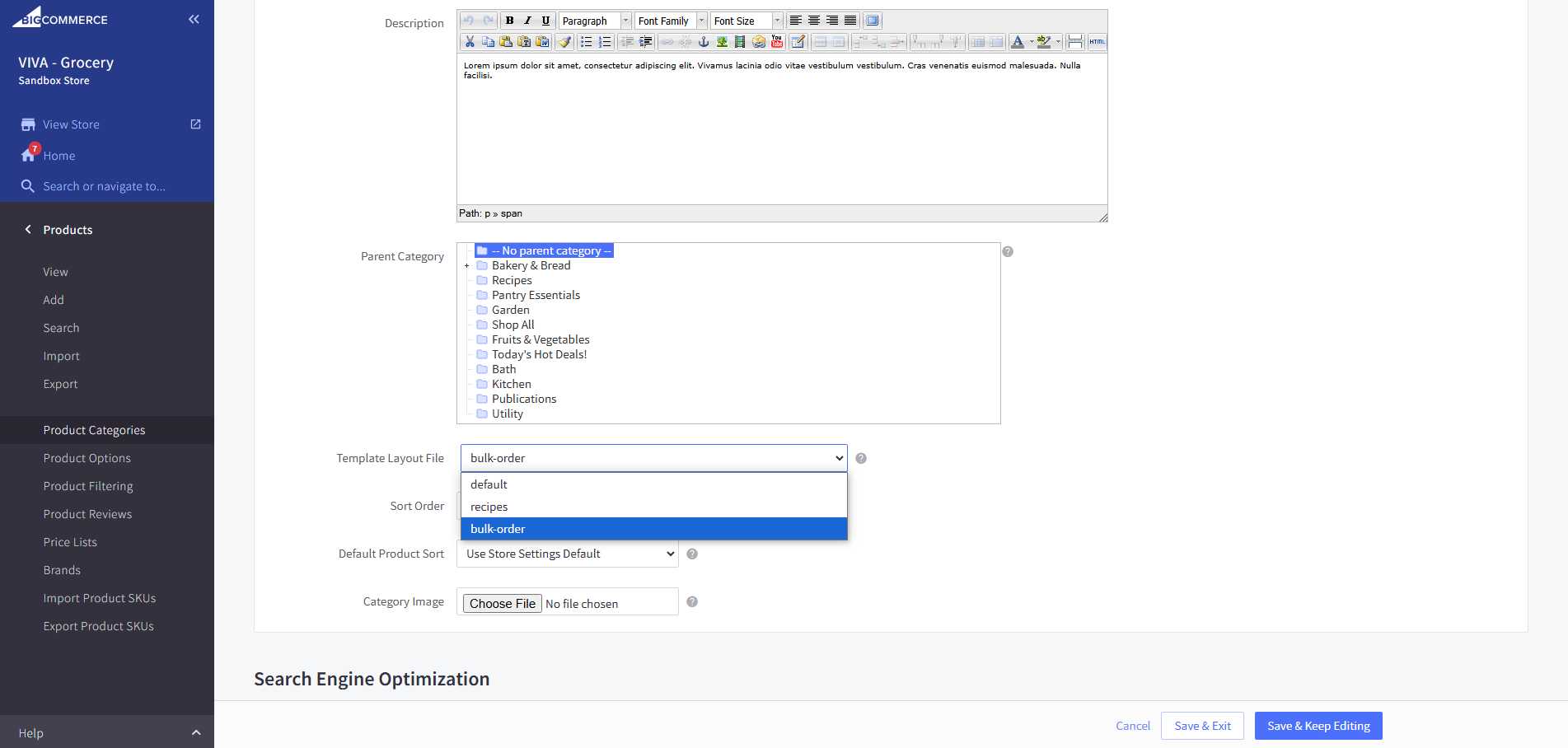
Step 3: Scroll down to Template Layout File dropdown and select bulk-order from the list. Save the changes.
Recently Bought
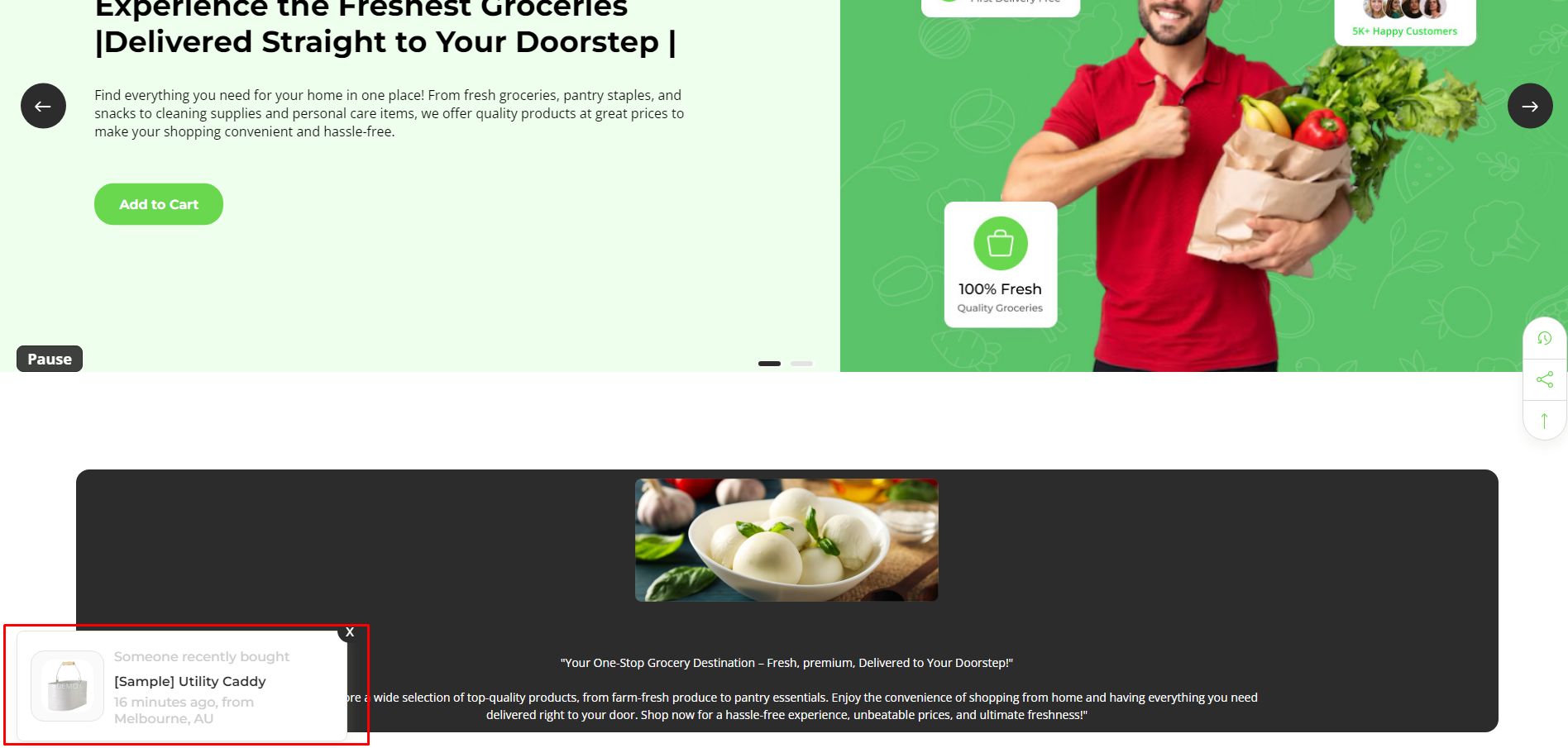
Recently Bought Change Slides : Add seconds to change slide
Recently Bought Hours : Add hours in product purchase count
Recently Bought Hide/Show : If checked , it will show Recently Bougth popup and if unchecked then hide popup
Recently Bought Product ID : Add Product IDs separated by comma(,) to show in products in popup
Recently Bought Text Info : Add info text
Recently Bought Text Name : Add name text
Recently Bought Location 1 : Asdd location text 1 to 8

Discount Popup
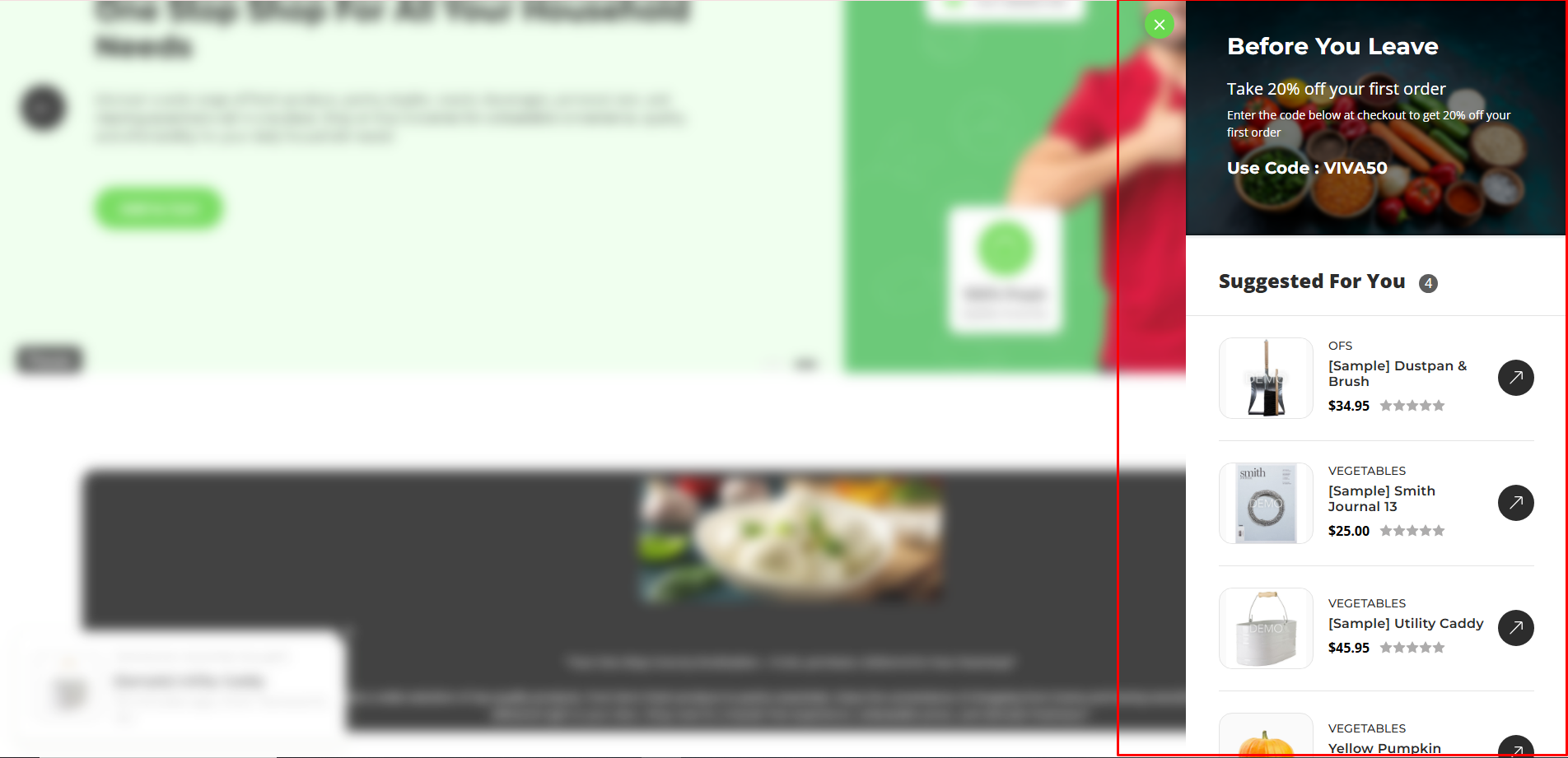
Enable Discount Popup : If Checked , it will show Discount popup
Discount Popup Time : Add time in second for popup show
Discount Popup Image : Add image file
Discount Popup Background : Add background color
Discount Popup Color : Add discount popup text color
Discount popup Link : Add discount popup button link
Discount popup Title : Add discount popup title text
Discount popup Text 1 : Add discount popup description text one
Discount popup Text 2 : Add discount popup description text two
Discount popup Heading : Add discount popup Heading text
Discount popup Button text : Add discount popup Button text

Enable discount popup Suggested : If Checked , it will hide a show products
Discount popup Suggested ID : Add Product IDs separated by comma(,) to show in products in popup. Maximum 4 products can be shown.

Recently Viewed Product
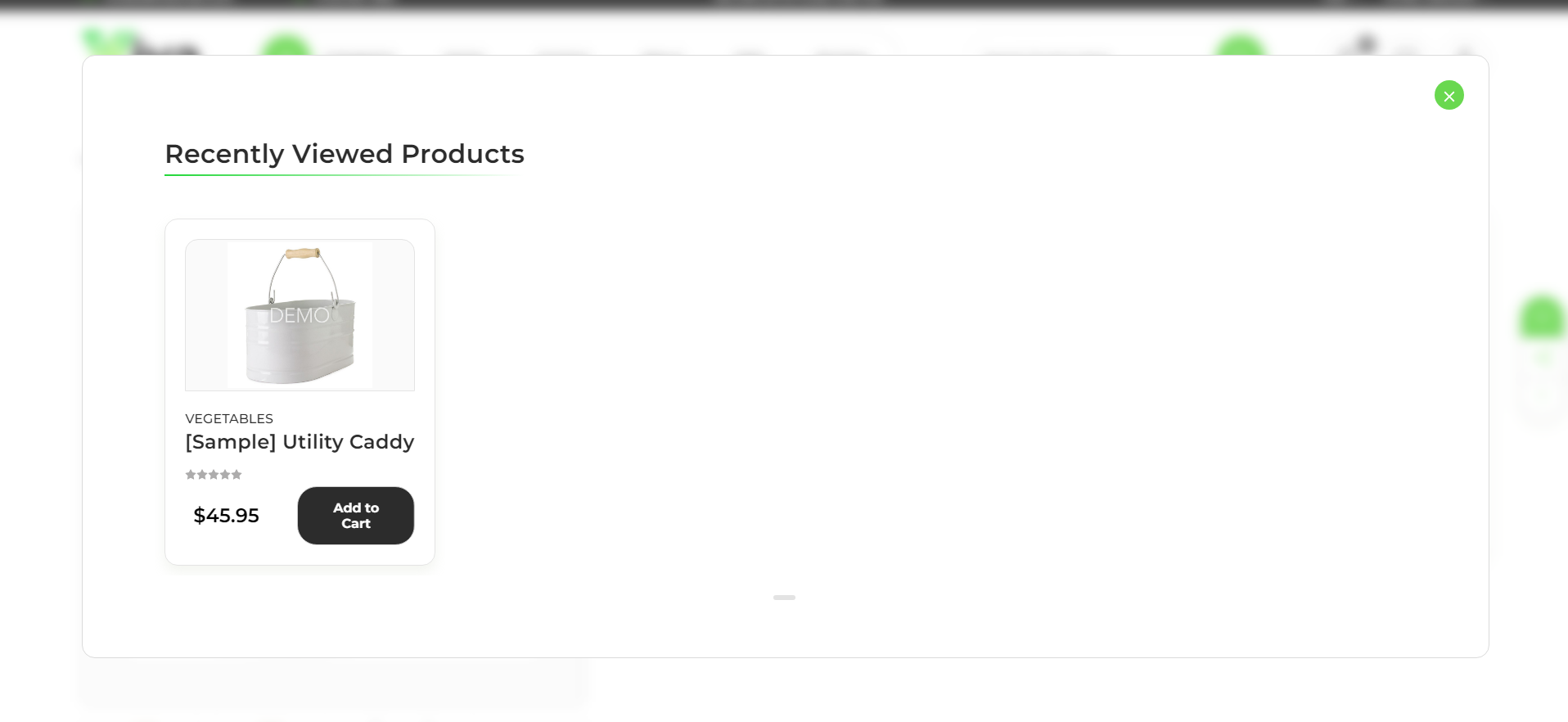
Recently Viewed Products Hide/Show : If Checked , it will hide and show popup
Recently Viewed Products Top : If Checked , it will Product Top
Recently Viewed Products Title : Add recently Viewed Title
Recently Viewed Products Count : Add recently Viewed Product Count
Recently Viewed Products Expires Date : Add recently Viewed Product Exprise Date

Recipes Page
Each Viva theme includes a specialized content hub tailored to its target audience — recipes for grocery shoppers, maintenance guides for auto buyers, and gift ideas for those shopping special occasions. These pages not only enhance user experience but also serve as strategic content marketing tools that boost product discovery, SEO, and conversions
- Content-driven, CMS-style layouts
- Visual cards or blocks with featured images and summaries
- Links to relevant products or categories
- SEO-friendly structures with headings, keywords, and internal linking
- Enhance user experience by educating, inspiring, or guiding purchase behavior
- Great for content marketing and organic traffic growth
- Boost engagement and lower bounce rates with informative content
These pages are built using custom page templates integrated within the theme’s structure, leveraging BigCommerce’s Page Builder and custom Handlebars layouts. Each page is uniquely tailored to match the store’s industry while maintaining dynamic linking with products and categories
Recipes Listing Page
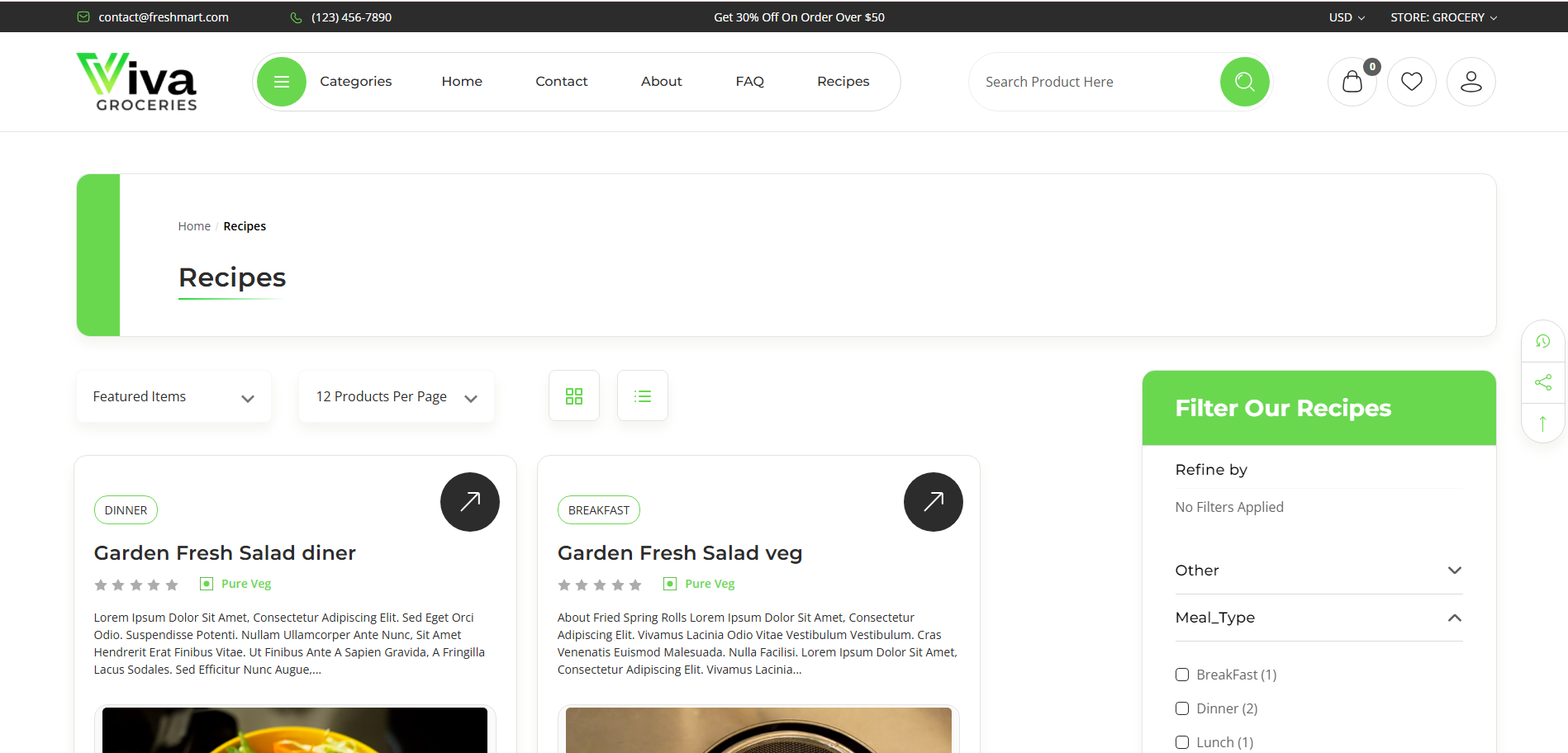
Steps to add Recipes Listing Page:
Step 1: Create a new Category named Recipes
Step 2: Select recipes in Template Layout File dropdown list.
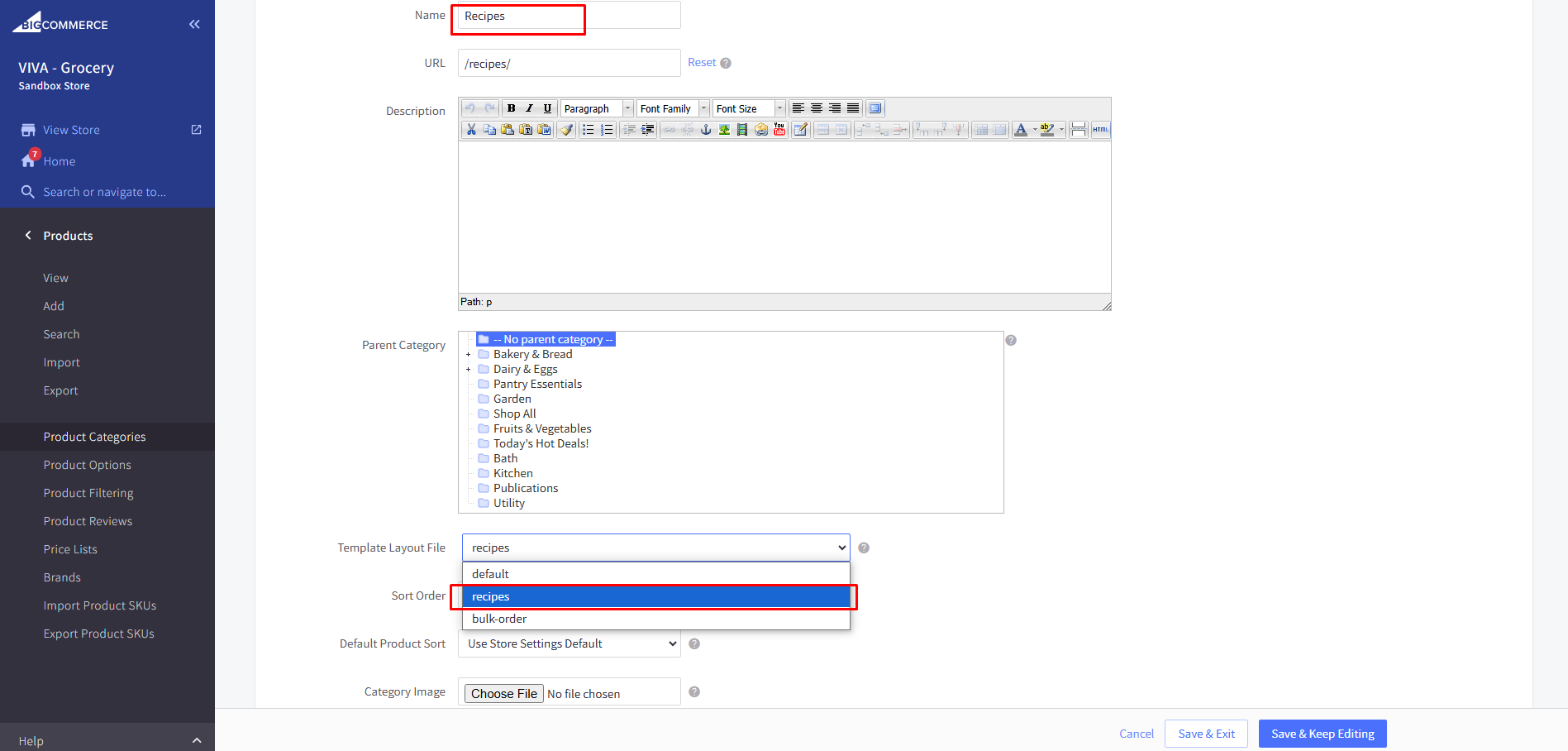
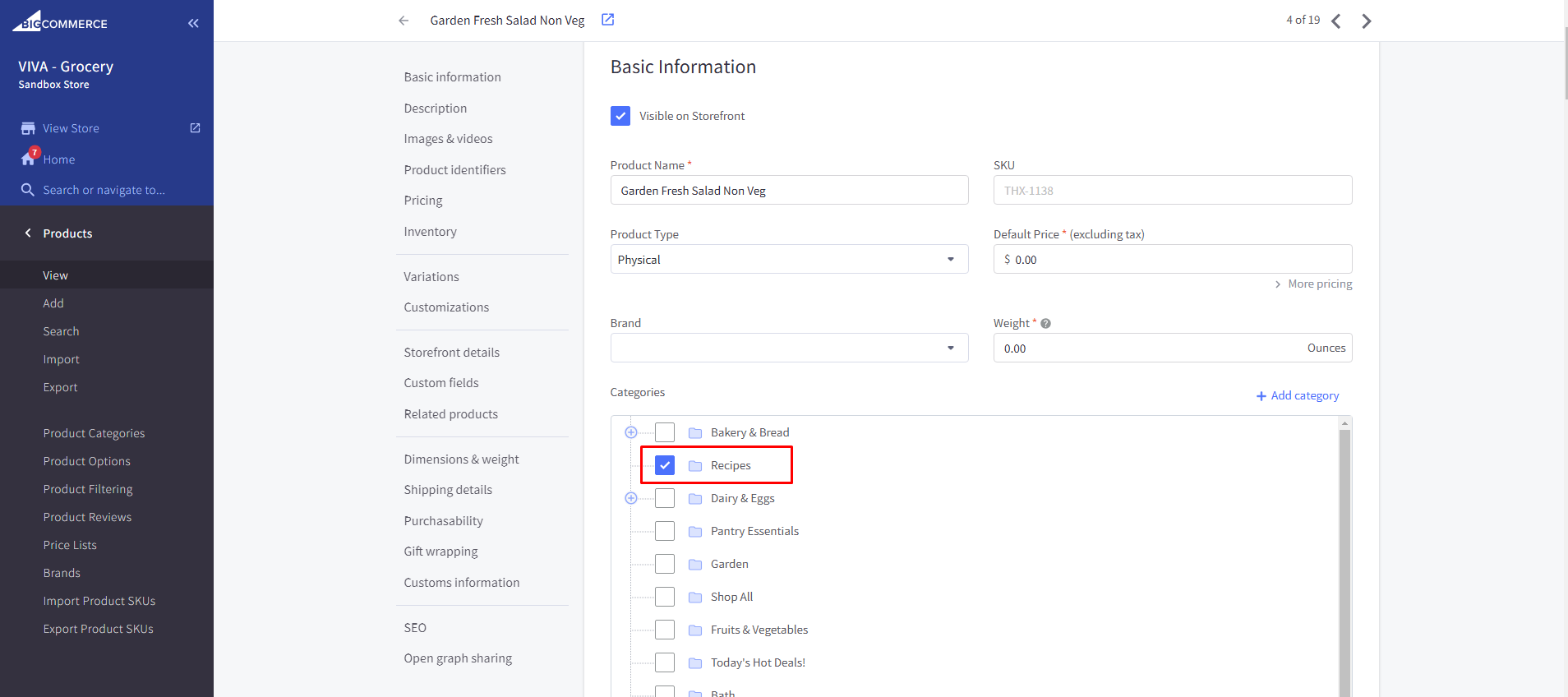
Steps to add Recipes to a Recipes Listing Page:
Step 1: Add Recipes Category to the Products
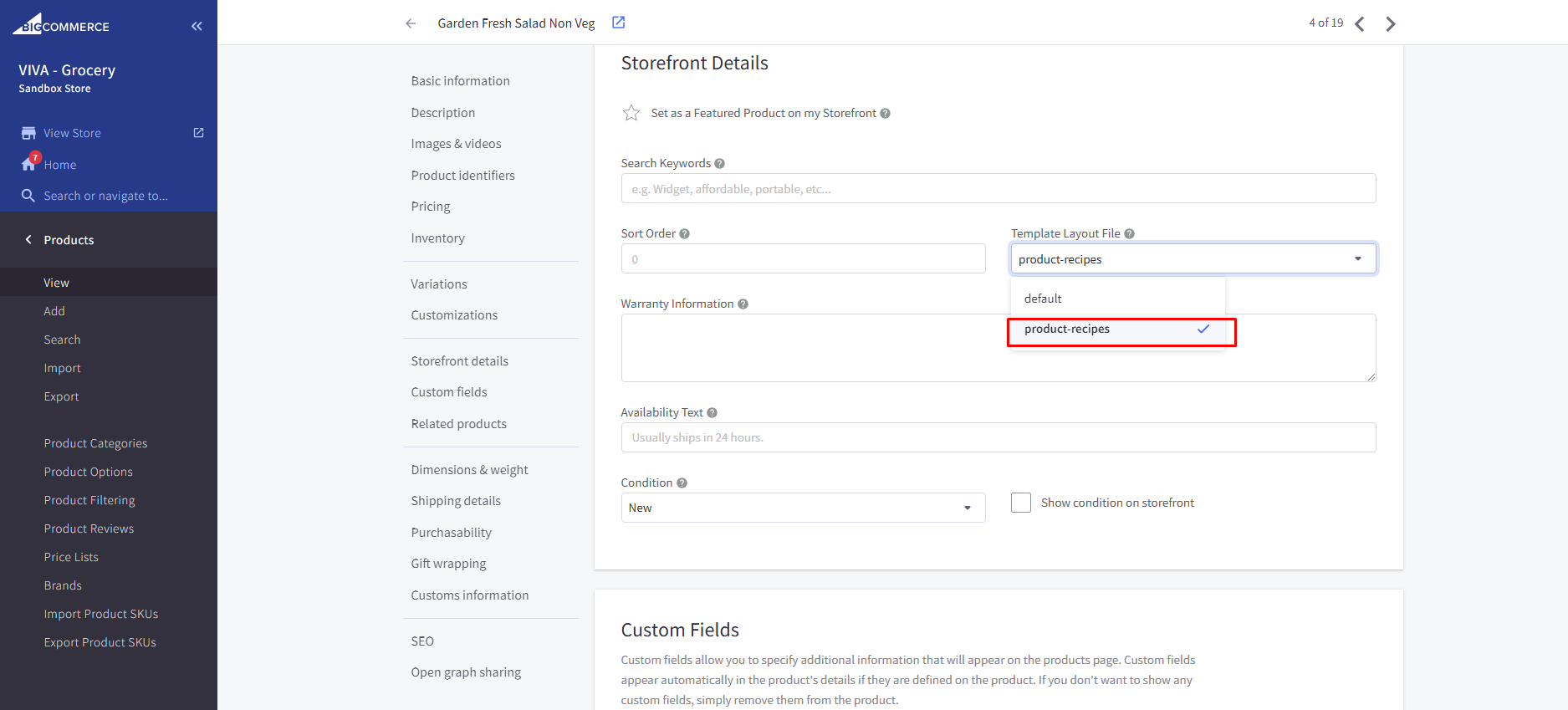
Step 2: Select recipes in Template Layout File dropdown list.
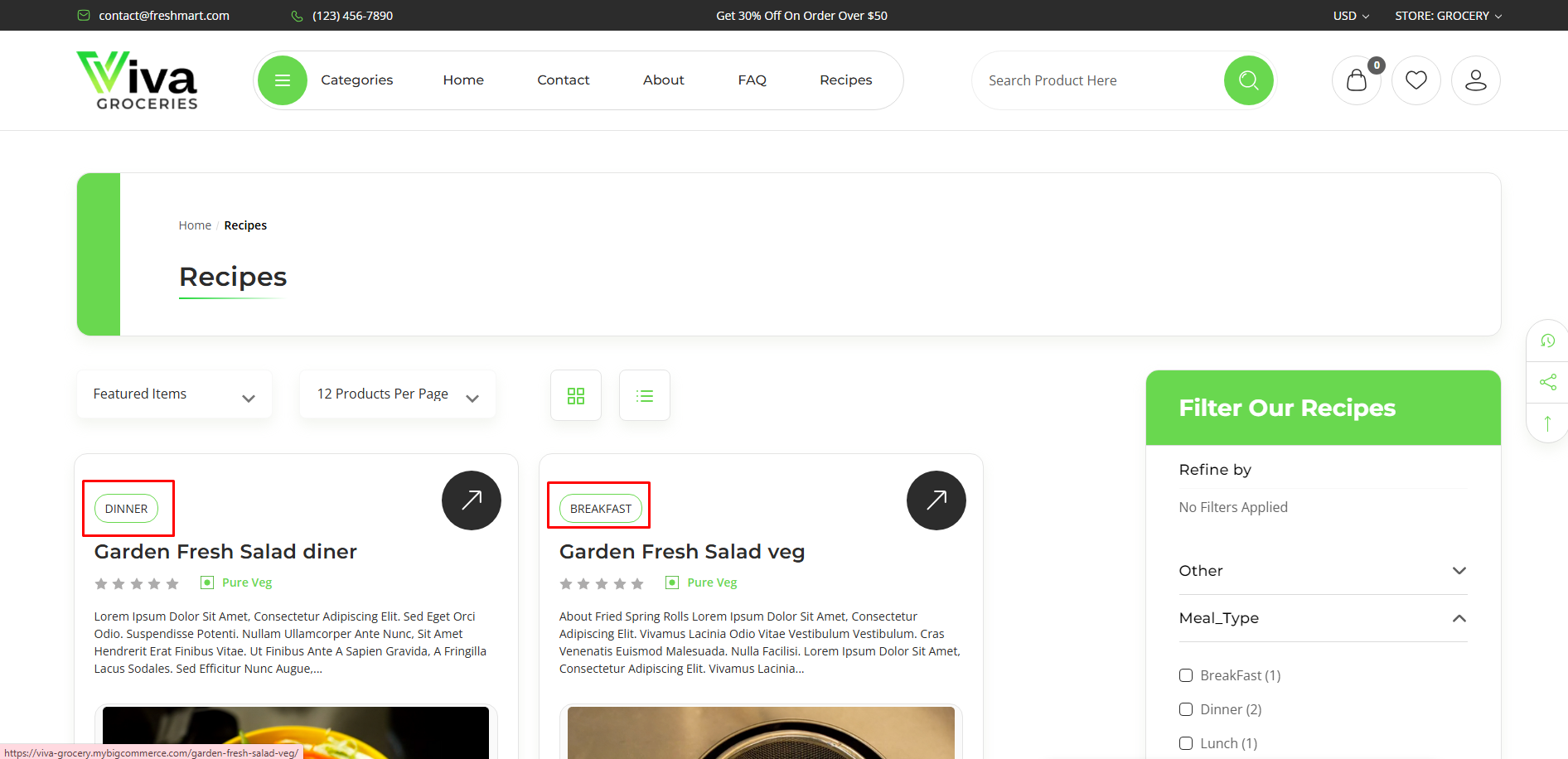
Recipes Product Page
To add Recipe Product Details, Use the following Custom Fields:
- Food_type_veg : Specifies the type of food
- Food_type_nonveg : Specifies the type of food
- Time : Duration of the recipe ready to cook in minutes
- Easy : level of difficulty to prepare the recipe
- Serves : Recipe serves how many people
- Meal_Type : Type of meal like Breakfast, Lunch, Dinner, Snack, etc.
- __bundleid : Product IDs of the ingredients used in the recipe separated by comma(,)
Note: The custom field name should not be changed, only the value should be updated.


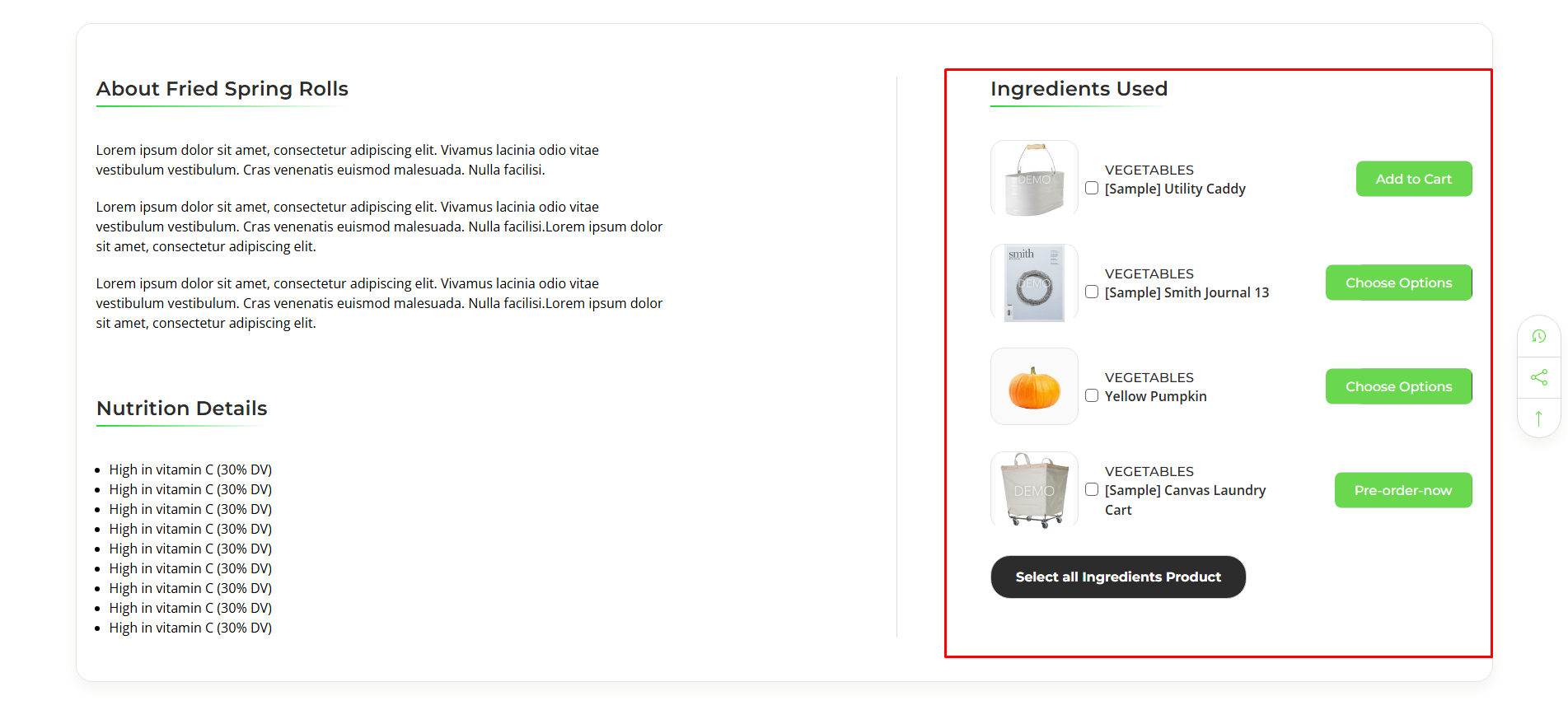
Custom Section for a specific Recipe Product
This sections are used for a specific product. and its Steps and code are given below:
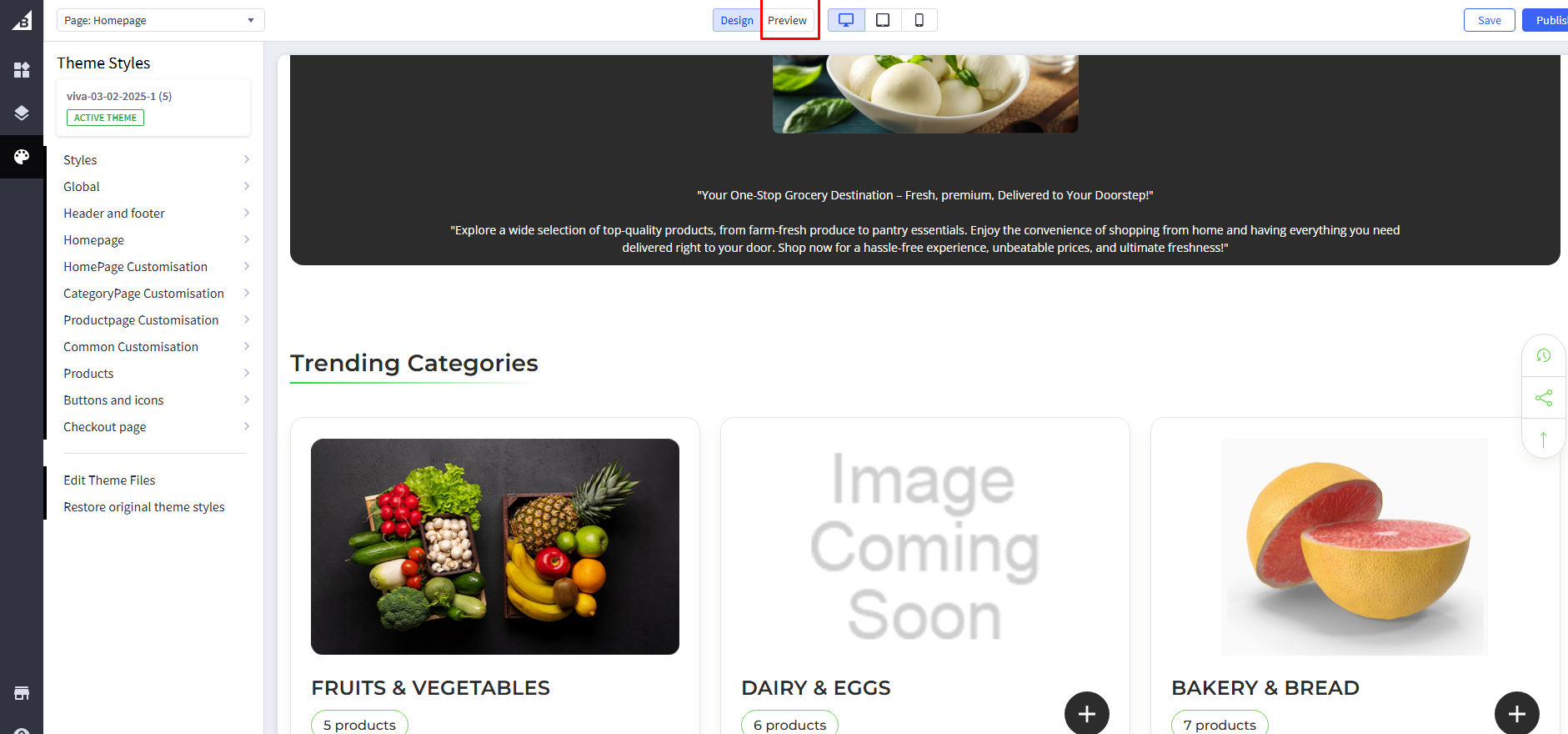
Step 1: Go to Storefront > Theme > Customize > Preview
Step 2: Go to Product Page and move to Design mode
Step 3: Scroll down at end of description tabs. drag and drop HTML widget on page builder.
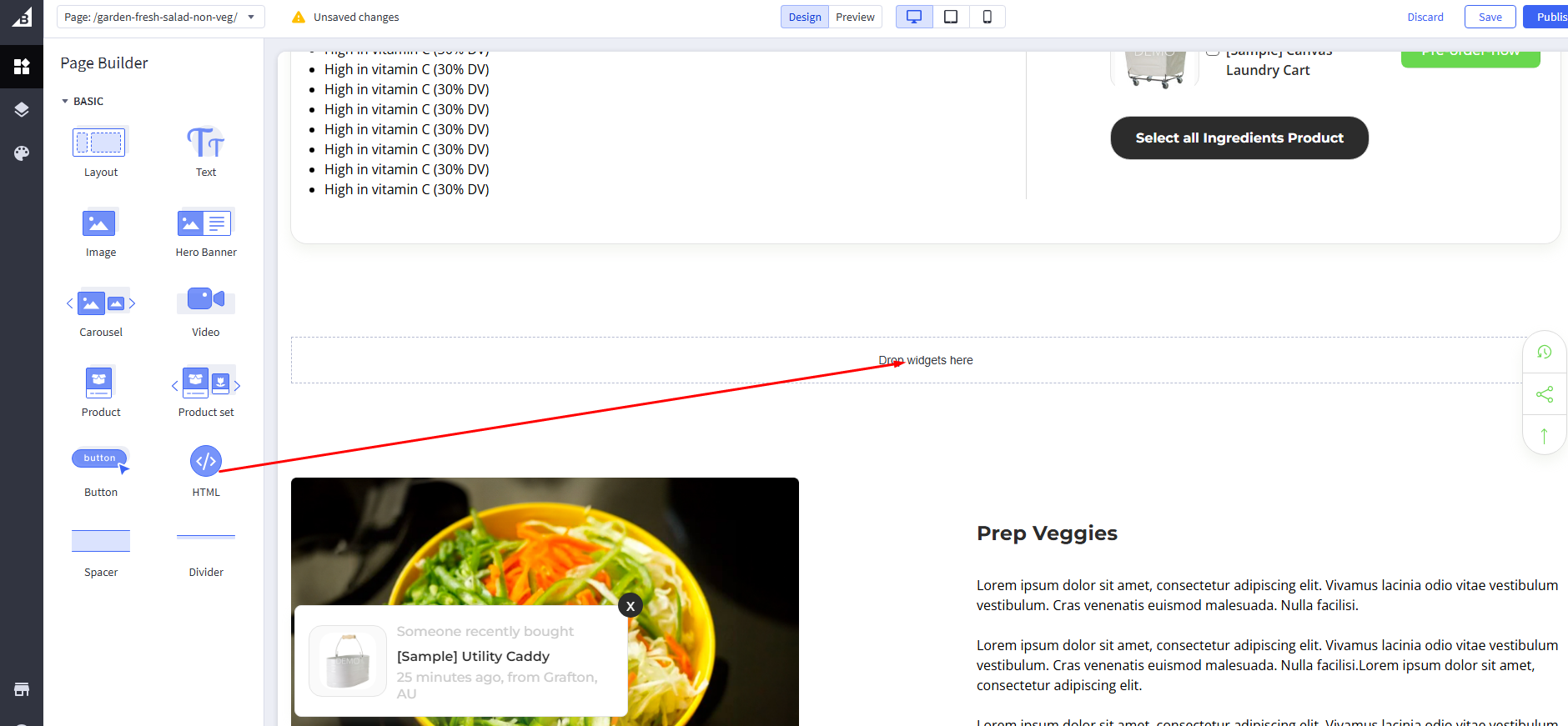
Step 4: Add your HTML code as per below code with your own content.
Step 4: Droping widget on page builder will show HTML code editor on left side panel. Add HTML code as per below code with your own content. And Click on save HTML button and publish your theme.
Step 5: Add image URL in HTML code as per below code.
Step 6: Save HTML and publish your theme.
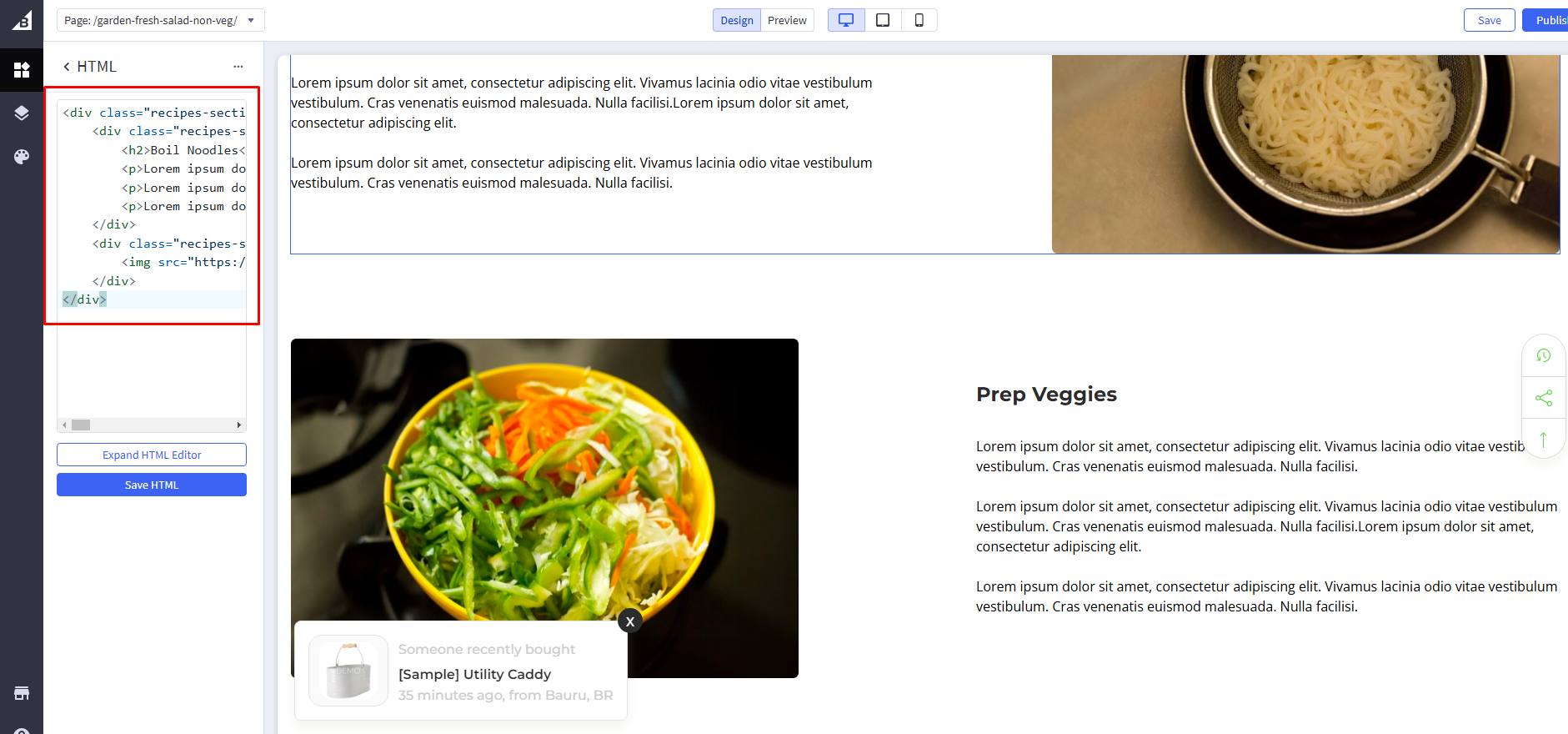
HTML Demo Code Design One (Image on Right Side):
See the Pen VIVA - Recipe Product Page Custom Section Code Generator by bigcommerce_ditindia (@bigcommerce_ditindia) on CodePen.
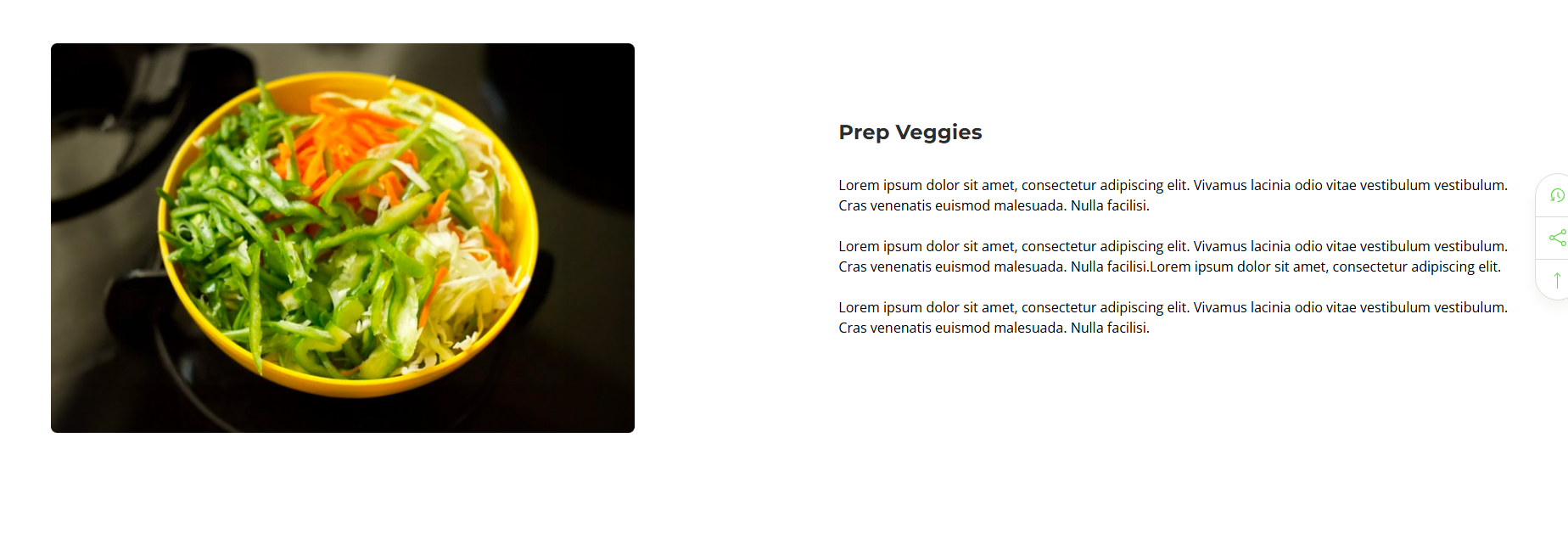
HTML Demo Code Design Two (Image on Left Side):
See the Pen VIVA - Recipe Product Page Custom Section Code Generator by bigcommerce_ditindia (@bigcommerce_ditindia) on CodePen.
Please Note:
- Do not change HTML code structure only for update content and image
- The custom category used inside the header is specifically for the recipes page, so whatever category name you choose, you will need to add it to the custom category in the header.
Recommended Image Dimension
Carousel Image
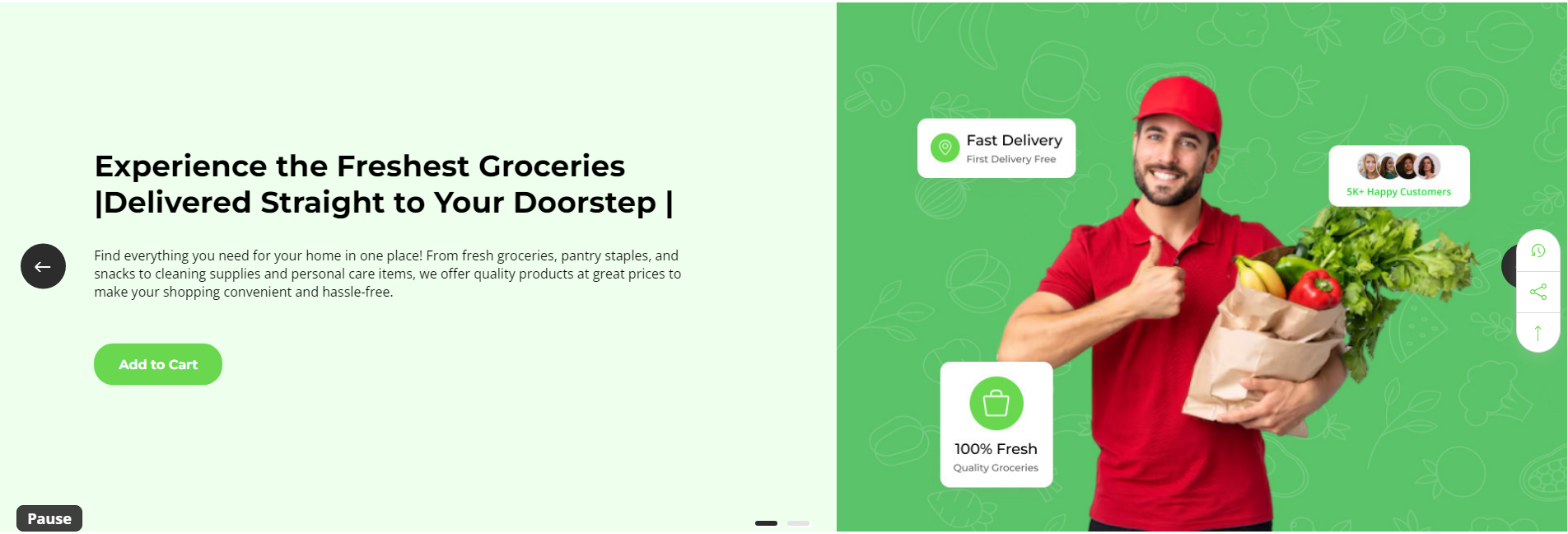
Hero Carousel Image Desktop:
1920px X 644px
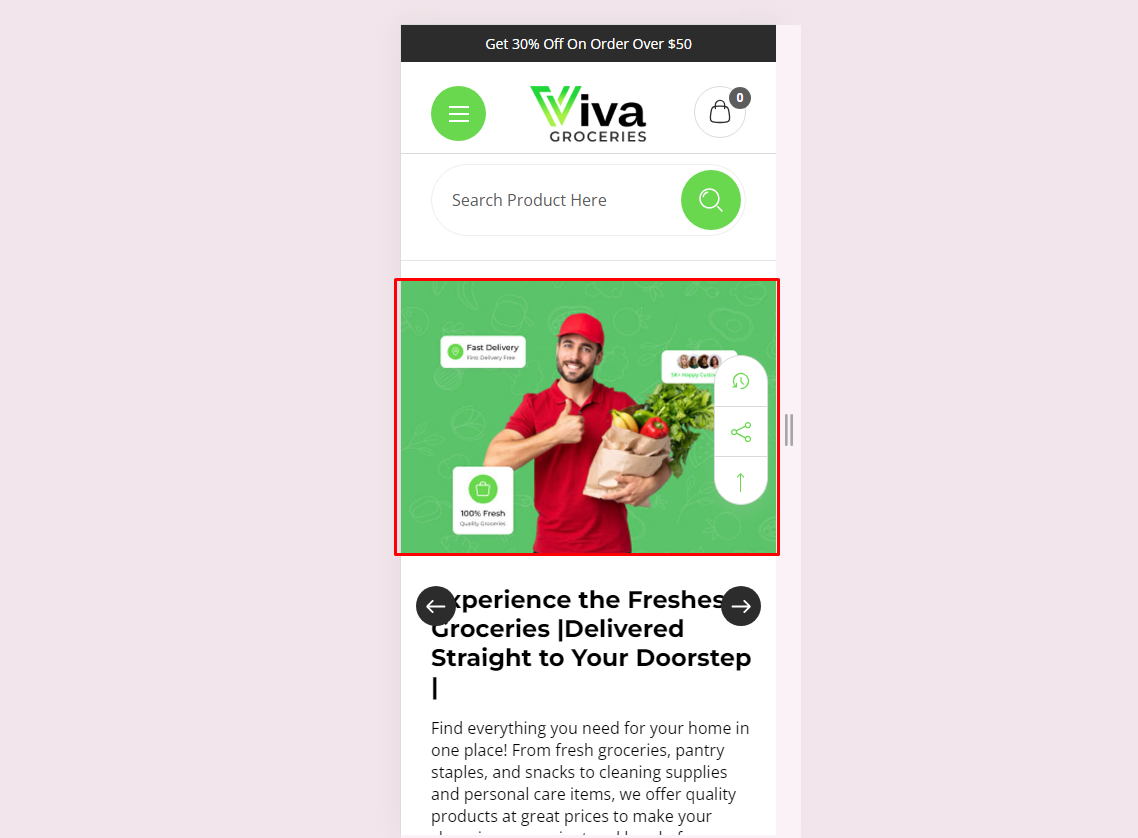
Hero Carousel Image Mobile:
640px X 449px
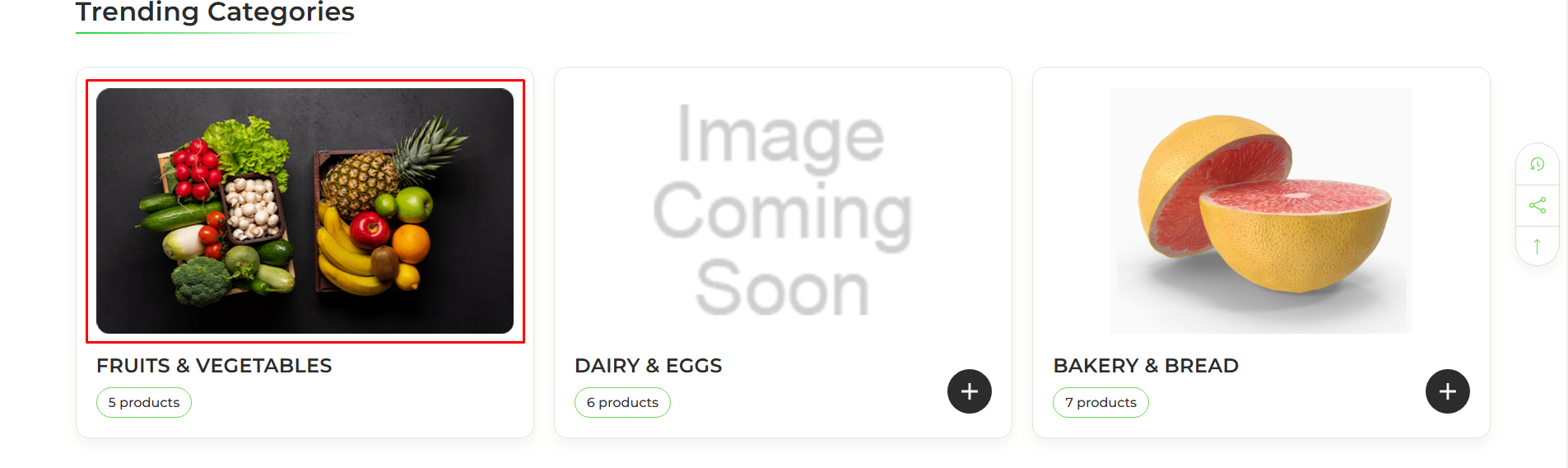
Trending categories Image
640px X 376px
Today’s deal section Image
736px X 407px
Product tab Image
297px X 645px
Testimonial Image
First Image : 620px X 599px
Second Image : 75px X 75px
About Image
702px X 625px
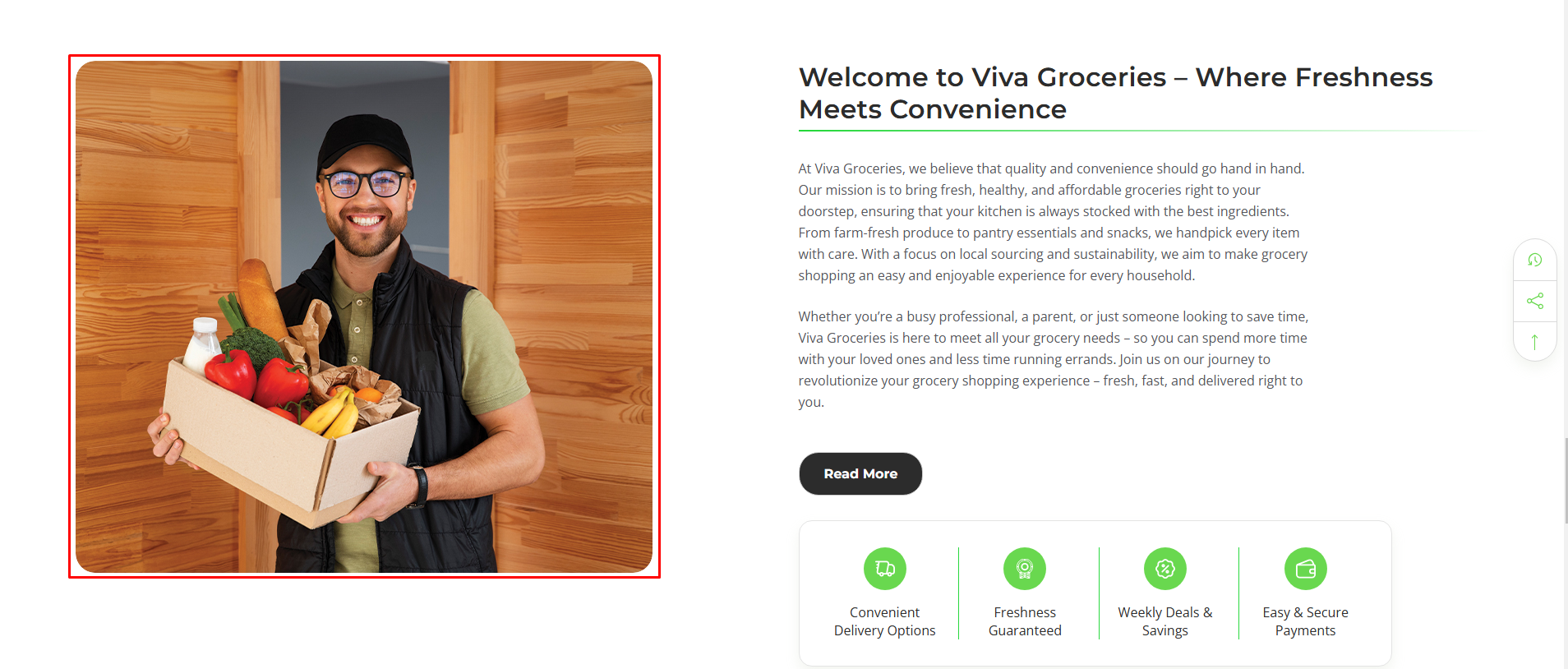
Image Upload
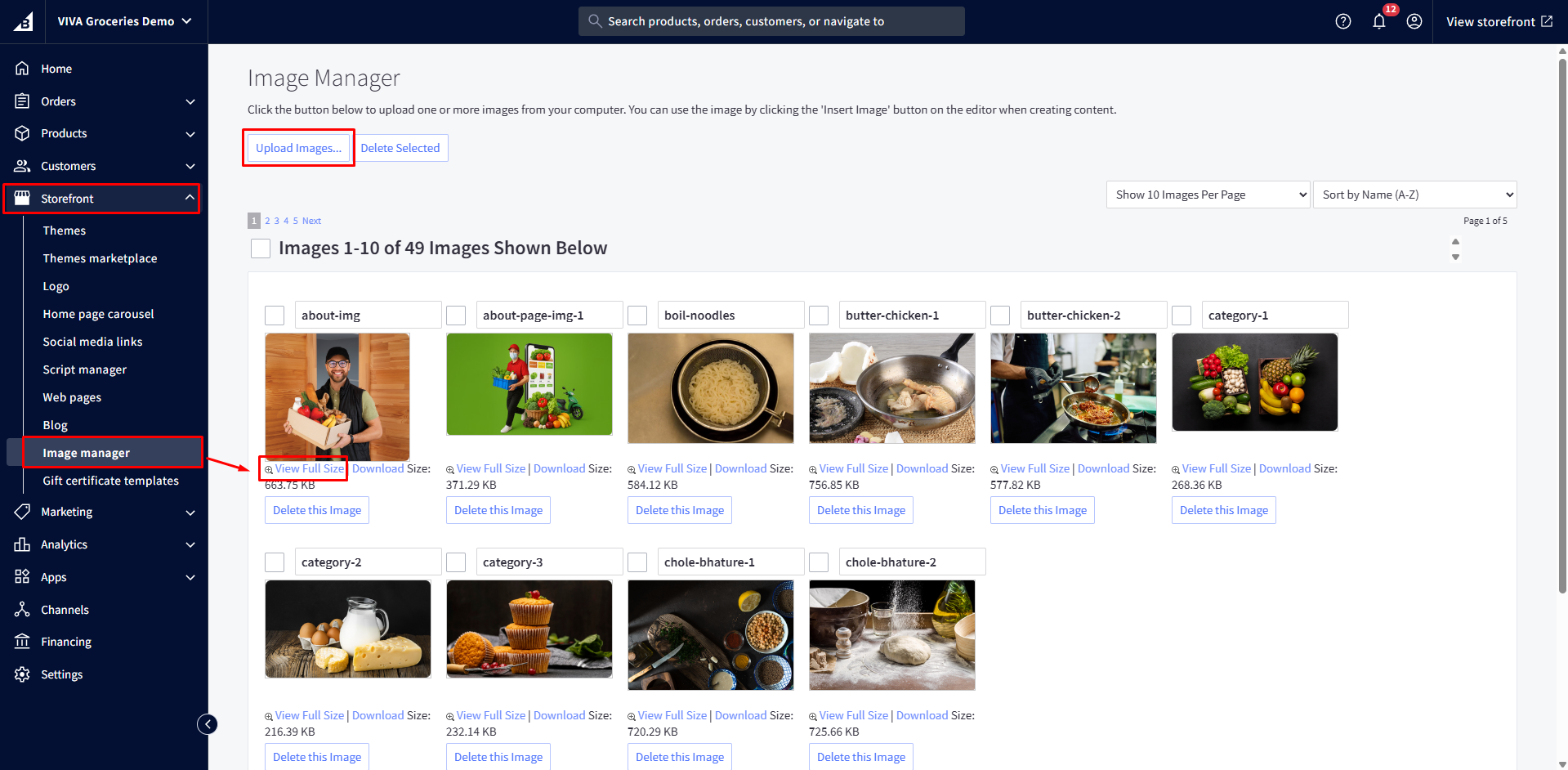
First, navigate to Storefront > Image Manager and upload your images here.
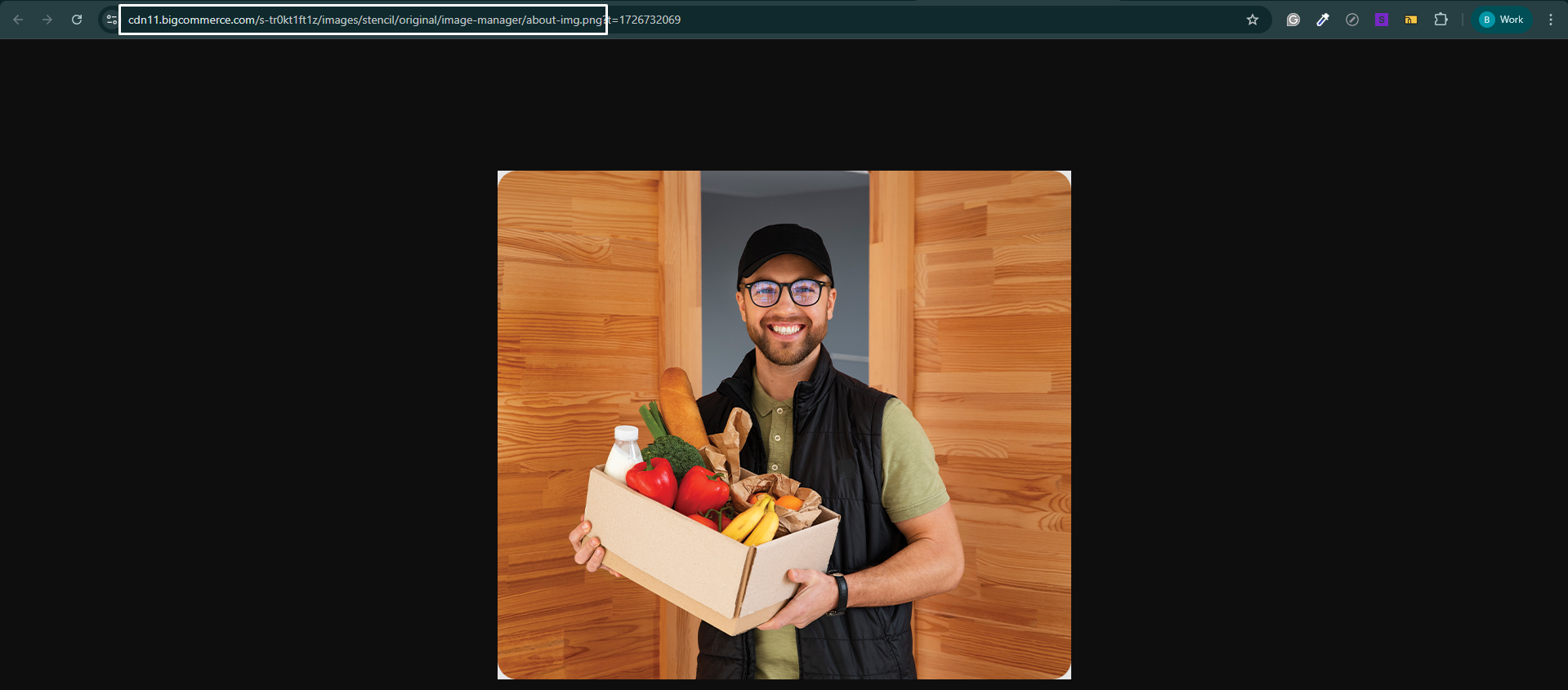
Once uploaded, click on "View Full Size" to open the image in a new tab and copy the image URL.
Use this file path to show the image.
Note: Copy the image path up to its file type or extension (JPEG/JPG, PNG and GIF). omit the part of the URL after the file type or extension.

Product ID
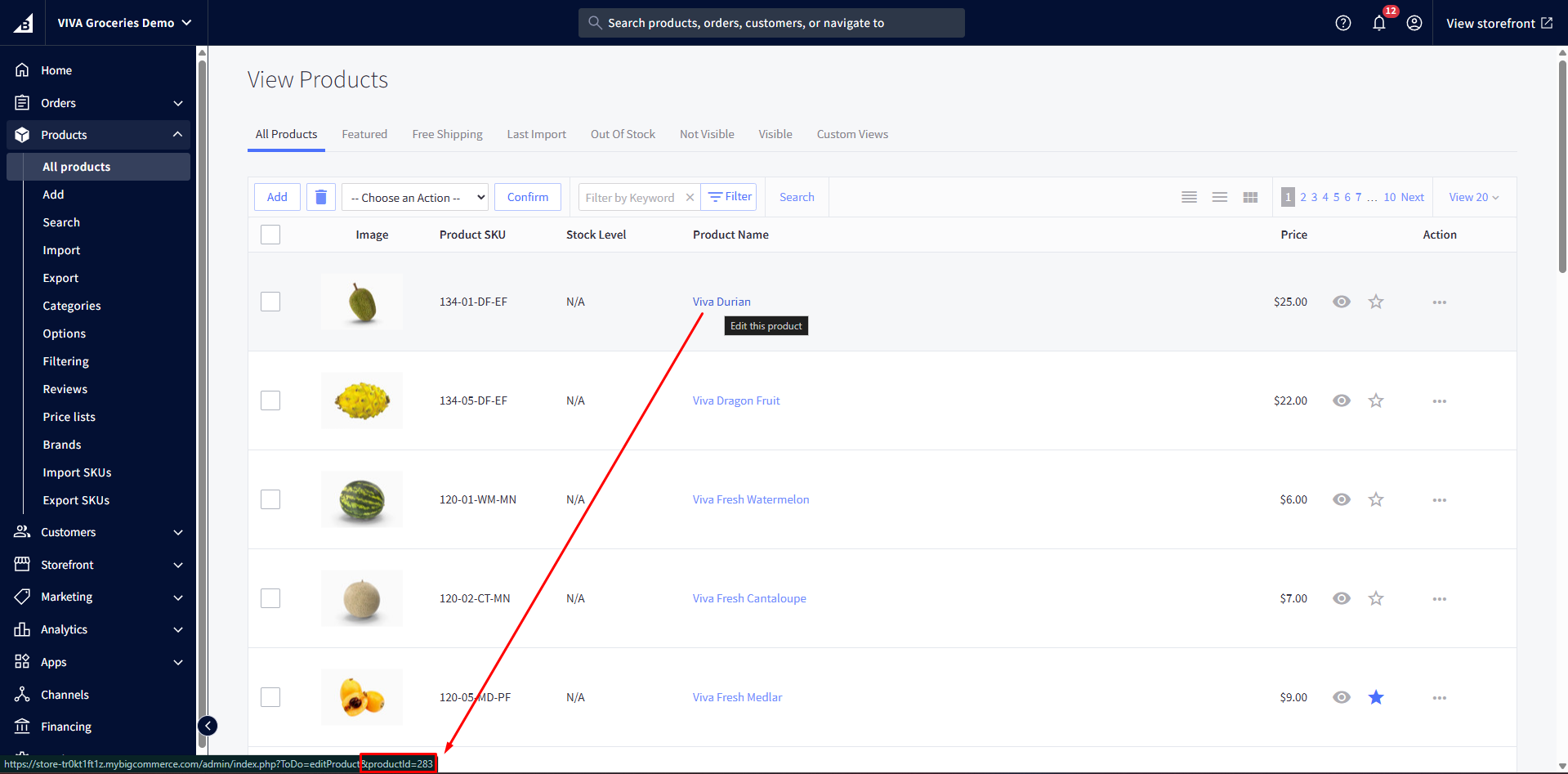
To get the Product ID, go to Storefront > Products > All products
Navigate the cursor to the Product name will display the path on the bottom-left side of the webpage. At the end of the path, the Product ID is mentioned.
Category ID
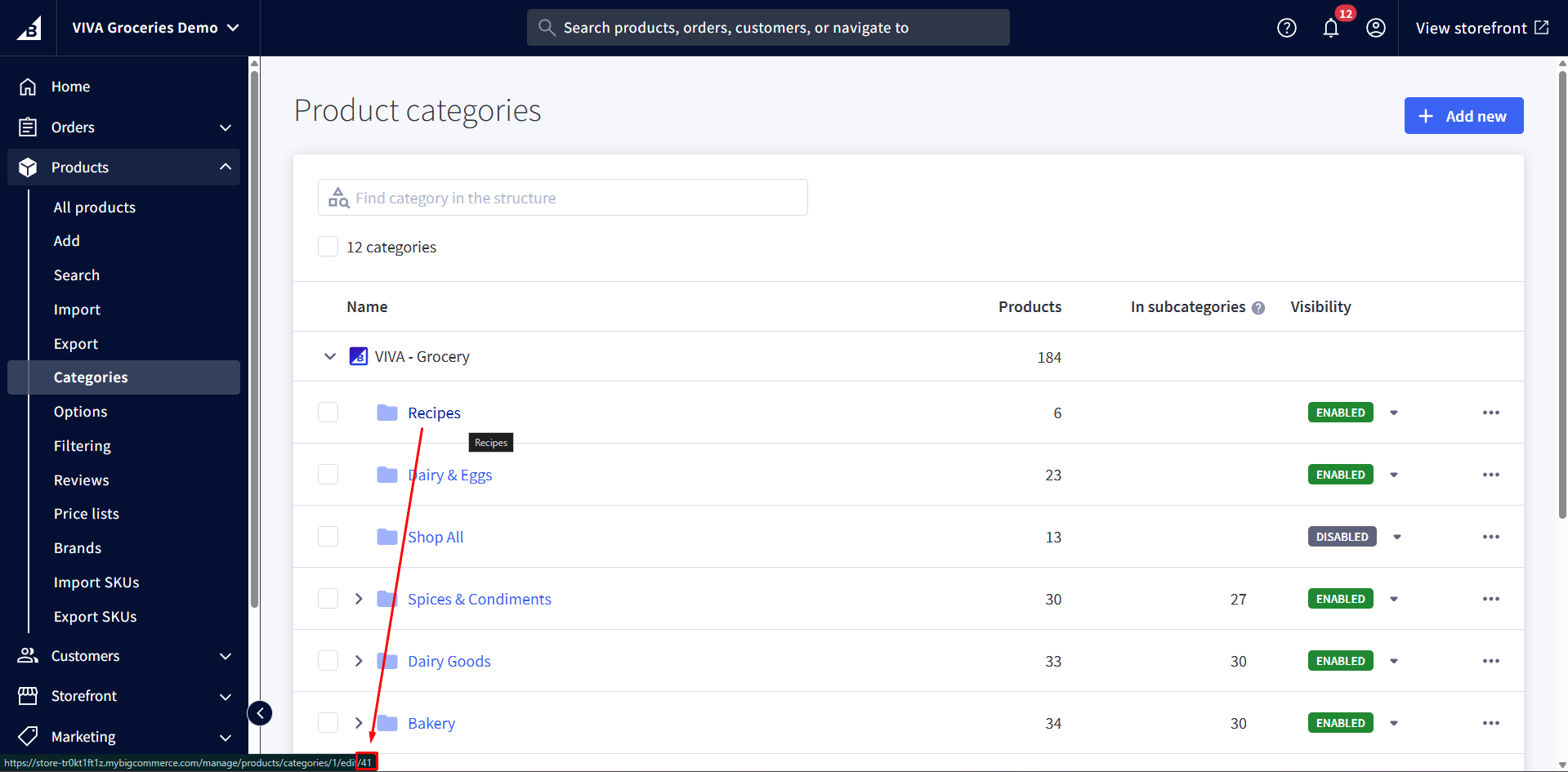
To get the CategoryID, go to Storefront > Products > Categories
Navigate the cursor to the Category name will display the path on the bottom-left side of the webpage. At the end of the path, the Category ID is mentioned.
Release Notes & Changelog (Viva Theme)
Version 1.0.1
- Initial Stable Release: Deployed the first stable version of the theme across all variations.
- Navigation Enhancement: Improved category navigation for better usability.
- Feature Highlights: Emphasized key theme features to enhance visibility.
- Homepage Optimization: Resolved image blur issues for clearer visuals.
- Product Detail Page (PDP):
- Fixed visibility issue with variant selection.
- Resolved zoom functionality issue specifically affecting Mac users.
- Cart Page Accessibility: Enhanced accessibility of quantity adjustment buttons (+ / –).
- Content Revisions: Updated various text and content sections across the site.
- Hero Carousel: Integrated a new banner section on the homepage.
- Meta Image Updates: Replaced meta images for improved social sharing and SEO previews.
- About Us Page: Rebranded the page to deliver a more engaging and user-friendly experience.
Version 1.0.2
- Initial Stable Release: Released the initial stable version of the theme across all variants.
- Updated pricing as part of the New Year discount.
- Revised the meta image.
- Resolved issues identified by customers and the internal QA team.
Version 2.0.1
- Initial Stable Release: Released the initial stable version of the theme across all variants.
- Client Feedback & Fixes: Resolved issues identified by customers and the internal QA team.
- Versions 1.0.3, 1.0.4, and 2.0.0 include only the price changes and meta image updates.
If you found any issue in our theme, please submit it to us. We will try our best to resolve it.